> This is part 1 of 8 of the full documentation (pages 1–100 of 706).
> The content is paginated: fetch every part to see all of it.
> Next part: https://docs.ceruleansonar.com/c/llms-full.txt/1
> Page index: https://docs.ceruleansonar.com/c/llms.txt

# Directory

All Cerulean Sonar documentation is available here

## Imaging

<table data-view="cards"><thead><tr><th></th><th data-hidden data-card-cover data-type="image">Cover image</th></tr></thead><tbody><tr><td><a href="https://docs.ceruleansonar.com/c/omniscan-450/">Omniscan 450</a></td><td><a href="https://4203934814-files.gitbook.io/~/files/v0/b/gitbook-x-prod.appspot.com/o/spaces%2FseXxk8Qqg7uWKUqx3lI0%2Fuploads%2FQOsWR46bQbzQhrkYv1Xx%2FOS%20family.png?alt=media&amp;token=dee24b55-4b10-436b-abbb-eaef0c722cff">OS family.png</a></td></tr><tr><td><a href="https://docs.ceruleansonar.com/c/omniscan3d">Omniscan 3D</a></td><td><a href="https://4203934814-files.gitbook.io/~/files/v0/b/gitbook-x-prod.appspot.com/o/spaces%2FseXxk8Qqg7uWKUqx3lI0%2Fuploads%2FeQbHwJBSeJF2bZ6LJHkg%2FOS3D%20AIO.png?alt=media&amp;token=e24ac011-ff1d-431e-b0dc-dec98f0dc7a9">OS3D AIO.png</a></td></tr></tbody></table>

## Bathymetry

<table data-view="cards"><thead><tr><th></th><th data-hidden data-card-cover data-type="image">Cover image</th></tr></thead><tbody><tr><td><a href="https://docs.ceruleansonar.com/c/surveyor-240-16/">Surveyor 240-16</a></td><td><a href="https://4203934814-files.gitbook.io/~/files/v0/b/gitbook-x-prod.appspot.com/o/spaces%2FseXxk8Qqg7uWKUqx3lI0%2Fuploads%2F9oFsryzPmpJAjSzqYDYQ%2Fcerulean-sonar-surveyor-240-16-mbes-16x9-1-1200x675.jpg?alt=media&amp;token=a37a6737-cb15-4df0-860e-0f2e6773e6e2">cerulean-sonar-surveyor-240-16-mbes-16x9-1-1200x675.jpg</a></td></tr><tr><td><a href="https://docs.ceruleansonar.com/c/s-500-sounder/">Sounder S500</a></td><td><a href="https://4203934814-files.gitbook.io/~/files/v0/b/gitbook-x-prod.appspot.com/o/spaces%2FseXxk8Qqg7uWKUqx3lI0%2Fuploads%2F5WINc4i9YB0HGGIJig9P%2Fsounder.png?alt=media&amp;token=d3ffa220-a12a-4f73-b297-4ef4893262ea">sounder.png</a></td></tr></tbody></table>

## Subsea Positioning

<table data-view="cards"><thead><tr><th></th><th data-hidden data-card-cover data-type="image">Cover image</th></tr></thead><tbody><tr><td><a href="https://docs.ceruleansonar.com/c/tracker-650/">Tracker 650</a></td><td><a href="https://4203934814-files.gitbook.io/~/files/v0/b/gitbook-x-prod.appspot.com/o/spaces%2FseXxk8Qqg7uWKUqx3lI0%2Fuploads%2F4QIzvEGmAHGwxlJJfqx5%2Fcerulean-sonar-tracker-650-1200x675.jpg?alt=media&amp;token=0d37e2da-eae3-4580-9936-3992a6cad381">cerulean-sonar-tracker-650-1200x675.jpg</a></td></tr><tr><td><a href="https://docs.ceruleansonar.com/c/ethernet-rov-locator/">Ethernet ROV Locator</a></td><td><a href="https://4203934814-files.gitbook.io/~/files/v0/b/gitbook-x-prod.appspot.com/o/spaces%2FseXxk8Qqg7uWKUqx3lI0%2Fuploads%2Ft9DaqB46M1HYWfraXco5%2FrovlMKV-shifted-1200x872.jpg?alt=media&amp;token=d7da28ac-2646-4945-8429-0778d1fb7b6d">rovlMKV-shifted-1200x872.jpg</a></td></tr><tr><td><a href="https://docs.ceruleansonar.com/c/omnitrack-user-guide/">Omnitrack</a></td><td><a href="https://4203934814-files.gitbook.io/~/files/v0/b/gitbook-x-prod.appspot.com/o/spaces%2FseXxk8Qqg7uWKUqx3lI0%2Fuploads%2F5HM76Zo01UqqJWOOAmD5%2Fcerulean-sonar-omnitrack-usbl-1200x675.jpg?alt=media&amp;token=074f76f8-3206-4464-bc81-b98c34f6dc48">cerulean-sonar-omnitrack-usbl-1200x675.jpg</a></td></tr><tr><td><a href="https://docs.ceruleansonar.com/c/rov-locator/">ROV Locator (classic)</a></td><td><a href="https://4203934814-files.gitbook.io/~/files/v0/b/gitbook-x-prod.appspot.com/o/spaces%2FseXxk8Qqg7uWKUqx3lI0%2Fuploads%2FOdZnDtwCAEdaRgnYYZj9%2FoldROVL.jpg?alt=media&amp;token=caa10ff4-02bc-4085-b06f-a422aeb48c7d">oldROVL.jpg</a></td></tr></tbody></table>

## Accessories

<table data-view="cards"><thead><tr><th></th><th data-hidden data-card-cover data-type="image">Cover image</th></tr></thead><tbody><tr><td><a href="https://docs.ceruleansonar.com/c/omniswitch-network-hub/">Network Hub</a></td><td><a href="https://4203934814-files.gitbook.io/~/files/v0/b/gitbook-x-prod.appspot.com/o/spaces%2FseXxk8Qqg7uWKUqx3lI0%2Fuploads%2FYMvtX2THJq8kWvez3J6G%2Fnetwork-Hub-copy-1-600x497.png?alt=media&amp;token=65ed9415-1ad4-4f76-b6d3-a2763b37778d">network-Hub-copy-1-600x497.png</a></td></tr><tr><td><a href="https://docs.ceruleansonar.com/c/manifold-5l-and-manifold-5s-ethernet-switch/">Manifold 5L Subsea Ethernet Hub</a></td><td><a href="https://4203934814-files.gitbook.io/~/files/v0/b/gitbook-x-prod.appspot.com/o/spaces%2FseXxk8Qqg7uWKUqx3lI0%2Fuploads%2FeWJWoCkIthgBZ6AVIR5G%2FManifold-5L-copy-600x599.webp?alt=media&amp;token=b0024d63-f0a0-4328-9c94-fac7d6995af0">Manifold-5L-copy-600x599.webp</a></td></tr></tbody></table>

## Software

<table data-view="cards"><thead><tr><th></th><th data-type="content-ref"></th><th data-hidden data-card-cover data-type="image">Cover image</th></tr></thead><tbody><tr><td><a href="https://docs.ceruleansonar.com/c/sonarview/">SonarView</a></td><td></td><td><a href="https://4203934814-files.gitbook.io/~/files/v0/b/gitbook-x-prod.appspot.com/o/spaces%2FseXxk8Qqg7uWKUqx3lI0%2Fuploads%2F4F1jjvK21kyD1NR17Ubr%2FScreenshot%202026-06-03%20at%204.13.23%E2%80%AFPM.png?alt=media&amp;token=b263916b-7551-4a0b-aedf-512c37144e8d">Screenshot 2026-06-03 at 4.13.23 PM.png</a></td></tr><tr><td><a href="https://docs.ceruleansonar.com/c/cerulean-ping-protocol/">Cerulean Ping Protocol</a></td><td></td><td></td></tr></tbody></table>

## Archive

<table data-view="cards"><thead><tr><th></th><th data-type="content-ref"></th></tr></thead><tbody><tr><td><a href="https://docs.ceruleansonar.com/c/basestation-plus-network-hub/">BaseStation Plus Network Hub</a></td><td></td></tr><tr><td><a href="https://docs.ceruleansonar.com/c/ceruleantracker">Cerulean Tracker</a></td><td></td></tr><tr><td><a href="https://docs.ceruleansonar.com/c/dvl-75">DVL-75</a></td><td></td></tr><tr><td><a href="https://docs.ceruleansonar.com/c/insight-240">Insight-240</a></td><td></td></tr></tbody></table>


# Overview

SonarView is a cross-platform application for controlling and communicating with sonar devices.

#### Supported Devices:

* Cerulean Sonar
  * Omniscan 450
  * Surveyor 240-16 MBES
  * S500 Sounder
  * Insight 240
  * Tracker 650
  * ROV Locator
  * Omnitrack
* Blue Robotics
  * Ping360
  * Ping Echosounder

#### Supported Platforms:

* Windows
* MacOS
* Linux
* Docker

<figure><img src="https://2515205857-files.gitbook.io/~/files/v0/b/gitbook-x-prod.appspot.com/o/spaces%2FSYkdyxXfSDQsVcrx8VV1%2Fuploads%2Fm8V2W3k59cA9FoOxn8uN%2Fcropped%20SV.gif?alt=media&amp;token=40464f3d-47fc-4519-a3c5-a09087691c98" alt=""><figcaption><p>Animated screen capture of SonarView illustrating how vehicle motion scans the seafloor.</p></figcaption></figure>


# Installation

SonarView is available for [Linux](/c/sonarview/installation/linux), [macOS](/c/sonarview/installation/macos), [Windows](/c/sonarview/installation/windows), and [Docker](/c/sonarview/installation/docker). SonarView is free to download, and easy to install.

{% content-ref url="/pages/nEQYIf6Xil4Ia3piY2gr" %}
[Linux](/c/sonarview/installation/linux)
{% endcontent-ref %}

{% content-ref url="/pages/yT5ztZada1I4hfSpRQ66" %}
[macOS](/c/sonarview/installation/macos)
{% endcontent-ref %}

{% content-ref url="/pages/A7tJzW3jTIAJQyWgLXCQ" %}
[Windows](/c/sonarview/installation/windows)
{% endcontent-ref %}

{% content-ref url="/pages/jhGqRI4xJvE68oKavmw6" %}
[Docker](/c/sonarview/installation/docker)
{% endcontent-ref %}


# Linux

SonarView for Linux is distributed via [AppImage](https://appimage.org/). [AppImageLauncher](https://github.com/TheAssassin/AppImageLauncher) (included in some distros) is suggested for the best experience. Supported architectures are x86\_64 and ARM64

### [Download SonarView](https://ceruleansonar.com/sonarview/)

{% hint style="info" %}
Older versions can be found [here](https://github.com/CeruleanSonar/SonarView/releases)
{% endhint %}

1. Run the AppImage once the download has completed. Select "Integrate and Run"
   1. ![](https://2515205857-files.gitbook.io/~/files/v0/b/gitbook-x-prod.appspot.com/o/spaces%2FSYkdyxXfSDQsVcrx8VV1%2Fuploads%2FKf6wkjI4y1JxXGPk15q4%2Fimage.jpg?alt=media\&token=4a837b3b-3b99-4b83-b94a-355e28cbb36b)
   2. If you do not wish to use AppImageLauncher, you will have to manually allow executing the AppImage as a program, and you will have to manually install the App in your system.
2. To start SonarView, select it from your distro's application menu


# macOS

### [Download SonarView](https://ceruleansonar.com/sonarview/)

{% hint style="info" %}
Older versions can be found [here](https://github.com/CeruleanSonar/SonarView/releases).
{% endhint %}

#### Supported Architectures:

* Intel (x64)
* Apple Silicon (arm64)
* If you aren't sure which architecture you have, [see here](https://support.apple.com/en-us/HT211814).

From Safari, choose the appropriate download from above.

Safari will show you this if you click the down arrow in the circle after the app is downloaded.

![](https://2515205857-files.gitbook.io/~/files/v0/b/gitbook-x-prod.appspot.com/o/spaces%2FSYkdyxXfSDQsVcrx8VV1%2Fuploads%2FbP2cnUiHM45uNMHhYNZG%2FScreen%20Shot%202022-05-20%20at%2012.44.30%20PM.png?alt=media\&token=2b497964-9248-4485-aef9-d900f09a8eee)

From there, you can click the hourglass in Safari and it will open Finder with the SonarView app displayed to you. Drag the application from there into your Applications folder. Once in the Applications folder, you may right-click or control-click to open the submenu and select Open.

![Applications Folder - Right Click on SonarView](https://2515205857-files.gitbook.io/~/files/v0/b/gitbook-x-prod.appspot.com/o/spaces%2FSYkdyxXfSDQsVcrx8VV1%2Fuploads%2F0ZvSeultFNCAWE1LnDFU%2FScreen%20Shot%202022-05-20%20at%2012.45.27%20PM.png?alt=media\&token=066d70c8-391c-4f98-8854-c1419384d36b)

The first time you attempt to open the file, macOS will complain with this dialog. Simply hit cancel.

![](https://2515205857-files.gitbook.io/~/files/v0/b/gitbook-x-prod.appspot.com/o/spaces%2FSYkdyxXfSDQsVcrx8VV1%2Fuploads%2FIGCaCjv2lFICVSlc45Uk%2FScreen%20Shot%202022-05-20%20at%2012.45.51%20PM.png?alt=media\&token=9c347dac-8125-42b1-9221-727ca2c0a623)

Then right-click or control-click the SonarView application again and macOS will present this dialog.

![](https://2515205857-files.gitbook.io/~/files/v0/b/gitbook-x-prod.appspot.com/o/spaces%2FSYkdyxXfSDQsVcrx8VV1%2Fuploads%2F6tQcNVWL19gLeZBtiXzP%2FScreen%20Shot%202022-05-20%20at%2012.46.06%20PM.png?alt=media\&token=64f4eca6-905b-47d2-8053-85414e6ee71b)

Click Open from here if it is available. If you are not presented with the ability to open the file, this command will be necessary to run in Terminal:\
`sudo xattr -r -d com.apple.quarantine "/Applications/SonarView.app"`

Now try to open the app.


# Windows

### [Download SonarView](https://ceruleansonar.com/sonarview/)

{% hint style="info" %}
Older versions can be found [here](https://github.com/CeruleanSonar/SonarView/releases).
{% endhint %}

As of [version 1.12](https://github.com/CeruleanSonar/SonarView/releases/download/v1.12.3-beta/SonarView-1.12.3-beta.exe), you will see significantly fewer warnings upon installing the app.

"Do you want to allow this app to make changes to your device?" - click Yes. Clicking "No" will exit the installer.

<div align="right"><figure><img src="https://2515205857-files.gitbook.io/~/files/v0/b/gitbook-x-prod.appspot.com/o/spaces%2FSYkdyxXfSDQsVcrx8VV1%2Fuploads%2FTIs6RFlFE2MNqv1xpUky%2FScreenshot%202024-12-16%20at%2018.19.34.png?alt=media&amp;token=fc4d7556-b7c8-44bd-8008-2b9cfac98659" alt="" width="375"><figcaption><p>Do you want to allow this app to make changes to your device?</p></figcaption></figure></div>

"Do you want to allow public and private networks to access this app"? - click "Allow". If you click "Cancel", SonarView will be unable to discover and connect to devices.

<div align="right"><figure><img src="https://2515205857-files.gitbook.io/~/files/v0/b/gitbook-x-prod.appspot.com/o/spaces%2FSYkdyxXfSDQsVcrx8VV1%2Fuploads%2FgoYf8S4y4GzjAERU2Nkh%2Fimage.png?alt=media&amp;token=078a98b3-1909-4c50-9f65-f04c676215c7" alt="" width="375"><figcaption><p>Do you want to allow public and private networks to access this app?</p></figcaption></figure></div>

If you have previously denied network access to SonarView, you can fix this by searching the Start Menu for "Allow an app through Windows Firewall". This will bring up the screen for editing firewall exceptions. Click "Change settings", ensure all three checkboxes on the "SonarView" line are checked, and click "OK".

<div align="right"><figure><img src="https://2515205857-files.gitbook.io/~/files/v0/b/gitbook-x-prod.appspot.com/o/spaces%2FSYkdyxXfSDQsVcrx8VV1%2Fuploads%2FS1Xofls0hK26chYMXngT%2FScreenshot%202024-12-16%20at%2018.53.01.png?alt=media&amp;token=17477e83-ab8f-42b5-8ba2-b2f1cfee2ddc" alt="" width="375"><figcaption><p>Windows Defender Firewall > Allowed apps</p></figcaption></figure></div>

<details>

<summary>Pre-1.12.2</summary>

Windows Home version will go to some lengths to discourage you from running a downloaded exe file. Windows Pro version will be more straightforward. Most of the warnings discussed here apply to the Windows Home version. In addition to all the warnings you will see below, Windows Home may insert a \~30 second delay while it scans the file after the file downloads before you will be able to run it. You can use some of this time to click through the warnings.

#### Chrome browser

If you see this one (Chrome), click the arrow and select "Keep."

<img src="https://2515205857-files.gitbook.io/~/files/v0/b/gitbook-x-prod.appspot.com/o/spaces%2FSYkdyxXfSDQsVcrx8VV1%2Fuploads%2Fp0ftLnaR5SygzfVSKSSh%2Fchrome%20warn.png?alt=media&amp;token=0cf5d6ad-af7f-43a4-983e-752779464c76" alt="" data-size="original">

In spite of this, you may still get this error when attempting to run the .exe file.

<img src="https://2515205857-files.gitbook.io/~/files/v0/b/gitbook-x-prod.appspot.com/o/spaces%2FSYkdyxXfSDQsVcrx8VV1%2Fuploads%2F9UuFfZQKvvwax8Ly2yYb%2FCapture.PNG?alt=media&amp;token=35c3e2e0-3a46-4417-962d-bb9f5d63b52d" alt="" data-size="original">

If you do, wait a minute or two and try again.

#### Edge Browser

When the download completes you may see warnings looking like the one below. Mouse over this warning and click on the "..." icon, then click "Keep."

<img src="https://2515205857-files.gitbook.io/~/files/v0/b/gitbook-x-prod.appspot.com/o/spaces%2FSYkdyxXfSDQsVcrx8VV1%2Fuploads%2FyJakqZ9T6na2mekSFDyn%2Fedge%20warn.PNG?alt=media&amp;token=1cd9838c-78d2-4b04-a557-7992fc689589" alt="" data-size="original">

Then you will see this warning. Click on "Show more"

<img src="https://2515205857-files.gitbook.io/~/files/v0/b/gitbook-x-prod.appspot.com/o/spaces%2FSYkdyxXfSDQsVcrx8VV1%2Fuploads%2FRgP7lszYZowclG8fOJIz%2Fedge%20warn%201.png?alt=media&amp;token=9f498071-8d84-4b2d-a8a8-532c1cb0d3f7" alt="" data-size="original">

Then click on "Keep anyway."

<img src="https://2515205857-files.gitbook.io/~/files/v0/b/gitbook-x-prod.appspot.com/o/spaces%2FSYkdyxXfSDQsVcrx8VV1%2Fuploads%2FDXFufKp8io76DopfRWcZ%2Fedge%20warn%202.png?alt=media&amp;token=4451683b-9e81-4377-a230-658fea206a54" alt="" data-size="original">

#### Running SonarView-x.x.x.exe

Once we get through the browser warnings, and when the 30 second delay has expired, we can run the file. You may run it directly from the Downloads directory, or move it to a convenient place of your choice. The first time it runs you will get one more set of warnings.

Click "More info" on the first screen, then "Run anyway" on the second.

<img src="https://2515205857-files.gitbook.io/~/files/v0/b/gitbook-x-prod.appspot.com/o/spaces%2FSYkdyxXfSDQsVcrx8VV1%2Fuploads%2FgQbCIkszibfOiWJtfzcI%2Fimage.png?alt=media&amp;token=0afd6389-ba1f-4d53-bb48-14add47b3fa6" alt="" data-size="original">

</details>


# BlueOS

The SonarView BlueOS Extension is recommended on uncrewed vessels (USV, ROV) for a few key reasons:

* SonarView's server **always** has a solid connection to the sonar. Packets are never dropped, even if you lose communications with the vehicle.
* Your telemety radio or communication link will not be used for raw sonar data, leaving more bandwidth for piloting. This will increase the usable range of a wireless link.
* Your settings will be preserved across different computers or mobile devices
* Remote access to sonars over the internet is possible in this configuration

1. Navigate to BlueOS Extension Store

   <figure><img src="https://2515205857-files.gitbook.io/~/files/v0/b/gitbook-x-prod.appspot.com/o/spaces%2FSYkdyxXfSDQsVcrx8VV1%2Fuploads%2F82K4wxQCuAMJbnx1gDER%2Fimage.png?alt=media&amp;token=ef3313f0-8b64-408c-8035-46f5df95d253" alt=""><figcaption></figcaption></figure>
2. Select SonarView, and click Install

   <figure><img src="https://2515205857-files.gitbook.io/~/files/v0/b/gitbook-x-prod.appspot.com/o/spaces%2FSYkdyxXfSDQsVcrx8VV1%2Fuploads%2FKHuo1VjEMQBo2QN7PGDH%2Fimage.png?alt=media&amp;token=2512affa-e969-4b50-8030-3ec848e669d2" alt=""><figcaption></figcaption></figure>
3. The container will download and start automatically. It will appear in the left sidebar when the process completes

   <figure><img src="https://2515205857-files.gitbook.io/~/files/v0/b/gitbook-x-prod.appspot.com/o/spaces%2FSYkdyxXfSDQsVcrx8VV1%2Fuploads%2FNA32J2IckYkqVTSVIBDh%2Fimage.png?alt=media&amp;token=89cea1af-03bf-4919-b4e1-53f8913b62bc" alt=""><figcaption></figcaption></figure>
4. Opening SonarView via the left sidebar will open it within the BlueOS UI Frame. SonarView can also run in an independent browser window by navigating to <http://blueos.local:7077>

   <figure><img src="https://2515205857-files.gitbook.io/~/files/v0/b/gitbook-x-prod.appspot.com/o/spaces%2FSYkdyxXfSDQsVcrx8VV1%2Fuploads%2FbGvxK8xdxWd4MZ2Rr3ja%2Fimage.png?alt=media&amp;token=ab6097d2-a53f-411f-96ca-7aa0f899a945" alt=""><figcaption></figcaption></figure>

Usage

SonarView on BlueOS differs from the desktop app

###

### Additional Options

Some more options are available by navigating to the BlueOS Extensions tab, and selecting "Installed" on the top.

<figure><img src="https://2515205857-files.gitbook.io/~/files/v0/b/gitbook-x-prod.appspot.com/o/spaces%2FSYkdyxXfSDQsVcrx8VV1%2Fuploads%2FAicVirOcNz0gfMj5E7d4%2Fimage.png?alt=media&amp;token=92a3dfc4-2bdc-4134-a9c9-68623febd066" alt=""><figcaption></figcaption></figure>

**View Logs** can be helpful in diagnosing issues and sharing info with support.

**Edit** allows you to manually choose a version of SonarView or change the path for the logging directory in the host OS. You can see all the available tags for SonarView [here](https://hub.docker.com/repository/docker/nicknothom/sonarview/tags).

<figure><img src="https://2515205857-files.gitbook.io/~/files/v0/b/gitbook-x-prod.appspot.com/o/spaces%2FSYkdyxXfSDQsVcrx8VV1%2Fuploads%2FlTICowCMBJgoT0BHRTgd%2Fimage.png?alt=media&amp;token=da7fea32-9648-4c6d-a782-fd66d141613f" alt="" width="271"><figcaption></figcaption></figure>

**Defaults:**

Extension Identifier: `ceruleansonar.sonarview`

Docker image: `nicknothom/sonarview`

Docker tag: `1.13.15`

Original Settings / Custom Settings:

```
{
  "HostConfig": {
    "NetworkMode": "host",
    "Binds": [
      "/usr/blueos/userdata/SonarView:/userdata"
    ]
  }
}
```

**Steps to allow the Omniscan 3D to work in BlueOS (1.5.0-beta.26 and 27)**

1. SonarView's web interface must be accessed directly, it will not load by clicking "SonarView" in the BlueOS menu.
2. SonarView runs on port 7077, so on a stock BlueOS instance SonarView can be accessed at <http://192.168.2.2:7077/> . If hostname resolution is working, then <http://blueos.local:7077/> may also work.


# Docker

{% hint style="info" %}
Find [Docker Builds of SonarView here.](https://hub.docker.com/r/nicknothom/sonarview/tags)
{% endhint %}

{% hint style="info" %}
BlueOS users should probably use the BlueOS Extension Store instead. These instructions describe how to run SonarView in a generic docker environment.
{% endhint %}

## Step One: Install Docker (unless already installed)

For Linux users looking for the simplest solution:

```
curl -fsSL https://get.docker.com -o get-docker.sh
sudo sh get-docker.sh
```

Read the console output to determine if you need to adjust user or group permissions.

For all other use cases, refer to the [Docker Installation Documentation](https://docs.docker.com/engine/install/)

## Step Two: Install SonarView:

There are a few different ways to get up and running here. Review the options and choose what suits your needs best.

### **Docker Compose Method (simple)**

Configuration:

* You'll need to specify the directory that SonarView should save to in your host OS, which is mapped to `/userdata` in the container. This is where log files will be saved, and this is where your SonarView config will live.`/usr/SonarView` is used for this example.
* The container needs to run in the host network (`network_mode: host)` in order to be able to scan the network for available sonars. Device discovery can not work without host network mode.
* `restart: unless-stopped` will automatically start the container on each boot.
* Set `ENABLE_OS3D` to true if you have an Omniscan3D, else leave set to false.
* `image: nicknothom/sonarview:latest` will make it easier to grab new releases in the future without manually setting the version.
  * If you'd rather use a specific version, replace with something like `nicknothom/sonarview:1.14.32-beta` . [Available tags can be found here](https://hub.docker.com/r/nicknothom/sonarview/tags).
* If you need access to a serial device, you may need to add a device mapping like this:
  * ```
    devices:
      - /dev/ttyUSB0:/dev/ttyUSB0
    ```

Run the following in a terminal, replacing the default values with your preferences as needed:

```
# Create SonarView's docker compose file:
cat > docker-compose.yml << 'EOF'
services:
  sonarview:
    image: nicknothom/sonarview:latest
    container_name: sonarview
    network_mode: host
    restart: unless-stopped
    volumes:
      - /usr/SonarView:/userdata
    environment:
      - ENABLE_OS3D=false
    # Uncomment the lines below if you need to connect a USB serial device
    # devices:
    #   - /dev/ttyUSB0:/dev/ttyUSB0
    # group_add:
    #   - dialout
EOF

# Start the container
docker compose up -d
```

After the container starts, the SonarView Web UI should be available on port **7077** of your host.

To update the container when a new SonarView version is released, run:

```
docker compose pull && docker compose up -d
```

### Docker Compose Method (with bundled FileBrowser)

This will spin up SonarView as well as a [FileBrowser](https://filebrowser.org/index.html) server that will make it easy to access log files. Configuration parameters are the same as above. Make sure that you have the same file path mapped for SonarView and FileBrowser as shown below.

```
# Create SonarView's docker compose file with FileBrowser:
cat > docker-compose.yml << EOF
services:
  sonarview:
    image: nicknothom/sonarview:latest
    container_name: sonarview
    network_mode: host
    restart: unless-stopped
    volumes:
      - /usr/SonarView:/userdata
    environment:
      - ENABLE_OS3D=false
    # Uncomment the lines below if you need to connect a USB serial device
    # devices:
    #   - /dev/ttyUSB0:/dev/ttyUSB0
    # group_add:
    #   - dialout

  filebrowser:
    image: filebrowser/filebrowser:latest
    container_name: filebrowser
    restart: unless-stopped
    ports:
      - "7080:80"
    volumes:
      - /usr/SonarView:/srv
      - ./filebrowser.db:/database.db
    environment:
      - PUID=1000
      - PGID=1000
EOF

# Start both containers
docker compose up -d

```

After the containers have started, you can fetch FileBrowser's temporary password with `docker logs filebrowser`. The default username is 'admin'.

SonarView will be accessible on port 7077 via a web browser. FileBrowser will be accessible on port 7080 via a web browser.

### **Without Docker compose (older install method):**

Run the install command, replacing the default values with your preferences as needed:

`sudo docker run -d -v /usr/SonarView:/userdata --pull=always --net=host --name=sonarview --restart=unless-stopped nicknothom/sonarview`

When using this method, the container will need to be updated manually by stopping the container, deleting it, and then recreating it from the new image:

```
docker kill sonarview
docker rm sonarview
sudo docker run -d -v /usr/SonarView:/userdata --pull=always --net=host --name=sonarview --restart=unless-stopped nicknothom/sonarview
```


# App Bar Controls

The App title bar has several controls common to most views.

<figure><img src="https://2515205857-files.gitbook.io/~/files/v0/b/gitbook-x-prod.appspot.com/o/spaces%2FSYkdyxXfSDQsVcrx8VV1%2Fuploads%2FhD7A4MIbl59118CWrw2p%2Fimage.png?alt=media&amp;token=7ac7778f-072a-4dab-b031-9f84f1fd9e78" alt=""><figcaption></figcaption></figure>

If no devices have been connected, and no replay files are open you will see this dialog which doubles as an explanation of the icons and offering all the ways to proceed.

<figure><img src="https://2515205857-files.gitbook.io/~/files/v0/b/gitbook-x-prod.appspot.com/o/spaces%2FSYkdyxXfSDQsVcrx8VV1%2Fuploads%2FcyxPPavUlCtvGcetc4yn%2Fimage.png?alt=media&amp;token=08a375ff-e156-48e3-bfa7-77043ab4e4e3" alt=""><figcaption></figcaption></figure>


# Device Discovery and IP Addressing

Clicking the "Device Discovery" button initiates the device discovery process and shows any devices found. In this example it has found the Omniscan OS450.

Cerulean sonars with Ethernet interfaces and Ping360 on Ethernet interface fully support the SonarView device discovery protocol. This protocol includes the ability to update the device's IP address.

<figure><img src="https://2515205857-files.gitbook.io/~/files/v0/b/gitbook-x-prod.appspot.com/o/spaces%2FSYkdyxXfSDQsVcrx8VV1%2Fuploads%2FF7Tw9efZ5EtNy27LSMjv%2Fimage.png?alt=media&amp;token=88344e2b-b3b1-42c1-af91-5fab5ce8c4f1" alt=""><figcaption></figcaption></figure>

The discovery protocol will identify any devices attached to the network regardless of their current IP address. If the IP address is colored orange, it is because the device's IP address is not in the subnet of any of the current Ethernet connections, and so it cannot be addressed currently. In this case the Connect button will be disabled.

{% hint style="info" %}
You may have to temporarily disable your firewall to see devices whose IP address is not within the subnet of your ethernet adapters.
{% endhint %}

You have the opportunity to change the device's IP address from this screen by clicking <img src="https://2515205857-files.gitbook.io/~/files/v0/b/gitbook-x-prod.appspot.com/o/spaces%2FSYkdyxXfSDQsVcrx8VV1%2Fuploads%2FqB2ZD2nF296TUk8U1bvT%2Fimage.png?alt=media&amp;token=245f15a8-29f5-4a5c-84e7-789d2584fdb5" alt="" data-size="line">and entering the desired IP address then clicking Enter.

{% hint style="success" %}
Wi-Fi normally blocks Ethernet broadcast messages. If there is a wifi connection between your computer and the device, you may not be able to see the device. You may be able to change the wifi settings on your router to enable broadcast messages.
{% endhint %}

If the IP address is in the subnet of your Ethernet connections, you can click "Connect" to open socket connection and activate the appropriate viewer module.

To find USB or serial devices (S500 on USB or serial, Ping sounders) you must check "Enable Serial Devices" at the bottom of Session Configurations. Ping and Ping360 devices routed through BlueOS ports 9090 and 9092 will automatically be discovered without enabling this setting.

{% hint style="info" %}
S500 with V2.24 (or earlier) firmware - This early firmware version did not support discovery functions on Ethernet. You will have to connect via the USB port, check "Enable Serial Devices" (see above) to connect to the S500 in SonarView. Once connected you may update the firmware to the latest version and then continue as normal on Ethernet.
{% endhint %}

See the following sections for discussion of the user controls for each specific device.


# Application Settings

<figure><img src="https://2515205857-files.gitbook.io/~/files/v0/b/gitbook-x-prod.appspot.com/o/spaces%2FSYkdyxXfSDQsVcrx8VV1%2Fuploads%2FH3iu81RYeuaEwNudvqmU%2FScreenshot%202026-06-05%20at%201.00.09%E2%80%AFPM.png?alt=media&amp;token=7be480f5-5359-4db3-8513-b57dac1c797e" alt=""><figcaption></figcaption></figure>

When a setting is changed from the default, the **Reset** button will appear to the right (see the **Reverse Zoom** setting in the above image). Clicking this will restore that particular setting to the default.

### General Settings

* **Dark Mode**
  * Toggle Dark Mode for the entire app
* **Mute**
  * Mute all audio output from SonarView
* **Tooltips**
  * Display helpful tips when hovering over interface elements
* **Reverse Zoom**

  * Affects the direction of the mouse wheel for zoom in/out

  **Also Save Logs Locally**

  * Save a local copy of the svlog locally whenever recording is active

### SonarLink Server Status

* **Server**
  * SonarLink is the server component of the SonarView app that handles all functions can't run in a browser. In the normal Windows, macOS, and Linux distributions, SonarLink is part of the application and so the SonarLink IP address should be set to localhost or 127.0.0.1. SonarLink can also run externally (typically in the vehicle) however, and in that case you can specify the IP address here.
* **SonarLink Status**
  * Below the Server input field, a status indicator displays the current connection state to SonarLink. If it shows **“Could not connect to server,”** the browser is unable to reach the SonarLink service at the specified address and you will not be able to connect to devices.

<figure><img src="https://2515205857-files.gitbook.io/~/files/v0/b/gitbook-x-prod.appspot.com/o/spaces%2FSYkdyxXfSDQsVcrx8VV1%2Fuploads%2FILcznKeGwy4qW5E6Z4m5%2FScreenshot%202026-06-05%20at%201.10.30%E2%80%AFPM.png?alt=media&amp;token=8cf48f59-9301-43dd-90cf-250606feed18" alt=""><figcaption></figcaption></figure>


# Replaying Saved Sonar Files

### Replaying Saved Sonar Files

When SonarView is operating "live" with one of the supported devices, you may elect to save the data to be replayed later. Note that this is not automatic, but there is a "Record" toggle available in each of the device controls. When this is enabled, all data will be saved to your user's `Documents` folder, or to the location you have specified in Session Configurations.

Clicking the *Open Log File* button on the home screen or icon in the top right opens a file dialog with which you may select previously saved SonarView log files.

<figure><img src="https://2515205857-files.gitbook.io/~/files/v0/b/gitbook-x-prod.appspot.com/o/spaces%2FSYkdyxXfSDQsVcrx8VV1%2Fuploads%2Fx521PZ6JpLaujPsh08uY%2Fimage.png?alt=media&amp;token=b894ab4e-2922-42cc-9402-e16602b7e149" alt=""><figcaption></figcaption></figure>

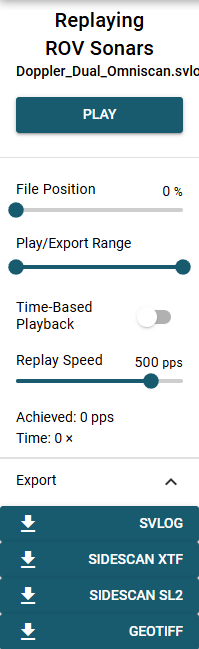
When the file is opened, SonarView will automatically detect the type of sonar from the data in the file and will open the appropriate view module. The Replay controls will be displayed at the left side of the window.

<figure><img src="https://2515205857-files.gitbook.io/~/files/v0/b/gitbook-x-prod.appspot.com/o/spaces%2FSYkdyxXfSDQsVcrx8VV1%2Fuploads%2FDOkMFphZS8ivwzonzB4j%2Fimage.png?alt=media&amp;token=47d553a4-842d-4a80-869c-e6e5297de005" alt=""><figcaption></figcaption></figure>

* *File Position* control will set the position in the file so you can go back to view a particular selection
* *Play/Export Range* allows you to specify the range of the file that gets exported
* *Time-Based Playback* replays data in the original time domain of the recording. When disabled, replay occurs in the ping domain at a fixed pings-per-second rate
* *Replay Speed* In Time-Based Playback, Replay Speed acts as a multiplier of the original recording time. In non–time-based (ping-based) playback, Replay Speed specifies the number of pings per second
* *Export* provides several options for exporting the selected portion of the log in various file formats

The Display Controls are displayed on the right sided of the window. These vary depending on the device. Here for example are the Display Controls for the Omniscan 450.

<figure><img src="https://2515205857-files.gitbook.io/~/files/v0/b/gitbook-x-prod.appspot.com/o/spaces%2FSYkdyxXfSDQsVcrx8VV1%2Fuploads%2FtuLqAQuwORgzT9Z8BRI2%2FScreenshot%202026-06-05%20at%201.30.31%E2%80%AFPM.png?alt=media&amp;token=12a18722-6303-48bc-b4e7-76424fda83e0" alt=""><figcaption></figcaption></figure>


# Log Files

When recording a session, SonarLink will create a log file with the extension `.svlog`. Long recording sessions will be automatically split across multiple files to limit the size of each file.

**As of 1.14.20-beta, log files will be stored on disk with the extension `.svlz` instead.** These files have the same content as a `.svlog` file but are compressed with gzip to use less space on disk. SonarView can open these files directly and can convert a compressed file as uncompressed or vice-versa (see [Exporting Log Files](/c/sonarview/exporting-log-files)).

You can turn svlog compression on or off via the [Session Configurations](/c/sonarview/session-configurations) dialog.

<figure><img src="https://2515205857-files.gitbook.io/~/files/v0/b/gitbook-x-prod.appspot.com/o/spaces%2FSYkdyxXfSDQsVcrx8VV1%2Fuploads%2F6JS5CGjY1iWbyRKiVVvc%2Fimage.png?alt=media&amp;token=d7a28ec3-b368-4534-bd47-394058246960" alt=""><figcaption></figcaption></figure>

## Working with Log Files

The following commands are intended for Linux / MacOS machines, or Windows machines running WSL.

#### Mass File Compression

If you have a lot of uncompressed `.svlog` files, it can be a bit tedious to drag them all into SonarView and re-export as .svlz, as you will then need to move them from your Downloads folder back to the original location. To get around this you can use some simple command line functions.\
\
To convert all .svlog in the current directory to .svlz:

```
for f in *.svlog; do gzip -c "$f" > "${f%.svlog}.svlz"; done
```

\
Or to do the same operation recursively:

```
find . -name "*.svlog" -exec sh -c 'gzip -c "$1" > "${1%.svlog}.svlz"' _ {} \;
```

#### Combining Log Files

The following commands are only expected to work with similar SonarView log files (same devices, same area).

A directory of .svlog files can be combined into a single file with:

```
cat *.svlog > combined.svlog
```

If the files are compressed (svlz) then the command would be:

```
{ for f in *.svlz; do gunzip -c "$f"; done; } | gzip -c > combined.svlz
```

This can take some time as gzip will process the files serially. You can accelerate this substantially by installing [pigz](https://zlib.net/pigz/). Using pigz, you can combine a directory of .svlz files into a single file with:

```
{ for f in *.svlz; do pigz -dc "$f"; done; } | pigz > combined.svlz
```

{% hint style="info" %}
SonarView 1.14.37 or earlier will fail to open .svlz files that decompress to >2GB. This is fixed in SonarView 1.14.39.
{% endhint %}


# Exporting Log Files

Not all software speaks the same file format. For interoperability, SonarView can convert its `.svlog` file format to a number of different other formats.

For a single file, open the file for replay and look in the left sidebar under the "Export" heading.

<figure><img src="https://2515205857-files.gitbook.io/~/files/v0/b/gitbook-x-prod.appspot.com/o/spaces%2FSYkdyxXfSDQsVcrx8VV1%2Fuploads%2FwPSPjUJWBPlNkBrntP8r%2FScreenshot%202026-06-05%20at%201.47.55%E2%80%AFPM%20copy.png?alt=media&amp;token=7995a376-e316-4bac-b0c4-06b1b3169b71" alt=""><figcaption></figcaption></figure>

For many files, select multiple `.svlog` files or a folder containing such files, and drag onto the SonarView window. This will open the "Export Logfiles" view from which you can play or export such files.

<figure><img src="https://2515205857-files.gitbook.io/~/files/v0/b/gitbook-x-prod.appspot.com/o/spaces%2FSYkdyxXfSDQsVcrx8VV1%2Fuploads%2Fk1tDwbNhNAiyPYQWH8RP%2FScreenshot%202026-06-05%20at%201.53.22%E2%80%AFPM.png?alt=media&amp;token=78467f82-6f18-4547-834a-e2309c04f177" alt=""><figcaption></figcaption></figure>

The target formats available depend on what data is contained in the source svlog file.


# ArduPilot Vehicle

Some of our devices integrate with an Ardupilot vehicle when parameters are configured correctly. This includes the Omniscan family, the Tracker 650, and the ROVL/Omnitrack. If you have a [mavlink2rest vehicle configured in your session](/c/sonarview/session-configurations/vehicle) and connect to one of these views, in the left drawer you will see a button that says "Check Ardupilot Parameters".<br>

<figure><img src="https://2515205857-files.gitbook.io/~/files/v0/b/gitbook-x-prod.appspot.com/o/spaces%2FSYkdyxXfSDQsVcrx8VV1%2Fuploads%2F56sZyTR8iScxkGoDjO2a%2Fimage.png?alt=media&amp;token=bcf3fb99-0714-4748-a833-842fbe3b980b" alt=""><figcaption></figcaption></figure>

This will bring up the "Ideal Arudpilot Parameters" dialog. If your parameters differ from our recommendations, you will see a dialog like this:<br>

<figure><img src="https://2515205857-files.gitbook.io/~/files/v0/b/gitbook-x-prod.appspot.com/o/spaces%2FSYkdyxXfSDQsVcrx8VV1%2Fuploads%2FEEvB9lMOjZJ04Dm2SUNy%2Fimage.png?alt=media&amp;token=056bc81c-1dbb-4bde-89fa-a6a61e62a904" alt="" width="212"><figcaption></figcaption></figure>

If you hit "Set Vehicle Parameters", every checked parameter will be set to the value on the far right.

{% hint style="warning" %}
If your parameters differ from our recommendations, certain interactions with the Ardupilot flight controller will not work properly (i.e. setting the position from SonarView)
{% endhint %}

If your parameters do NOT differ from our recommendations, you will see:

<figure><img src="https://2515205857-files.gitbook.io/~/files/v0/b/gitbook-x-prod.appspot.com/o/spaces%2FSYkdyxXfSDQsVcrx8VV1%2Fuploads%2Fr8VYP9g00YIYpHoOkbou%2Fimage.png?alt=media&amp;token=746b0a5b-c73e-4330-b8e9-cb32ae27e9a0" alt=""><figcaption></figcaption></figure>

Additionally, the Omniscan and Tracker 650 views can directly set the position of the ArduPilot vehicle (ROVL view does this automically when selected).<br>


# Session Configurations

{% hint style="info" %}
Session Configurations added to home page in SonarView version 1.11.1\
For setting up configurations in older versions of SonarView, please refer [here](/c/sonarview/deprecated/mission-configurations) Defining a device or a non-default vehicle will not show up in discovery
{% endhint %}

## Overview

To access advanced features in SonarView—like using multiple devices in tandem (e.g., multiple Omniscans or a Surveyor with GPS), configuring scanner offsets, using vehicle data, changing specific server settings, etc.—you’ll need to set these options in Session Configurations.

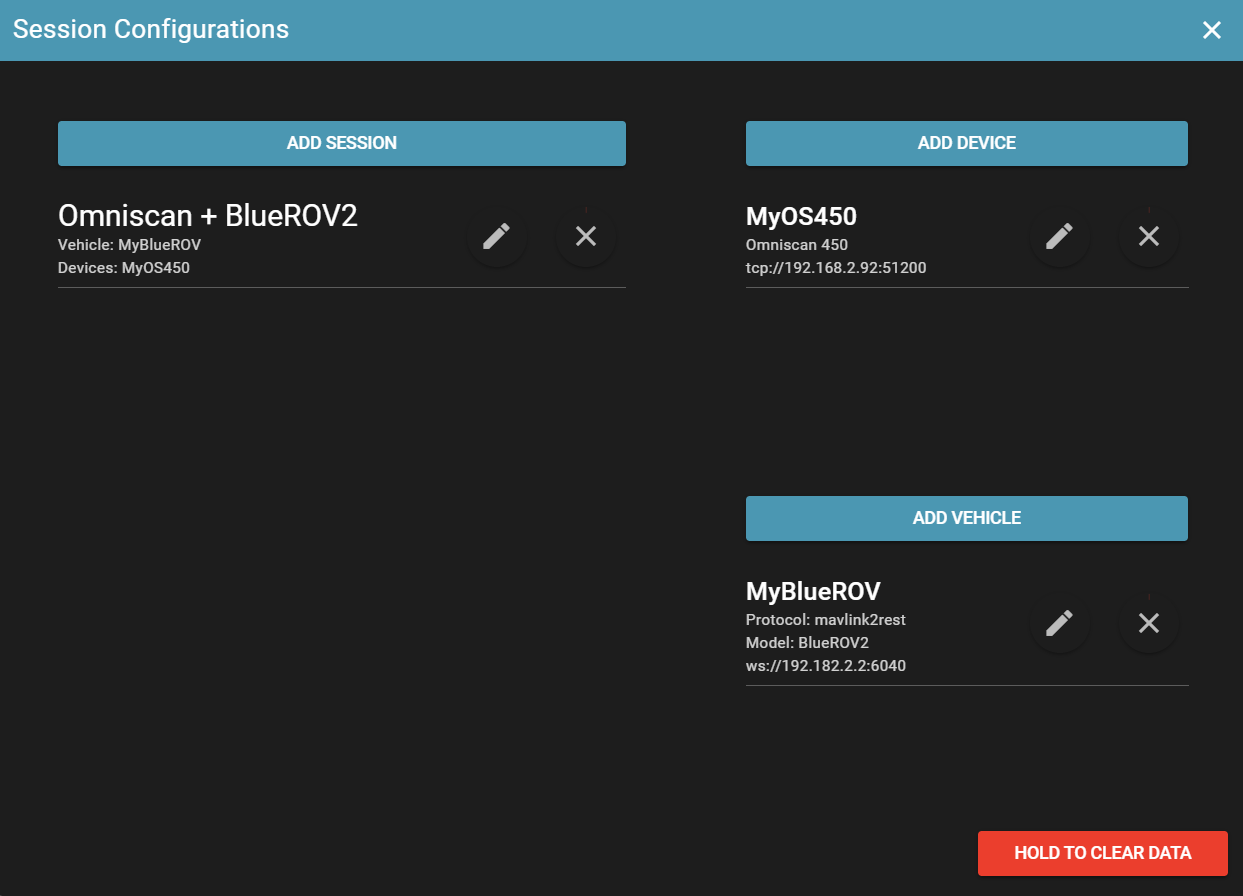
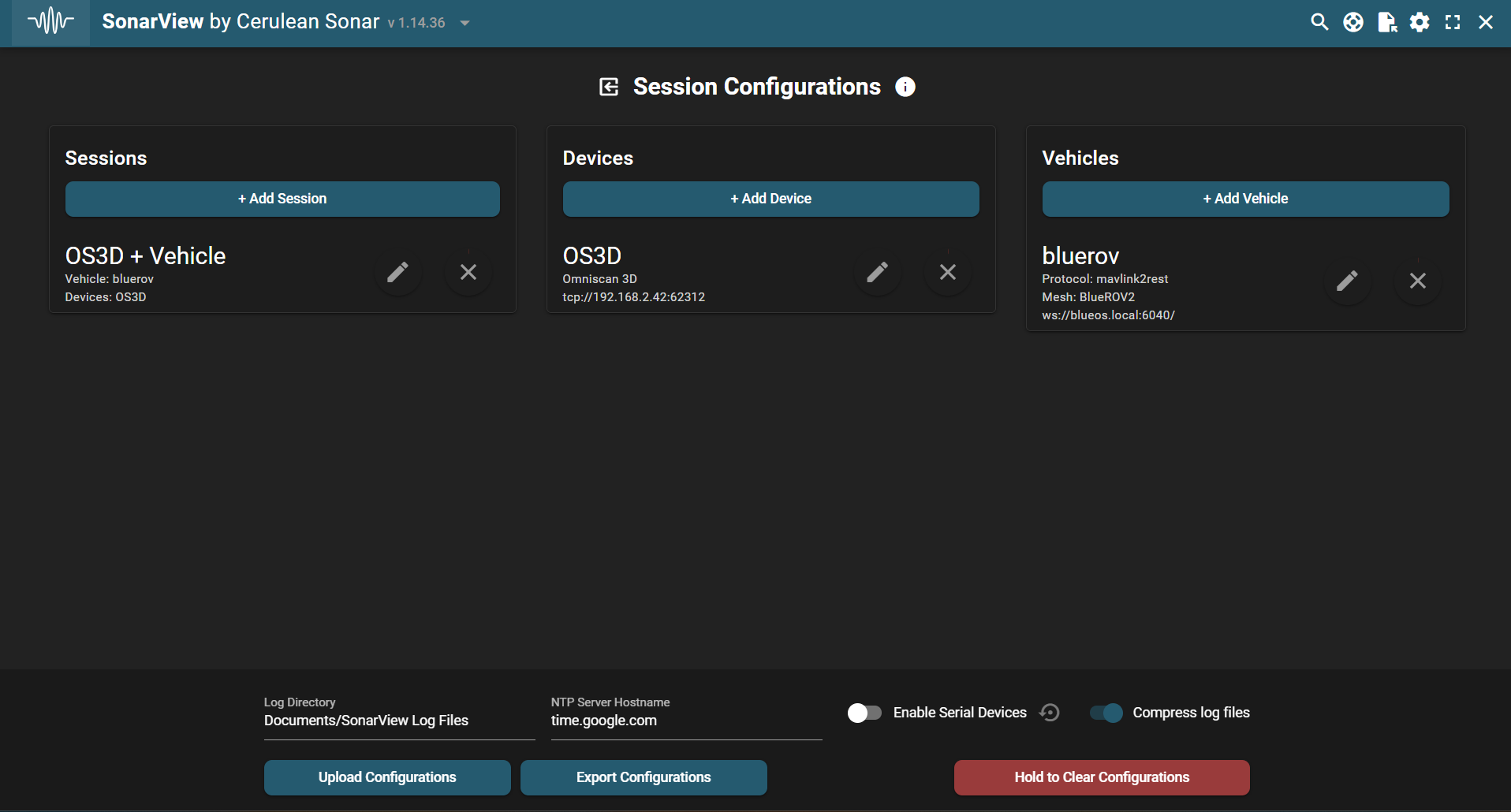
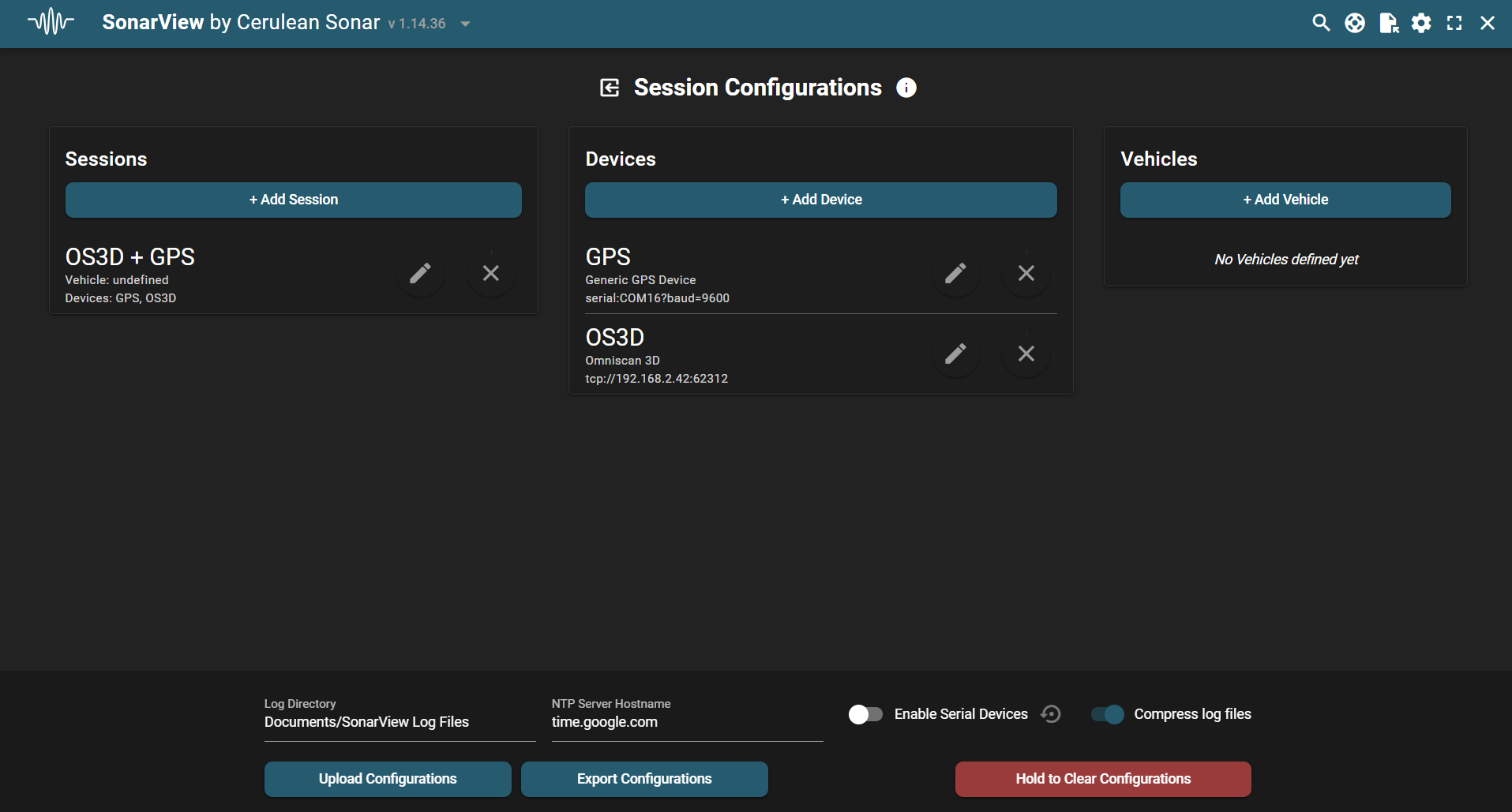
Click the "Session Configurations" button on the home page. The Session Configurations window shows all of your defined sessions, devices, and vehicles:

<figure><img src="https://2515205857-files.gitbook.io/~/files/v0/b/gitbook-x-prod.appspot.com/o/spaces%2FSYkdyxXfSDQsVcrx8VV1%2Fuploads%2FggFVi1femta4ooCaIXN8%2Fimage.png?alt=media&amp;token=0f61c8b4-3f96-4839-9b9f-5ccdd31eb9d9" alt=""><figcaption><p>Session Configurations Window</p></figcaption></figure>

First, note the three fields near the bottom. Log Directory tells SonarLink where to store logs. This path should be accessible to wherever SonarLink is running. NTP Server Hostname is a URL that tells SonarLink where to get NTP time. This is used for devices like the Surveyor and Omniscan 3D to fetch accurate UTC time. If no NTP server is accessible at that URL, system time is used. Enable Serial Devices allows discovery to find serial devices like the ROVL or Ping360.\
\
The flow of session configurations should be relatively straightforward: first, define the devices and vehicles (optional) you plan to use, then define the sessions in which you'll use them. If your devices are connected, the session you defined will show up in discovery and you can connect to it.\
\
Below is a detailed explanation of each field, but experimenting with the settings should give you a good feel for how it all works.

## Devices

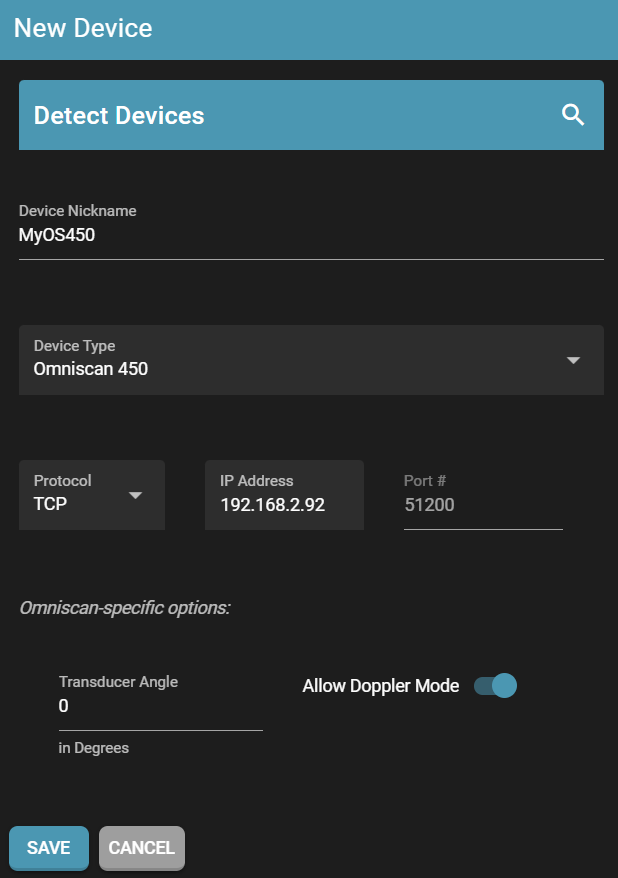
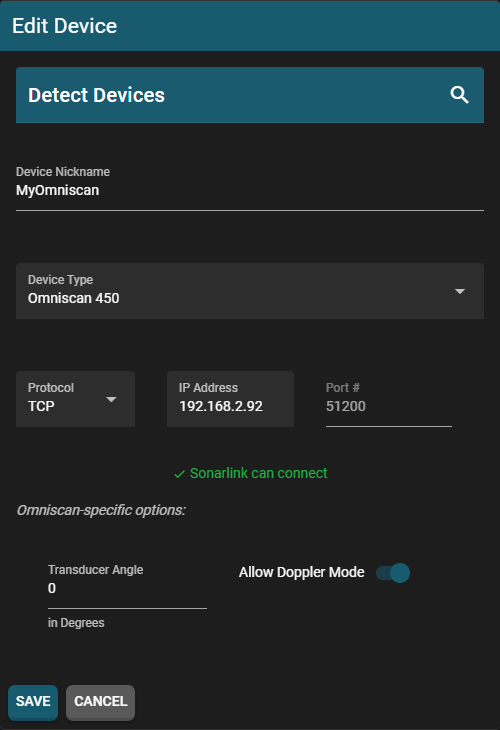
Devices are where you define the equipment you’ll use in a session. To open the device editor, click 'Add Device' or click the edit button (the pencil) on an existing device.

{% hint style="info" %}
For some devices like the Omniscan and Surveyor, there are device-specific options. The values set here will trump any previously set values. For example, if you set the mounting angle on a Omniscan when you were connected to it and you then create a session with that Omniscan, the mounting angle set in the device dialog below will be used.
{% endhint %}

<figure><img src="https://2515205857-files.gitbook.io/~/files/v0/b/gitbook-x-prod.appspot.com/o/spaces%2FSYkdyxXfSDQsVcrx8VV1%2Fuploads%2FIRHMPSwpojAq82PYjaLK%2Fimage.png?alt=media&amp;token=35f1652f-726b-4d7c-be21-13fa4350552b" alt="" width="281"><figcaption></figcaption></figure>

Above is an example of the device editor window. Here is an explanation for the various fields:

| Field/Button         | Explanation                                                                                                                                             | Required         |
| -------------------- | ------------------------------------------------------------------------------------------------------------------------------------------------------- | ---------------- |
| Detect Devices       | Detects devices available on the network. If any devices are available, the device can be selected from the drop down and the fields will auto-populate | N/A              |
| Device Nickname      | Nickname for device so user can distinguish devices. Must be unique                                                                                     | Yes              |
| Device Type          | Type of device                                                                                                                                          | Yes              |
| Protocol             | Transport protocol of device. Only shows valid transport protocols for the specified device (TCP, UDP, or Serial)                                       | Yes              |
| IP Address (TCP/UDP) | IP address of device                                                                                                                                    | If using TCP/UDP |
| Port # (TCP/UDP)     | Port number of device                                                                                                                                   | If using TCP/UDP |
| Serial Port (Serial) | Serial port of device                                                                                                                                   | If using Serial  |
| Baud Rate (Serial)   | Baud rate of serial port                                                                                                                                | If using Serial  |
| Other Fields         | Any other fields are device specific and optional (e.g. mounting angle for the Omniscan)                                                                | No               |
| Save                 | Saves the device to Session Configurations                                                                                                              | N/A              |
| Cancel               | Discards changes                                                                                                                                        | N/A              |

{% hint style="info" %}
If you have hardware that you want to use with different settings (e.g., the same Omniscan at different addresses or with varied mounting angles), simply define another device with the appropriate settings
{% endhint %}

**Supported Devices:**

* Omniscan 450
* ROVL/Omnitrack
* Sounder S500
* Surveyor 240-16
* Tracker 650
* DVL 75
* Insight 240
* Ping
* Ping360
* Generic NMEA GPS
* Yacht Devices NMEA2000 USB Gateway

## Vehicles

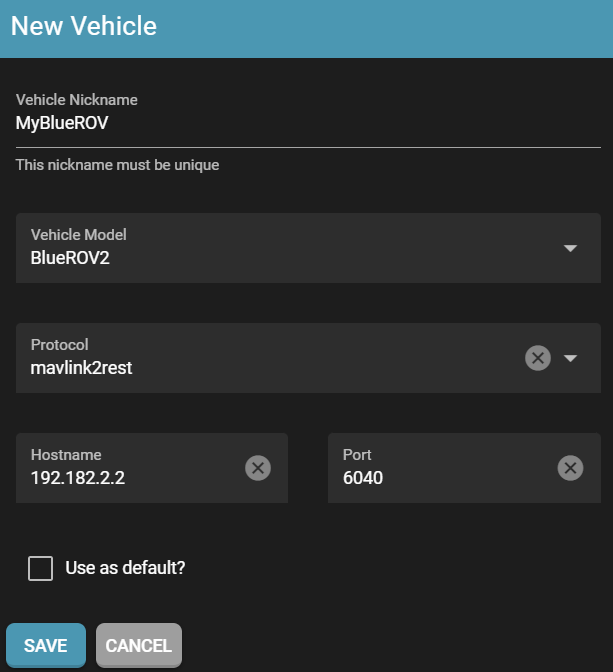
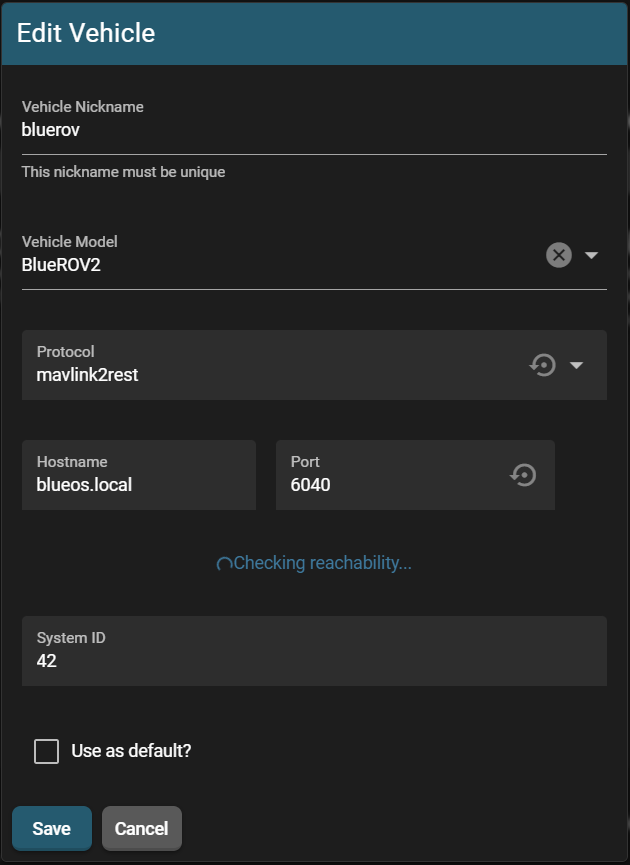
Vehicles define the 3D model and vehicle data used by SonarView. To pull up the vehicle editor window, click "Add Vehicle" or click the edit button on one of your vehicles

<figure><img src="https://2515205857-files.gitbook.io/~/files/v0/b/gitbook-x-prod.appspot.com/o/spaces%2FSYkdyxXfSDQsVcrx8VV1%2Fuploads%2FZOHifTmHHbtqUk3oNPAV%2Fimage.png?alt=media&amp;token=62e70743-f5c8-4f20-8fac-b6b4f5451609" alt="" width="281"><figcaption></figcaption></figure>

| Field            | Explanation                                                                                                                                                     | Required |
| ---------------- | --------------------------------------------------------------------------------------------------------------------------------------------------------------- | -------- |
| Vehicle Nickname | Nickname for vehicle so user can distinguish vehicles. Must be unique                                                                                           | Yes      |
| Vehicle Model    | 3D model used by SonarView                                                                                                                                      | No       |
| Protocol         | Communication protocol of vehicle so data (heading, position estimate) can be used by SonarView. Currently only mavlink2rest, chasing, and blueye are supported | No       |
| Hostname         | Hostname of vehicle to fetch data (only supports mavlink2rest currently)                                                                                        | No       |
| Port             | Port of vehicle server (only supports mavlink2rest currently)                                                                                                   | No       |
| Use as default   | Sets this vehicle as the default to be used when no other vehicle is specified (SonarView displays an arrow if no default is specified)                         | No       |
| Save             | Saves the Vehicle                                                                                                                                               | N/A      |
| Cancel           | Discards changes                                                                                                                                                | N/A      |

## Sessions

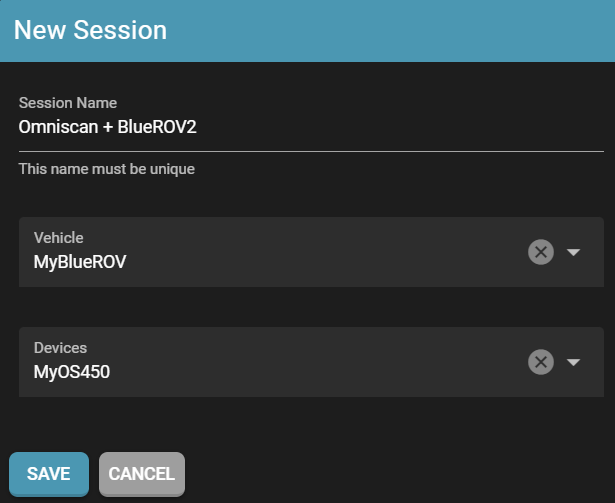
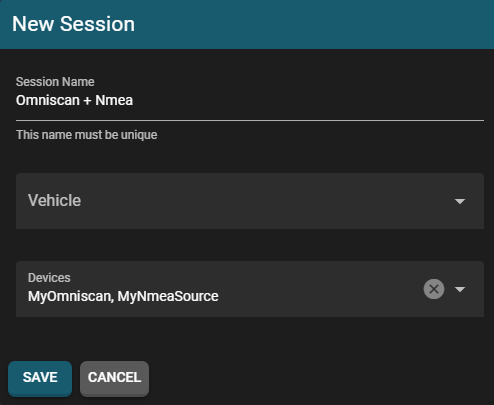
Defined sessions will show up in discovery if all devices are connectable. To pull up the session editor window, click "Add Session" or click the edit button on one of your sessions

<figure><img src="https://2515205857-files.gitbook.io/~/files/v0/b/gitbook-x-prod.appspot.com/o/spaces%2FSYkdyxXfSDQsVcrx8VV1%2Fuploads%2FhRwLeO7p8r8PlIzVBRCn%2Fimage.png?alt=media&amp;token=05b4aac0-e2dc-4239-a93b-d96844523836" alt="" width="282"><figcaption></figcaption></figure>

| Field        | Explanation                                                                                      | Required                  |
| ------------ | ------------------------------------------------------------------------------------------------ | ------------------------- |
| Session Name | Unique name to identify session                                                                  | Yes                       |
| Vehicle      | Vehicle to be used with this session. Dropdown shows all vehicles defined by the user            | No                        |
| Devices      | All devices to be used in tandem in this session. Dropdown shows all devices defined by the user | Yes (at least one device) |
| Save         | Saves session                                                                                    | N/A                       |
| Cancel       | Discards changes                                                                                 | N/A                       |

## Hints and tips

* Devices and vehicles must be defined before including them in a plan
* To delete any item (session, device, vehicle), click and hold the X. **If you delete a device or vehicle that is a part of a plan, the plan will be deleted as well**
* Devices and vehicles alone with NOT show up in discovery. They must be a part of a session
* Click and hold the red "HOLD TO CLEAR DATA" button to delete all data
* If you have a legacy config.json that's properly formatted, all the data will be converted to work with this UI. A backup of your config.json will be saved in config\_v1\_backup.json in your SonarView logs directory
* If you want to transfer your session configurations to another computer, find the config.json file in your SonarView logs directory and replace that file in the other computer
* If there's an issue converting the legacy config.json, you can clear it by using the "HOLD TO CLEAR DATA" button. If you have any vital data in the config.json, save it somewhere else before clearing it

The following subpages will walk you through some supported set-ups


# Supported Sessions

While we aim to combine more devices and vehicles in the future, here is a list of our currently supported Sessions:<br>

* Multiple Omniscans
* Omniscan(s) + NMEA heading/position
* Omniscan(s) + Vehicle heading/position/altitude
* Omniscan(s) + Sounder (for altitude)
* Omniscan(s) + Blue Robotics Ping (for altitude)
* Omniscan(s) + Surveyor (for altitude)
* Surveyor + NMEA heading/position
* Surveyor + Vehicle heading/postion
* ROVL + NMEA positioning
* ROVL + NMEA position output
* ROVL + Vehicle attitude (for deepside)
* ROVL + OS450 + Vehicle
* Omniscan 3D + Vehicle position/attitude
* Omniscan 3D + NMEA heading/position

Supported Vehicles

* Ardupilot via [mavlink2rest ](https://github.com/mavlink/mavlink2rest)(preferred)
  * BlueROV2
  * BlueBoat
* Blueye
* Chasing

{% hint style="info" %}
ROVL can use NMEA positioning, NMEA position output, and use mavlink vehicle attitude for the deepside simulataneously
{% endhint %}


# Vehicle

Adding a vehicle to a Session is straightforward. Go to Session Configurations and hit "Add Vehicle". You will get this dialog:

<figure><img src="https://2515205857-files.gitbook.io/~/files/v0/b/gitbook-x-prod.appspot.com/o/spaces%2FSYkdyxXfSDQsVcrx8VV1%2Fuploads%2FDF5vUyIEGWbyCstFq4AJ%2Fimage.png?alt=media&amp;token=3cc121a7-4450-43df-bee4-c89b42c95059" alt="" width="376"><figcaption></figcaption></figure>

The vehicle model is the 3D model that will be used in the view. Protocol, Hostname, and Port will allow SonarView to communicate with the vehicle. When "Use as default?" is selected, this vehicle will be used in every session when another vehicle is not defined. Otherwise, you can add this vehicle to a session with specified devices.

{% hint style="info" %}
There are certain additional features when Protocol is set to "mavlink2rest" described[ here](/c/sonarview/ardupilot-vehicle)
{% endhint %}


# Multiple Omniscans

Let's walk through the process of setting up the configuration for two Omniscans at right angles to each other

1. Define Omniscans using the "Add Device" button. Because both are powered and connectable, I can see them in the "Discover Devices" button in the Device Editor window:

<figure><img src="https://2515205857-files.gitbook.io/~/files/v0/b/gitbook-x-prod.appspot.com/o/spaces%2FSYkdyxXfSDQsVcrx8VV1%2Fuploads%2F9wE4dZNQYQd42BHBqhF8%2FScreenshot%202024-10-29%20165133.png?alt=media&amp;token=84ba1fc8-6260-4497-b8dd-3b0981b29487" alt="" width="312"><figcaption></figcaption></figure>

2. After selecting one of the available Omniscans, the fields autopopulate. You can manually enter the device data if you're setting up your session without your devices connected. I can configure the transducer angle to 90 degrees to let SonarView know the Omniscan is mounted facing starboard. Make sure to hit save:

<figure><img src="https://2515205857-files.gitbook.io/~/files/v0/b/gitbook-x-prod.appspot.com/o/spaces%2FSYkdyxXfSDQsVcrx8VV1%2Fuploads%2FXFGIH2x0NThDIS9RinSQ%2FScreenshot%202024-10-29%20165333.png?alt=media&amp;token=d6c8be0c-2e95-4cd7-8721-0e29754f33a1" alt="" width="312"><figcaption></figcaption></figure>

{% hint style="info" %}
The "Allow Doppler Mode" toggle should be left on unless you are using multiple Omniscans and want some of them to be unable to use Doppler mode.
{% endhint %}

3. Adding the other Omniscan with a transducer angle of 0 to let SonarView know it's facing forward:

<figure><img src="https://2515205857-files.gitbook.io/~/files/v0/b/gitbook-x-prod.appspot.com/o/spaces%2FSYkdyxXfSDQsVcrx8VV1%2Fuploads%2FkFphuSUuu2nh0Ur9MoMg%2FScreenshot%202024-11-04%20095302.png?alt=media&amp;token=7e79c037-3788-4e7e-86e2-42d5f0ff66ee" alt="" width="311"><figcaption></figcaption></figure>

Here's where we're at:

<figure><img src="https://2515205857-files.gitbook.io/~/files/v0/b/gitbook-x-prod.appspot.com/o/spaces%2FSYkdyxXfSDQsVcrx8VV1%2Fuploads%2Fnkt4KXlQuDlPW5KJx4Ll%2FScreenshot%202024-11-04%20104023.png?alt=media&amp;token=34a8c137-3362-4450-a8f7-029dbaad90f9" alt=""><figcaption></figcaption></figure>

4. Hit the "Add Session" button. Name the session and add both Omniscans to the session. Then hit save:

<figure><img src="https://2515205857-files.gitbook.io/~/files/v0/b/gitbook-x-prod.appspot.com/o/spaces%2FSYkdyxXfSDQsVcrx8VV1%2Fuploads%2FMrDzlePb10fJWoR19OpA%2FScreenshot%202024-11-04%20104456.png?alt=media&amp;token=57134210-52c5-4a2e-bf5a-86f0ec202b79" alt="" width="309"><figcaption></figcaption></figure>

<figure><img src="https://2515205857-files.gitbook.io/~/files/v0/b/gitbook-x-prod.appspot.com/o/spaces%2FSYkdyxXfSDQsVcrx8VV1%2Fuploads%2FWjOkPHtSi0rH6Lll6eev%2FScreenshot%202024-11-04%20105328.png?alt=media&amp;token=13774709-af9d-451a-9b8a-539cd8bc9bfe" alt=""><figcaption></figcaption></figure>

5. Once that's saved, you can exit Session Configurations and head over to Discovery. If both Omniscans are connected, you will see the session name you defined and be able to use the session:

<figure><img src="https://2515205857-files.gitbook.io/~/files/v0/b/gitbook-x-prod.appspot.com/o/spaces%2FSYkdyxXfSDQsVcrx8VV1%2Fuploads%2FhLueSBpuP4rmeE4y8awn%2FScreenshot%202024-11-04%20110644.png?alt=media&amp;token=d6b49644-3b15-4971-9291-27998126f687" alt="" width="348"><figcaption></figcaption></figure>


# Omniscan + Altitude Source

The Omniscan can support multiple devices as altitude sources. The sonar can adjust its imagery so that the water column — the empty space between the sonar and the seabed before the seafloor return arrives — is removed from the display.

You can use either the S500 Sounder, Surveyor 240-16, or the Blue Robotics Ping as an altitude source. Start by adding both the Omniscan and Sounder as devices:

<figure><img src="https://2515205857-files.gitbook.io/~/files/v0/b/gitbook-x-prod.appspot.com/o/spaces%2FSYkdyxXfSDQsVcrx8VV1%2Fuploads%2Frk0ENqFatfK8m0xRZAeq%2Fimage.png?alt=media&amp;token=c189a3f7-2883-4069-82c4-ad9c560993ee" alt=""><figcaption></figcaption></figure>

<figure><img src="https://2515205857-files.gitbook.io/~/files/v0/b/gitbook-x-prod.appspot.com/o/spaces%2FSYkdyxXfSDQsVcrx8VV1%2Fuploads%2FTiG9G94VnTNVRiqdx58G%2Fimage.png?alt=media&amp;token=b4116ef1-0de1-4793-bbca-583980969649" alt=""><figcaption></figcaption></figure>

Then add both to a session:<br>

<figure><img src="https://2515205857-files.gitbook.io/~/files/v0/b/gitbook-x-prod.appspot.com/o/spaces%2FSYkdyxXfSDQsVcrx8VV1%2Fuploads%2FyaqVTVQh9jF6jqF1n5fi%2Fimage.png?alt=media&amp;token=761defe9-71f4-4b05-9c8e-46e233993472" alt=""><figcaption></figcaption></figure>

<figure><img src="https://2515205857-files.gitbook.io/~/files/v0/b/gitbook-x-prod.appspot.com/o/spaces%2FSYkdyxXfSDQsVcrx8VV1%2Fuploads%2FbN3Kl1KiSh5XyHUswob1%2Fimage.png?alt=media&amp;token=ddce2c2f-757c-4167-8aa1-98364a20a423" alt=""><figcaption></figcaption></figure>

You can then exit Session Configurations, start Discovery, and connect to the session. Once connected, start pinging. In the right display control's panel, you will see a Depth Compensation header. Under source, choose the S500 and you're good to go!<br>

<figure><img src="https://2515205857-files.gitbook.io/~/files/v0/b/gitbook-x-prod.appspot.com/o/spaces%2FSYkdyxXfSDQsVcrx8VV1%2Fuploads%2F73yyT7WHjxeK4IFcwow2%2Fimage.png?alt=media&amp;token=6fabded0-9d46-4302-a8fd-34467c8b3731" alt=""><figcaption></figcaption></figure>

{% hint style="info" %}
This example just used the S500, but the same steps will work for the Surveyor and the BR Ping
{% endhint %}


# Omniscan + MAVLink2Rest Position

These instructions describe how to use the heading and position estimate from a MAVLink2Rest enabled vehicle in SonarView. A useful example is the Omniscan with a BlueROV to get a better heading and/or position estimate for situational awareness.

{% hint style="info" %}
To get a position estimate, the ROV will need a sensor to estimate position such as the [Tracker 650](https://docs.ceruleansonar.com/c/tracker-650/)
{% endhint %}

1. Add the Omniscan to the Devices list:

<figure><img src="https://2515205857-files.gitbook.io/~/files/v0/b/gitbook-x-prod.appspot.com/o/spaces%2FSYkdyxXfSDQsVcrx8VV1%2Fuploads%2Fcp7TrDlIDkyNmC2aoLVu%2FScreenshot%202024-11-04%20113038.png?alt=media&amp;token=d0390061-bfc6-43e4-a094-8c1db79f1b8d" alt="" width="309"><figcaption></figcaption></figure>

2. Add the BlueROV2 to the vehicles list:

<figure><img src="https://2515205857-files.gitbook.io/~/files/v0/b/gitbook-x-prod.appspot.com/o/spaces%2FSYkdyxXfSDQsVcrx8VV1%2Fuploads%2FvuZWyB3ImjiR9n303zQI%2FScreenshot%202024-11-04%20113038.png?alt=media&amp;token=283d6d2c-779a-4148-8566-f07b44ee578f" alt="" width="307"><figcaption></figcaption></figure>

{% hint style="info" %}
The vehicle model is just aesthetic. The necessary fields are the nickname, protocol (only mavlink2rest is support atm), hostname and port
{% endhint %}

{% hint style="info" %}
Selecting a vehicle as the default makes it used in every other session that doesn't have a vehicle specifically defined
{% endhint %}

3. Add session with Omniscan and vehicle

<figure><img src="https://2515205857-files.gitbook.io/~/files/v0/b/gitbook-x-prod.appspot.com/o/spaces%2FSYkdyxXfSDQsVcrx8VV1%2Fuploads%2FUXfhlxASdV0l4AVuJ5ry%2FScreenshot%202024-11-04%20113038.png?alt=media&amp;token=5b672f94-6f3e-4247-ad7e-3b8c7034aad3" alt="" width="308"><figcaption></figcaption></figure>

<figure><img src="https://2515205857-files.gitbook.io/~/files/v0/b/gitbook-x-prod.appspot.com/o/spaces%2FSYkdyxXfSDQsVcrx8VV1%2Fuploads%2FPi1W49OnnpONVR6h63g9%2FScreenshot%202024-11-04%20113038.png?alt=media&amp;token=a8d115a9-7bde-496f-a7de-16230d89a101" alt=""><figcaption></figcaption></figure>

With your Omniscan powered on the network, you should be able to connect to this session plan in Discovery


# Omniscan + NMEA Heading/Position

1. Add your Omiscan to the devices list:

{% hint style="info" %}
As a reminder, if the Omniscan is on your network, you can use the "Detect Devices" button to autopopulate the fields.
{% endhint %}

<figure><img src="https://2515205857-files.gitbook.io/~/files/v0/b/gitbook-x-prod.appspot.com/o/spaces%2FSYkdyxXfSDQsVcrx8VV1%2Fuploads%2Fs07sYvgFL26IoGzfLths%2Fimage.png?alt=media&amp;token=6b9eca24-9284-47d9-bcee-7b47a5244890" alt="" width="375"><figcaption></figcaption></figure>

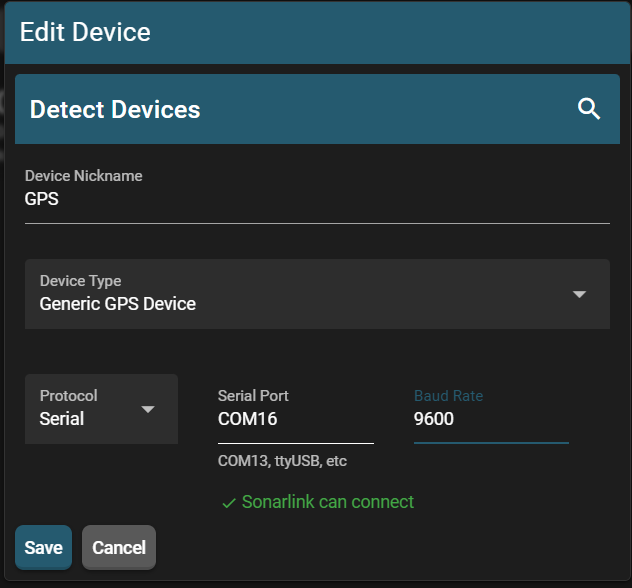
2. After saving, add the NMEA source as a Generic GPS Device:

<figure><img src="https://2515205857-files.gitbook.io/~/files/v0/b/gitbook-x-prod.appspot.com/o/spaces%2FSYkdyxXfSDQsVcrx8VV1%2Fuploads%2FxxhLbsw89OrlvmxmN03Y%2Fimage.png?alt=media&amp;token=d08c384b-5c58-4a05-8879-cd760d88ccc4" alt="" width="376"><figcaption></figcaption></figure>

{% hint style="info" %}
You can also connect to NMEA sources via UDP with IP address and port
{% endhint %}

3. Add a new session with both devices:

<figure><img src="https://2515205857-files.gitbook.io/~/files/v0/b/gitbook-x-prod.appspot.com/o/spaces%2FSYkdyxXfSDQsVcrx8VV1%2Fuploads%2FvRcjrDAW17phH7LF9z08%2Fimage.png?alt=media&amp;token=1a5f4c52-18e4-4a00-afcc-99639a5d591b" alt="" width="371"><figcaption></figcaption></figure>

Here's where you should be at:

<figure><img src="https://2515205857-files.gitbook.io/~/files/v0/b/gitbook-x-prod.appspot.com/o/spaces%2FSYkdyxXfSDQsVcrx8VV1%2Fuploads%2FHR3yh7Eljq0dd6vPVCH8%2Fimage.png?alt=media&amp;token=468b053f-1432-4178-bdb6-d77d030979f2" alt=""><figcaption></figcaption></figure>

With the Omniscan and gps powered and connectable, you should be able to connect to this session in discovery and use the Omniscan with heading and position.


# Surveyor + NMEA Heading/Position

{% hint style="info" %}
This is just the SonarView portion of the instructions. For the detailed hardware requirements and device specific instructions, refer [here](/c/surveyor-240-16/platform-specific-setup/nmea-position-heading-source)
{% endhint %}

1. Add your Surveyor to the devices list:

{% hint style="info" %}
As a reminder, if the Surveyor is on your network, you can use the "Detect Devices" button to autopopulate the fields.
{% endhint %}

<figure><img src="https://2515205857-files.gitbook.io/~/files/v0/b/gitbook-x-prod.appspot.com/o/spaces%2FSYkdyxXfSDQsVcrx8VV1%2Fuploads%2FgiUgtLTmlAxDYUk0Kx1v%2Fimage.png?alt=media&amp;token=efcba75b-5ca4-497d-9309-623efe6a06d9" alt="" width="377"><figcaption></figcaption></figure>

The mounting offsets are Forward-Right-Down relative from the device which provides position + heading to the surveyor unit. The Roll angle is only a visual setting that makes the 3D model of your boat/ROV appear correct in space since the Surveyor has an internal IMU. Channel Data option gives you the ability to configure how Channel Data is handled (disabled vs. saving to svlog vs. sending over the network to the frontend AND saving to svlog). For most uses, this can be disabled.

2. After saving, add the Generic GPS Device:

<figure><img src="https://2515205857-files.gitbook.io/~/files/v0/b/gitbook-x-prod.appspot.com/o/spaces%2FSYkdyxXfSDQsVcrx8VV1%2Fuploads%2FQYznvkkpzCoQmrwSM9FH%2Fimage.png?alt=media&amp;token=ef0a12af-0441-4bd7-801f-d7068c5ebdd4" alt="" width="382"><figcaption></figcaption></figure>

3. Add a new session with both devices:

<figure><img src="https://2515205857-files.gitbook.io/~/files/v0/b/gitbook-x-prod.appspot.com/o/spaces%2FSYkdyxXfSDQsVcrx8VV1%2Fuploads%2FikPfLZiW9EpRcyh49sd2%2Fimage.png?alt=media&amp;token=bc239dbb-87b3-4909-aa2a-8800d432a8d5" alt=""><figcaption></figcaption></figure>

Here's where you should be at:

<figure><img src="https://2515205857-files.gitbook.io/~/files/v0/b/gitbook-x-prod.appspot.com/o/spaces%2FSYkdyxXfSDQsVcrx8VV1%2Fuploads%2Fz1k8jW7NyHe2atmPLtBR%2Fimage.png?alt=media&amp;token=38238577-ed7d-4e06-b512-75b0ed72de42" alt=""><figcaption></figcaption></figure>

With the Surveyor and GPS powered on and connectable, you should now be able to connect to this session in discovery and use the Surveyor with GPS heading and position.


# Surveyor + MAVLink2Rest Position/Heading

These instructions set up using the Surveyor with position and heading from a mavlink2rest vehicle (e.g. Blueboat, BlueROV).

Step 0: Go to Session Configurations in SonarView

Step 1. Click 'Add Device' and add your Surveyor with correct IP address and mounting/roll offsets and hit 'Save':

<figure><img src="https://2515205857-files.gitbook.io/~/files/v0/b/gitbook-x-prod.appspot.com/o/spaces%2FSYkdyxXfSDQsVcrx8VV1%2Fuploads%2FrS9yBeXYp48niyaBzQn6%2Fimage.png?alt=media&amp;token=f05644c4-1cb2-46c9-ad83-6bee4fa0d200" alt="" width="251"><figcaption></figcaption></figure>

Surveyor Specific Options:

1. Mounting Angle:

   Roll: Sets the roll of the Surveyor relative to the vehicle. Since the Surveyor has an IMU to calculate the roll of the device, this just affects how the boat is displayed, not where the data ends up

   Pitch and yaw offsets must be 0
2. Mounting Offset (relative to center of Mavlink Vehicle):

   X: Positive if Surveyor is in front of the center of the vehicle

   Y: Positive if the Surveyor is starboard of the center of the vehicle

   Z: Positive if the Surveyor is below the center of the vehicle

Click [here](/c/surveyor-240-16/coordinate-frames) for Surveyor coordinate frame definition

{% hint style="info" %}
Surveyor Specifc Options overwrite any offsets set up during a single device session
{% endhint %}

Step 2: Click 'Add Vehicle' and add your mavlink vehicle with correct IP address, the 'mavlink2rest' protocol, and the correct System ID. Hit Save:

<figure><img src="https://2515205857-files.gitbook.io/~/files/v0/b/gitbook-x-prod.appspot.com/o/spaces%2FSYkdyxXfSDQsVcrx8VV1%2Fuploads%2FboOpUh6TZ3tHa7KUz8gW%2Fimage.png?alt=media&amp;token=bf9473f2-0656-4070-8990-01d97d42b7fb" alt=""><figcaption></figcaption></figure>

Step 3: Click 'Add Session', add the Surveyor and Vehicle to the session, and hit 'Save'. Your Session Configurations page should now have something like this:<br>

<figure><img src="https://2515205857-files.gitbook.io/~/files/v0/b/gitbook-x-prod.appspot.com/o/spaces%2FSYkdyxXfSDQsVcrx8VV1%2Fuploads%2FN55ax5htMwXuVqxaTQi9%2Fimage.png?alt=media&amp;token=01699d3f-fad9-4221-b7df-4d9b5febecc0" alt=""><figcaption></figcaption></figure>

With that completed and your Surveyor and vehicle connected to SonarLink, you can now find this session in discovery and connect to it.


# ROVL + NMEA GPS

These instructions explain how to use an NMEA GPS for the topside position (ROVL RX) in SonarView

First, go to Session configurations and add a new device with the serial port and baud rate of your GPS\ <br>

<figure><img src="https://2515205857-files.gitbook.io/~/files/v0/b/gitbook-x-prod.appspot.com/o/spaces%2FSYkdyxXfSDQsVcrx8VV1%2Fuploads%2FKEX62laA7ut6D0qSta7v%2Fimage.png?alt=media&amp;token=9bb83512-566c-4f9a-88f5-1817789c0434" alt="" width="414"><figcaption></figcaption></figure>

Then add a new device for your ROVL

<br>

<figure><img src="https://2515205857-files.gitbook.io/~/files/v0/b/gitbook-x-prod.appspot.com/o/spaces%2FSYkdyxXfSDQsVcrx8VV1%2Fuploads%2F8UAyEANGUpOmTckznjrx%2Fimage.png?alt=media&amp;token=cb6f15f8-3755-4f6d-ad06-15ea32d4a6a6" alt="" width="413"><figcaption></figcaption></figure>

The *ROVL Topside Depth* field is the depth of the topside unit below the surface of the water. The *GPS offset from ROVL Topside* is the physical offset from the ROVL topside unit to where the GPS is mounted. The Y axis is in the direction of the indexing notch on the ROVL and the Z direction is in the direction of the cable. Refer [here](/c/rov-locator/rovl-coordinate-systems-and-angles/receiver-transceiver-orientation-frames) for the ROVL orientations.\
\
Once those are added, add both to a session. You can also add a mavlink vehicle to send position updates to mavlink and get the vehicle orientation in the view. You should be to this point:<br>

<figure><img src="https://2515205857-files.gitbook.io/~/files/v0/b/gitbook-x-prod.appspot.com/o/spaces%2FSYkdyxXfSDQsVcrx8VV1%2Fuploads%2FV45UjSUh7xAEVoFeekFR%2Fimage.png?alt=media&amp;token=2a886f95-2cd0-4737-b970-7fefe25be4ed" alt=""><figcaption></figcaption></figure>

And you should be able to discover the session<br>

<figure><img src="https://2515205857-files.gitbook.io/~/files/v0/b/gitbook-x-prod.appspot.com/o/spaces%2FSYkdyxXfSDQsVcrx8VV1%2Fuploads%2FulI080tbNPaoVjnXUuex%2Fimage.png?alt=media&amp;token=fcbc1a5b-e60c-4c6c-acf5-eb632105cfaa" alt="" width="460"><figcaption></figcaption></figure>

If everything is working correctly, you should be able to connect and see a white sphere representing your GPS location relative to the topside unit. The topside’s position should update based on the GPS data, provided that the Topside Position Source is set to Automatic. If you did not set an offset between the GPS and ROVL, the white sphere will not show up.

<figure><img src="https://2515205857-files.gitbook.io/~/files/v0/b/gitbook-x-prod.appspot.com/o/spaces%2FSYkdyxXfSDQsVcrx8VV1%2Fuploads%2Fbc8fZ07W7pEjUlkPawaN%2Fimage.png?alt=media&amp;token=76ec02ac-ce5a-4f42-82fe-3984c7f00086" alt=""><figcaption></figcaption></figure>


# ROVL + NMEA Output

It may be useful to output NMEA formatted data from SonarView representing the position of the target unit (transmitter/transponder).

To set this up, go to Session Configurations and add the ROVL as a device

<figure><img src="https://2515205857-files.gitbook.io/~/files/v0/b/gitbook-x-prod.appspot.com/o/spaces%2FSYkdyxXfSDQsVcrx8VV1%2Fuploads%2FUKfeUcxqFm18qHz285vO%2Fimage.png?alt=media&amp;token=fae324b9-2cba-4eff-b989-770c1e99e3d6" alt="" width="277"><figcaption></figcaption></figure>

Then add an NMEA Ouput device. This is where the NMEA data will be sent to from SonarView. You can configure which messages you want.<br>

<figure><img src="https://2515205857-files.gitbook.io/~/files/v0/b/gitbook-x-prod.appspot.com/o/spaces%2FSYkdyxXfSDQsVcrx8VV1%2Fuploads%2FRSOS1r3oNCXlHUTIgk0p%2Fimage.png?alt=media&amp;token=bc673a29-6384-4c95-898b-d82b20476055" alt="" width="276"><figcaption></figcaption></figure>

Finally, add them to a session and connect to it. Once the topside unit has a global position and the ROVL is getting valid data, NMEA data will automatically sent to the specified location.

<figure><img src="https://2515205857-files.gitbook.io/~/files/v0/b/gitbook-x-prod.appspot.com/o/spaces%2FSYkdyxXfSDQsVcrx8VV1%2Fuploads%2Fmz7hbAwL3VwLdF27tSOG%2Fimage.png?alt=media&amp;token=ae915119-87c6-42b7-a148-ee6e331cb15e" alt=""><figcaption></figcaption></figure>

<figure><img src="https://2515205857-files.gitbook.io/~/files/v0/b/gitbook-x-prod.appspot.com/o/spaces%2FSYkdyxXfSDQsVcrx8VV1%2Fuploads%2F7shH0MavW2MzuyN99sFX%2Fimage.png?alt=media&amp;token=85a94195-90ad-4dc9-982a-1f23b0631056" alt=""><figcaption></figcaption></figure>

Example below shows the data coming out

<figure><img src="https://2515205857-files.gitbook.io/~/files/v0/b/gitbook-x-prod.appspot.com/o/spaces%2FSYkdyxXfSDQsVcrx8VV1%2Fuploads%2FLQb5ZXWZ9cV8QmAeRzpQ%2Fimage.png?alt=media&amp;token=ab38b1b1-fb92-4896-bda0-432e882624de" alt=""><figcaption></figcaption></figure>


# ROVL + Omniscan + Vehicle

{% hint style="info" %}
This doc reflects SonarView version [1.14.20-beta](https://github.com/CeruleanSonar/SonarView/releases/tag/v1.14.20-beta) and later
{% endhint %}

{% hint style="warning" %}
This feature is in beta. Please keep accuracy expectations modest as we continue to improve this feature
{% endhint %}

{% hint style="danger" %}
There are many unavoidable sources of error when trying to place Omniscan data in the world. Errors from positioning the vehicle aside, the Omniscan images are based on the assumption that the bottom is flat.\
\
Therefore, do not take the placement of images as gospel. Rather, use it for situational awareness and to get a good sense of where things are.
{% endhint %}

The ROVL/Omnitrack can now be used in conjunction with the Omniscan 450 and a vehicle (necessary for heading). In order to do so, create a session as shown below (with correct URLs for your devices):

<figure><img src="https://2515205857-files.gitbook.io/~/files/v0/b/gitbook-x-prod.appspot.com/o/spaces%2FSYkdyxXfSDQsVcrx8VV1%2Fuploads%2FQEfuUDDYlfeIqzUfA53h%2Fimage.png?alt=media&amp;token=2718a4df-92e3-4d39-af40-a6e8b8aab888" alt=""><figcaption></figcaption></figure>

{% hint style="info" %}
At the moment, this feature works best with a BlueROV using a [Tracker650](https://docs.ceruleansonar.com/c/tracker-650/) as ArduSub can fuse position updates from the ROVL and Tracker650 creating a smoother estimate for Omniscan data, but this configuration also works with a Chasing (set up vehicle with Chasing protocol and proper URL). You will need to connect the ROVL topside to your computer and NOT the Chasing topside unit
{% endhint %}

The GPS is for the topside ROVL unit. If you have an Omnitrack or are fine inputting the coordinates manually, you can skip that device.

Now with everything configured and connected, you should see this session in discovery:

<figure><img src="https://2515205857-files.gitbook.io/~/files/v0/b/gitbook-x-prod.appspot.com/o/spaces%2FSYkdyxXfSDQsVcrx8VV1%2Fuploads%2FNeT2XqdFnKl6fMxTCO6g%2Fimage.png?alt=media&amp;token=87a61cb9-39ca-4f51-9dba-06d89852b6bb" alt=""><figcaption></figcaption></figure>

Go ahead and connect to that session. You should see something like this:<br>

<figure><img src="https://2515205857-files.gitbook.io/~/files/v0/b/gitbook-x-prod.appspot.com/o/spaces%2FSYkdyxXfSDQsVcrx8VV1%2Fuploads%2FPsbuZW5uaPXZOakg8jxX%2Fimage.png?alt=media&amp;token=3598e750-7da3-4901-9a6d-cd7b0240e27c" alt=""><figcaption></figcaption></figure>

Then open 'Omniscan Controls' in the right side bar<br>

<figure><img src="https://2515205857-files.gitbook.io/~/files/v0/b/gitbook-x-prod.appspot.com/o/spaces%2FSYkdyxXfSDQsVcrx8VV1%2Fuploads%2FxmUOQIW9mjzw4BCqWtZm%2Fimage.png?alt=media&amp;token=0ec9aed4-e0e2-4b55-91e9-08706c316e8f" alt=""><figcaption></figcaption></figure>

This gives you all the controls for the Omniscan. Once you hit "Start Pinging" you should see Omniscan data show up in your view below the selected position source. The 'Position Source' feature is only relevent for Mavlink enabled vehicles (e.g. BlueROV) with positions updated via ROVL and other sensors. Otherwise, just leave it on ROVL estimate.

### Using ROVL + Omniscan without Tracker650

ROVL measurements are inherently noisy. Without other data sources to smooth out this estimate, Omniscan images are going to get blurred quite a bit as shown below:<br>

<figure><img src="https://2515205857-files.gitbook.io/~/files/v0/b/gitbook-x-prod.appspot.com/o/spaces%2FSYkdyxXfSDQsVcrx8VV1%2Fuploads%2F3J8ww0KnL2Unb4QI4LmA%2Fimage.png?alt=media&amp;token=be855690-47e5-4687-85ec-9b88ff265d81" alt=""><figcaption></figcaption></figure>

<p align="center"><em>Scan of Straight Barge becomes wavy due to jumping position estimate</em></p>

Therefore, we recommend this procedure for the best results:

1. Have all sensors running and navigate your vehicle to an optimal location to collect Omniscan data
2. Stop moving the vehicle.
3. Click the STOP button in the top left corner to prevent ROVL updates from moving the vehicle
4. Rotate your vehicle (without translating) to perform a scan and collect Omniscan data.
5. Click the START button in the top left corner and navigate to the next position. AVOID overwriting the previous stable image with new data while navigating.
6. Repeat as necessary

{% hint style="info" %}
Keep in mind this is a beta feature
{% endhint %}

### Using ROVL + Omniscan on BlueROV with Tracker650

With everything configured correctly on the Tracker650 to send updates to the vehicle (refer [here ](https://docs.ceruleansonar.com/c/tracker-650/)for instructions), the ROVL/Omnitrack can also be configured to send position updates to the ROV (if using Omnitrack, refer [here](https://docs.ceruleansonar.com/c/omnitrack/). If using just ROVL, the left sidebar should have an option to Send data to Mavlink). In this configuration, ArduSub can create a smooth estimate that limits jitter from the ROVL data, but keeps things globally tracked. In this way, you can get results like this:

<figure><img src="https://2515205857-files.gitbook.io/~/files/v0/b/gitbook-x-prod.appspot.com/o/spaces%2FSYkdyxXfSDQsVcrx8VV1%2Fuploads%2FmYzjqVhtupHNftK7DXki%2Fimage.png?alt=media&amp;token=fef2c042-8776-4c1b-9454-45ec06e80ac7" alt=""><figcaption></figcaption></figure>

With your session and hardware configured correctly, make sure the Mavlink position estimate is turned on in display controls under 'Position Estimates' (if you don't see this, SonarView was unable to connect to the vehicle). Then go into Omniscan Controls and set the 'Position Source' to Mavlink


# Omniscan 3D + Vehicle Position/Heading

Add your Omniscan 3D to the devices list:<br>

<figure><img src="https://2515205857-files.gitbook.io/~/files/v0/b/gitbook-x-prod.appspot.com/o/spaces%2FSYkdyxXfSDQsVcrx8VV1%2Fuploads%2FNHks0hnmpFMCqE0c3mN6%2Fimage.png?alt=media&amp;token=6ba034cb-7173-4440-a972-f7ae2447e3fe" alt="" width="313"><figcaption></figcaption></figure>

{% hint style="info" %}
The Omniscan 3D has an internal IMU, so Mounting Angle just affects how the boat looks in SonarView
{% endhint %}

* Mounting Angle: Angle that the Omniscan 3D is mounted relative to the attitude source
* Mounting Offset: Position offset relative to the position source\
  \
  Next, add your vehicle to the Vehicles list:<br>

  <figure><img src="https://2515205857-files.gitbook.io/~/files/v0/b/gitbook-x-prod.appspot.com/o/spaces%2FSYkdyxXfSDQsVcrx8VV1%2Fuploads%2FjubjSwF3WIfGuEqzoYv4%2Fimage.png?alt=media&amp;token=b40fd618-b2f2-4023-a9c9-4d5bb7f35a5a" alt="" width="315"><figcaption></figcaption></figure>

Finally, add them both to a session. Your Session Configurations page should look something like this

<figure><img src="https://2515205857-files.gitbook.io/~/files/v0/b/gitbook-x-prod.appspot.com/o/spaces%2FSYkdyxXfSDQsVcrx8VV1%2Fuploads%2FBtUmPsvuaregKLJfP2tI%2Fimage.png?alt=media&amp;token=7170e19e-57b5-4bad-8b4a-2c6d0fc42943" alt=""><figcaption></figcaption></figure>

Once both the vehicle and the Omniscan 3D are connected, your session will appear in Discovery, allowing you to connect.


# Omniscan 3D + NMEA Heading/Position

Go to 'Session Configurations' in SonarView:<br>

<figure><img src="https://2515205857-files.gitbook.io/~/files/v0/b/gitbook-x-prod.appspot.com/o/spaces%2FSYkdyxXfSDQsVcrx8VV1%2Fuploads%2FNy9tSL3oJZmxJPL5jYJ3%2Fimage.png?alt=media&amp;token=ad668019-157d-4c7b-9dde-2e0f4367502e" alt=""><figcaption></figcaption></figure>

Click 'Add Device' and add your Omniscan 3D to the devices list with the correct Protocol and IP address:

<figure><img src="https://2515205857-files.gitbook.io/~/files/v0/b/gitbook-x-prod.appspot.com/o/spaces%2FSYkdyxXfSDQsVcrx8VV1%2Fuploads%2Fpa2TcKqSTZL4QVFMk6NZ%2Fimage.png?alt=media&amp;token=a1595bf7-4576-497e-808c-83d09c522057" alt="" width="313"><figcaption></figcaption></figure>

{% hint style="info" %}
The Omniscan 3D has an internal IMU, so Mounting Angle just affects how the boat looks in SonarView
{% endhint %}

* Mounting Angle: Angle that the Omniscan 3D is mounted relative to the attitude source
* Mounting Offset: Position offset relative to the position source

Next, add your NMEA source as a Generic GPS Device with the URL:<br>

<figure><img src="https://2515205857-files.gitbook.io/~/files/v0/b/gitbook-x-prod.appspot.com/o/spaces%2FSYkdyxXfSDQsVcrx8VV1%2Fuploads%2FuxZlTzY9SxdWivGiLPl9%2Fimage.png?alt=media&amp;token=777ebf65-de59-4efc-9fa5-6d09f5ea0a43" alt="" width="316"><figcaption></figcaption></figure>

Finally, add them both to a session. Your Session Configurations page should look something like this:<br>

<figure><img src="https://2515205857-files.gitbook.io/~/files/v0/b/gitbook-x-prod.appspot.com/o/spaces%2FSYkdyxXfSDQsVcrx8VV1%2Fuploads%2FKy2wtBmD8yDHfhKjjppm%2Fimage.png?alt=media&amp;token=d6b7755a-64cf-4dda-acdb-629bba162f04" alt=""><figcaption></figcaption></figure>

Once both the GPS and the Omniscan 3D are connected, your session will appear in Discovery, allowing you to connect.


# UTC Time

These instructions will explain how provide devices with accurate UTC time for logging

Since most Cerulean devices are network devices without a PPS input, they rely on an NTP server for accurate time synchronization. We recommend using SonarView to facilitate this connection for consistency and fallback reasons, but certain devices can connect to the NTP server directly like the [Surveyor](/c/surveyor-240-16/utc-time).\
\
To configure the NTP server used by SonarView, navigate to **Session Configurations**:

<figure><img src="https://2515205857-files.gitbook.io/~/files/v0/b/gitbook-x-prod.appspot.com/o/spaces%2FSYkdyxXfSDQsVcrx8VV1%2Fuploads%2FgsAzjHTYe1IX4X7jtxca%2Fimage.png?alt=media&amp;token=6f45d2c7-f405-4f11-a908-4363866c6e1d" alt=""><figcaption></figcaption></figure>

By default, the NTP Server Hostname is set to **time.google.com**, Google's NTP server. **SonarLink** needs to be able to reach this URL (SonarLink is the server side of our app. If you don't know what this is, then it is running in the same place as SonarView).\
\
If SonarLink is not connected to the internet, you must provide an accessible NTP server URL. There are many GPS-based NTP servers available on Amazon that can be added to your network, allowing you to set the NTP Server Hostname accordingly. Otherwise, SonarLink will rely on its system time to sync with the Surveyor, but any inaccuracies in the system clock will be reflected in the Surveyor data.


# Device Specific Controls


# ROVL/Omnitrack

{% hint style="warning" %}
If using the ROVL over serial, please ensure serial devices are enabled in Session Configurations
{% endhint %}

{% hint style="info" %}
To run an ROVL with an external GPS, refer [here](/c/sonarview/session-configurations/rovl-+-nmea-gps). To output the deepside position as NMEA, refer [here](/c/sonarview/session-configurations/rovl-+-nmea-output)
{% endhint %}

Once your ROVL is connected to your computer, please use device discovery to connect to it (or a session containing the ROVL)\
\
After connecting to your ROVL, you should see something like this<br>

<figure><img src="https://2515205857-files.gitbook.io/~/files/v0/b/gitbook-x-prod.appspot.com/o/spaces%2FSYkdyxXfSDQsVcrx8VV1%2Fuploads%2FOcvkO3jtimSvhIVEbcwE%2Frovl_open.png?alt=media&amp;token=cd638e30-95c6-4957-85a3-d7d33cfc6f5c" alt=""><figcaption></figcaption></figure>

What you see above is the topside model on the default map tiles. Once a valid slant range is acquired (the topside can detect the trasmitter/transciever), the deepside model will show up as well.\
\
Once a position for the topside is acquired (either automatically via GPS or manually by providing coordinates), proper map tiles will be loaded in as long as you have internet or you have cached the tiles in that area.

<figure><img src="https://2515205857-files.gitbook.io/~/files/v0/b/gitbook-x-prod.appspot.com/o/spaces%2FSYkdyxXfSDQsVcrx8VV1%2Fuploads%2FtXyyJeJHNKli0lb8qlLo%2Frovl_loaded.png?alt=media&amp;token=2cd540e9-a602-4bce-88dd-777b9afa9019" alt=""><figcaption></figcaption></figure>


# Device Controls

<figure><img src="https://2515205857-files.gitbook.io/~/files/v0/b/gitbook-x-prod.appspot.com/o/spaces%2FSYkdyxXfSDQsVcrx8VV1%2Fuploads%2FTdjlwrRuGewp8MQlYFuL%2Fimage.png?alt=media&amp;token=a10d9e5b-becd-4d81-9cb5-e537d62456ef" alt=""><figcaption></figcaption></figure>

{% hint style="danger" %}
Warning: If you are using the Omnitrack, do NOT have "Send Mavlink Position Updates via SonarView" turned on. The Omnitrack is designed to interface with the ROV directly, so you don't want to be sending the position updates again via SonarView
{% endhint %}

* *Start/Stop* button starts and stops pinging. The button label toggles to indicate the current state.
* *Not Recording* toggles log recording
* *Topside Location Source* sets the source of the topside location. If you have a GPS in your session or you're using an Omnitrack and want that position to be used, select "Automatic". If you don't have a GPS or it's behaving poorly and you want to set the topside location manually, select "Manual"
* The Topsdie coordinate input box only shows up in Manual mode. This allows you to set the location of the topside
* *Send Mavlink Postion Updates via SonarView* checkbox only shows up when you have a mavlink vehicle configured in your session. When turned on, SonarView will send the global position of the deepside to the mavlink2rest server via the GPS\_INPUT mavlink message. This will only happen when the topside also has a global position
* *Calibrate* will bring up the gyroscope, accelerometer, and magnetometer calibrator dialog for the rovl topside.
* *ROVL Configurator* bring you to the configuration and status page hosted by the ROVL itself (non-serial ROVL only). Please review this page for various settings
* *Check Ardupilot Parameters* is shown if your current session has a mavlink2rest vehicle. This button checks that the parameters are set as recommended and gives a dialog to set them if not
* *Sim Data* makes the ROVL send simulated data as if the target was at a slant range of 100 m and a relative bearing of 0 degrees and a relative elevation of -20 degrees.
* *Stop Sim* turns off the simulated data


# Map Actions

## Map Buttons

<figure><img src="https://2515205857-files.gitbook.io/~/files/v0/b/gitbook-x-prod.appspot.com/o/spaces%2FSYkdyxXfSDQsVcrx8VV1%2Fuploads%2FBwJZ9z0lWET1nObDDuhL%2Fmap_buttons.png?alt=media&amp;token=86f99294-ce12-4625-bce6-e1951e880ffd" alt=""><figcaption></figcaption></figure>

* The round button at the bottom left toggles between a 2D overhead view and 3D view. The 3D view uses a perspective camera whereas the 2D view uses an orthographic camera if you notice any seeming discrepencies between the views.
* The boat icon locks the camera target to the topside. If you pan, the focus lock will stop
* The submarine icon locks the camera target to the deepside. If you pan, the focus lock will stop
* The *Map Controls* Menu gives you control of the map tiles
  * *Map Opacity* changes the opacity of the map tiles
  * *Reset Tiles* removes tiles that are not in the immediate area and reloads the tiles in the area
  * *Save Map Tiles* saves all currently visible map tiles to an IndexedDB in the browser so they can be pulled up offline
  * *Clear Saved Tiles* clears the indexedDB

## Context Menus

Right clicking anywhere on the map will allow you to set the topside position to your mouse (if in Topside Location Source is "Manual". It will also allow you to add a point to the map (if you want to mark specific locations on the map)

<figure><img src="https://2515205857-files.gitbook.io/~/files/v0/b/gitbook-x-prod.appspot.com/o/spaces%2FSYkdyxXfSDQsVcrx8VV1%2Fuploads%2FwWdVSYHwmk4bVB40ARHY%2Fimage.png?alt=media&amp;token=0005c91c-c522-4915-9c55-5a6b1d80c249" alt="" width="545"><figcaption></figcaption></figure>

"Add Point Here" brings up this dialog:

<figure><img src="https://2515205857-files.gitbook.io/~/files/v0/b/gitbook-x-prod.appspot.com/o/spaces%2FSYkdyxXfSDQsVcrx8VV1%2Fuploads%2FBpWEISgT7di66H6JlnLL%2Fimage.png?alt=media&amp;token=89916e0b-16c7-4db0-98be-5eb1c6b17284" alt=""><figcaption></figcaption></figure>

Added Point:

<figure><img src="https://2515205857-files.gitbook.io/~/files/v0/b/gitbook-x-prod.appspot.com/o/spaces%2FSYkdyxXfSDQsVcrx8VV1%2Fuploads%2F9T3IW5pwk25I65TPWoVh%2Fimage.png?alt=media&amp;token=77c71759-bb6c-4476-bda8-425b182d6c5c" alt="" width="563"><figcaption></figcaption></figure>

If you then left click on one of your added points, you will see the following information and have the ability to delete the point:<br>

<figure><img src="https://2515205857-files.gitbook.io/~/files/v0/b/gitbook-x-prod.appspot.com/o/spaces%2FSYkdyxXfSDQsVcrx8VV1%2Fuploads%2FySUpNfwRrA5E5ejS2I7n%2Fimage.png?alt=media&amp;token=325a00c9-6771-4ecf-9094-813f514ca6a6" alt=""><figcaption></figcaption></figure>


# Display Controls

<figure><img src="https://2515205857-files.gitbook.io/~/files/v0/b/gitbook-x-prod.appspot.com/o/spaces%2FSYkdyxXfSDQsVcrx8VV1%2Fuploads%2FsjGM4w5nUgtoMhRE17gT%2Fimage.png?alt=media&amp;token=c13200a2-0c3f-4607-bb81-fbf35e51bbfa" alt=""><figcaption></figcaption></figure>

* *ROVL Console* Pulls up the data console for the ROVL so you can see incoming packets and send commands to the ROVL
* *ROVL Data* brings up the table of various position stats based on the ROVL data
* *Go To Topside* moves the camera to the topside
* *Go To Deepside* moves the camera to the deepside
* *Position Estimate* only appears when a mavlink vehicle is configured in this session
  * *ROVL Position* shows the position estimate and trail calculated from the ROVL data
  * *Mavlink Position* shows the position estimate and trail calculated by the Mavlink vehicle
* *Visual Indicators*
  * *Clear Trails* erases all trails made by the topside and deepside
  * *Trails* toggles the visibility of trails. The trails still exist and can be toggled back on
  * *Compass* toggles the visibility of the compass on the map
  * *Depth Line* toggles the visibility of the depth line and value to the deepside
  * *Slant Range Arrow* toggles the visibility of the arrow pointing to the deepside
* *Map Points*
  * *Add Point* brings up the dialog to add a point to the map
  * *Export Points* downloads a txt file will all the data of the points currently on the map
  * *Upload Points* allows you to upload a previously exported points file
  * *Clear Points* clears all points on the map
  * *Point Size* sets the size of the points on the map
* *Models*
  * *Platform Mesh* sets the vehicle model of the deepside (this overrides the session model)
  * *Model Size* sets the size of the models (topside and deepsides)


# Omniscan 450

After connecting to the Omniscan 450 you should see a screen something like this:

<figure><img src="https://2515205857-files.gitbook.io/~/files/v0/b/gitbook-x-prod.appspot.com/o/spaces%2FSYkdyxXfSDQsVcrx8VV1%2Fuploads%2FrXBNTG3CXuWw1buiXVUK%2Fimage.png?alt=media&amp;token=9068b4a5-36b3-481a-9297-9659f30db671" alt=""><figcaption></figcaption></figure>

Note that the controls may be automatically hidden on narrow windows or devices like a tablet or phone.

Recall that the right and left side controls can be hidden and shown by clicking the corresponding "hamburger" icons at each end of the title bar.

##

####


# Mounting Setup

There are two ways to specify the physical mounting of Omniscan with respect to the vehicle. If you have a single Omniscan, you can specify the transducer angle and IMU orientation within SonarView. If you have more than one Omniscan on the vehicle, you must specify the mounting details in a config.json file.

#### Configuring a single Omniscan within SonarView

Once you have connected to a single Omniscan with SonarView, you can find the "Mount Setup" button under the Advanced Settings section of the device controls.

<figure><img src="https://2515205857-files.gitbook.io/~/files/v0/b/gitbook-x-prod.appspot.com/o/spaces%2FSYkdyxXfSDQsVcrx8VV1%2Fuploads%2Fw9BiH4IQ3AZ5TaF2pVR2%2Fimage.png?alt=media&amp;token=9882b972-f536-4ebf-b934-c632d9a86418" alt=""><figcaption></figcaption></figure>

Click there to open the Mounting Setup dialog. If SonarView has made a MAVLINK connection to a vehicle, the vehicle's heading sensor data will be used, and the dialog will not show the IMU mounting section.

<figure><img src="https://2515205857-files.gitbook.io/~/files/v0/b/gitbook-x-prod.appspot.com/o/spaces%2FSYkdyxXfSDQsVcrx8VV1%2Fuploads%2FQcI43qxRgjxjbah6Lt8R%2Fimage.png?alt=media&amp;token=1e3e549c-2675-44b5-aa67-f6cf8262d858" alt=""><figcaption></figcaption></figure>

If the Omniscan is mounted forward on the vehicle, the transducer horizontal mounting angle should be 0 degrees. Positive angles to the right, so if mounted on the starboard side it would be +90 degrees and port side would be -90 degrees. Angles are typically in the cardinal 0, +/-90, 180 directions, but any angle is valid. See the illustrations below which define the transducer directions.

If the vehicle's heading not being used you must also specify the angle of Omniscan's IMU. For the FS model the IMU is within the case, and the IMU direction is toward the end of the case where the cable comes out. For the SS version, the electronics module is independent of the transducer so the horizontal mounting angle of the electronics assembly must be specified. The IMU direction for the electronics module is defined in the image below.

These values are stored in the device, so you do not have to enter them every time. You can use the Mounting Setup dialog to check that they are correct.

<figure><img src="https://2515205857-files.gitbook.io/~/files/v0/b/gitbook-x-prod.appspot.com/o/spaces%2FSYkdyxXfSDQsVcrx8VV1%2Fuploads%2FCZVzbzUIXFmRcCZQ2oRa%2Fimage.png?alt=media&amp;token=e099156a-5a47-4cf2-87d3-09a657274a51" alt=""><figcaption><p>Omniscan 450 FS transducer and IMU directions. Note the IMU direction is toward the end of the case where the cable comes out.</p></figcaption></figure>

<figure><img src="https://2515205857-files.gitbook.io/~/files/v0/b/gitbook-x-prod.appspot.com/o/spaces%2FSYkdyxXfSDQsVcrx8VV1%2Fuploads%2FX0wnqcmF5tXnhLSsmXTd%2Fimage.png?alt=media&amp;token=24d6954f-f90e-4947-b7ec-2db3ed588718" alt=""><figcaption><p>Omniscan 450 SS electronics module IMU direction</p></figcaption></figure>

<figure><img src="https://2515205857-files.gitbook.io/~/files/v0/b/gitbook-x-prod.appspot.com/o/spaces%2FSYkdyxXfSDQsVcrx8VV1%2Fuploads%2FCCvP7UQ8kHnp6pOvfjoH%2Fimage.png?alt=media&amp;token=2ea80bd7-f319-48df-93b6-af07b271067d" alt=""><figcaption><p>Omniscan 450 SS transducer direction</p></figcaption></figure>

{% hint style="info" %}
Configuring the mounting angles in SonarView is done through Session Configurations. For full instructions, refer [here](/c/sonarview/session-configurations) and look at the [Multiple Omniscans](/c/sonarview/session-configurations/multiple-omniscans) subpage
{% endhint %}


# Device Controls

#### Basic Controls

<figure><img src="https://2515205857-files.gitbook.io/~/files/v0/b/gitbook-x-prod.appspot.com/o/spaces%2FSYkdyxXfSDQsVcrx8VV1%2Fuploads%2FmpoPyglJqBZrzegzLGZ4%2Fimage.png?alt=media&amp;token=263683d5-b6ea-47f0-894e-22e59f0ec05d" alt=""><figcaption></figcaption></figure>

* *Start/Stop* button starts and stops pinging. The button label toggles to indicate the current state.
* *Range* sets the maximum distance that will be displayed.
* Doppler enabled Doppler Motion Tracking mode. [More information.](https://blog.ceruleansonar.com/introducing-doppler-motion-tracking-on-omniscan/)
* *Record* toggle enables automatic saving to a SonarView log file.

#### Advanced Controls

The default values of these controls are recommended for normal operation, but these are available for special circumstances.

<figure><img src="https://2515205857-files.gitbook.io/~/files/v0/b/gitbook-x-prod.appspot.com/o/spaces%2FSYkdyxXfSDQsVcrx8VV1%2Fuploads%2FpOPRP1AuKJcjsDAqdbaQ%2Fimage.png?alt=media&amp;token=65664927-939d-4f36-9641-3ec4eedb657d" alt=""><figcaption></figcaption></figure>

* *Gain* and *Auto Gain* is disabled if the Auto Gain toggle is active. When disabled, it indicates the gain setting that is being set by the auto gain algorithm. Auto gain mode is recommended for most circumstances.
* *Profile Resolution* sets the number of data points returned in each ping. 600 is a good number with regard to transmission efficiency because this is the largest number for which the return fits in a single Ethernet packet. If data bandwidth is a concern, don't go over 600. Normally the maximum level 1200 is fine.
* *Pulse Length* sets the duration of the transmitted pulse as a percentage of the round trip time of flight of the ping at the current range setting.


# Firmware Update

If the Omniscan firmware version is not the latest version you will see another button at the bottom of the left side controls.

<figure><img src="https://2515205857-files.gitbook.io/~/files/v0/b/gitbook-x-prod.appspot.com/o/spaces%2FSYkdyxXfSDQsVcrx8VV1%2Fuploads%2F179U04yM2fJXQ4NI6qQ9%2Fimage.png?alt=media&amp;token=22e34f50-5f2e-427e-9149-4d50e8f14f5e" alt=""><figcaption></figcaption></figure>

If you click that button will something like this indicating the current and new firmware versions.

<figure><img src="https://2515205857-files.gitbook.io/~/files/v0/b/gitbook-x-prod.appspot.com/o/spaces%2FSYkdyxXfSDQsVcrx8VV1%2Fuploads%2F71rsf1cX0dEQvoZrxsww%2Fimage.png?alt=media&amp;token=484d671a-8f3b-4494-9fd2-871cb4746db8" alt=""><figcaption></figcaption></figure>

Clicking the "Update Now" button will start the update. There are 3 steps which all occur automatically namely Preparation, Writing, and Rebooting.

When update is complete the Omniscan device reboots itself and SonarView returns to the home screen where you can again connect to the Omniscan device with the new firmware running.


# Display Controls

Omniscan Display Controls are found on the right side drawer. These controls affect various aspects of how the sonar data is displayed. These controls can be used live as data is coming in as well as when data has stopped.

<figure><img src="https://2515205857-files.gitbook.io/~/files/v0/b/gitbook-x-prod.appspot.com/o/spaces%2FSYkdyxXfSDQsVcrx8VV1%2Fuploads%2FrWLla9WmmwLZooIXDykV%2Fimage.png?alt=media&amp;token=38418556-3596-4d53-a700-4a980fe47970" alt=""><figcaption></figcaption></figure>

#### Contrast and Brightness

*Contrast* and *Brightness* do what they say. Try them out. Generally lower contrast is better when trying to find weak signals. Once you've found something of interest, Contrast and Brightness can be used to optimize the image. The default values are usually pretty good.

#### Heading Up

Heading Up mode is usually best when driving a vehicle and using SonarView live for situational awareness. In this mode the vehicle direction is always pointed up on the display. When the vehicle heading changes, the image rotates. When Heading Up mode is off, North will be up as in a normal map. Default is Heading Up when running Omniscan live, and North Up when replaying a file.

<figure><img src="https://2515205857-files.gitbook.io/~/files/v0/b/gitbook-x-prod.appspot.com/o/spaces%2FSYkdyxXfSDQsVcrx8VV1%2Fuploads%2FUBNcmVqNvHpmqHYYFhrX%2Fimage.png?alt=media&amp;token=93011328-5451-40e4-a723-e9abcd9e3ba7" alt=""><figcaption><p>Typical Heading Up View</p></figcaption></figure>

#### 3D Mode

3D mode renders a three dimensional view. When enabled it turns off Heading Up and turns on Depth Compensation. In 3D mode you can rotate the view with mouse left click and drag and you can pan with right click and drag. \<tablet controls for 3D TBD>

<figure><img src="https://2515205857-files.gitbook.io/~/files/v0/b/gitbook-x-prod.appspot.com/o/spaces%2FSYkdyxXfSDQsVcrx8VV1%2Fuploads%2F0hpboqlfEW0QAnpmiIjY%2Fimage.png?alt=media&amp;token=0313878a-ec47-430f-99ee-94ceeabcac52" alt=""><figcaption><p>Typical 3D View</p></figcaption></figure>

#### Waterfall

Waterfall view is the way sidescan data is typically displayed on sonar systems that don't have position information. Sometimes it is useful when there is little or no vehicle motion. SonarView's mosaic functions are disabled in this mode.

#### Depth Compensation

When Depth Compensation is off, the sonar display is similar to conventional side-scan display. Namely, the sonar signal is plotted from the center outward corresponding directly and linearly to the returned echo signal. In this mode there is a blank zone at the beginning corresponding to the depth of the water. Here is a typical "side-scan" style display. Note the black zone ahead of the vehicle. The range on this display is the slant range from the vehicle to the bottom. The point where the signal starts is shown at about 15 meters, but in reality, the point at which the signal starts is directly beneath the vehicle.

<figure><img src="https://2515205857-files.gitbook.io/~/files/v0/b/gitbook-x-prod.appspot.com/o/spaces%2FSYkdyxXfSDQsVcrx8VV1%2Fuploads%2FA9Ys1XUng4vOb2m6UKxn%2Fimage.png?alt=media&amp;token=7b23c2ff-1187-41b0-9989-2f5eaa46be61" alt=""><figcaption></figcaption></figure>

When Depth Compensation is on, SonarView calculates the depth from the sonar signal and does the non-linear compensation required to remove the "nadir" and show the image in its correct position at the bottom (based on a flat bottom assumption). Here is the same view with Depth Compensation on.

<figure><img src="https://2515205857-files.gitbook.io/~/files/v0/b/gitbook-x-prod.appspot.com/o/spaces%2FSYkdyxXfSDQsVcrx8VV1%2Fuploads%2F7MwBDLjj04rUkd5XwYPx%2Fimage.png?alt=media&amp;token=080456d2-9881-409b-a432-24b847efdfa2" alt=""><figcaption></figcaption></figure>

#### Color Picker

A variety of sonar image colors are available. Click on the color to select.

<figure><img src="https://2515205857-files.gitbook.io/~/files/v0/b/gitbook-x-prod.appspot.com/o/spaces%2FSYkdyxXfSDQsVcrx8VV1%2Fuploads%2Ffl7dgoaxspgWw3Yg1gje%2Fimage.png?alt=media&amp;token=4fad769d-ca22-4957-9efd-39d9f2e99938" alt=""><figcaption></figcaption></figure>


# Replay Controls

See [Replaying Saved Sonar Files](/c/sonarview/replaying-saved-sonar-files) for the general description, but here we discuss the Omniscan-specific Export controls.

<figure><picture><source srcset="/files/KbroVHnGmUQo0FkgGYnG" media="(prefers-color-scheme: dark)"><img src="https://2515205857-files.gitbook.io/~/files/v0/b/gitbook-x-prod.appspot.com/o/spaces%2FSYkdyxXfSDQsVcrx8VV1%2Fuploads%2FKrLcvKrA3LLtjvNGC3nB%2Fomniscan_lpanel_light.png?alt=media&amp;token=bf0aa1e8-ae9d-437d-a913-03d475e3e95c" alt=""></picture><figcaption></figcaption></figure>

SonarView for Omniscan supports 4 export formats (XTF and SL2):

* svlog: (re)export as an svlog. This is useful for trimming a subset of the file.
* [Sidescan XTF](https://www.exail.com/resources/knowledge-center/xtf-file-format-information): An open source sidescan format containing both imagery and positional data for sidescan mosaicking. Useful with software like DeepView and SonarWiz.
* SL2: A Lowrance format containing both imagery and positional data for sidescan mosaicking. Recommended for use with ReefMaster.
* [GeoTIFF](https://www.ogc.org/standards/geotiff/): Georeferenced raster image format of the flattened sidescan mosaic. This can be opened in an image viewer or in non-hydrographic GIS software like QGIS.


# Omniscan 3D

For Omniscan 3D feature information in SonarView, please see the Omniscan 3D documentation

### [Omniscan 3D Documentation](/c/omniscan3d)


# Tracker650

Once you connect to the Tracker650, you should see something similar to the image below:

<figure><img src="https://2515205857-files.gitbook.io/~/files/v0/b/gitbook-x-prod.appspot.com/o/spaces%2FSYkdyxXfSDQsVcrx8VV1%2Fuploads%2Fq72u8P4Jst3cfS9MvK4F%2Fimage.png?alt=media&amp;token=0b220c13-983c-473b-8170-32ac4ea7aefb" alt=""><figcaption></figcaption></figure>

The right hand drawer shows the Tracker650's configurations. There is also a checkbox to reveal the data console so you can see incoming packets.

If you click "Check Ardupilot Parameters" in the left drawer, then SonarView will make sure your vehicle has compatable parameters.

{% hint style="info" %}
The options under Autopilot in the left drawer will only show up if you have a[ mavlink2rest vehicle added to a session with the Tracker650 or set as the default vehicle.](/c/sonarview/session-configurations/vehicle)
{% endhint %}

If you click "Pick Location", a map will show up so you can set ArduSub's internal global position:<br>

<figure><img src="https://2515205857-files.gitbook.io/~/files/v0/b/gitbook-x-prod.appspot.com/o/spaces%2FSYkdyxXfSDQsVcrx8VV1%2Fuploads%2FIfZoFcGcgMtPL26TK3er%2Fimage.png?alt=media&amp;token=a5d2eeef-7b9c-4d1a-819d-af6ea2be9942" alt=""><figcaption></figcaption></figure>

The blue marker shows where ArduSub's position will be set to. The BlueROV icon shows where ArduSub currently thinks it is. You can either click on the map or use the lat/lon input box and then press enter or the "Send to Mavlink" button to set the position. Buttons from left to right are the following: Set marker to your computer's location, go to ArduSub's position, and go to your marker's position.

{% hint style="warning" %}
Setting the position will only work if the proper parameters are set
{% endhint %}


# S500 Sounder

After connecting to the S500, you should see a screen that looks like this:

<figure><img src="https://2515205857-files.gitbook.io/~/files/v0/b/gitbook-x-prod.appspot.com/o/spaces%2FSYkdyxXfSDQsVcrx8VV1%2Fuploads%2Fpo5aLwHPzYiLTYy6aT2K%2Fimage.png?alt=media&amp;token=2f999326-09db-43f6-9fd7-d0f3f980ec6f" alt=""><figcaption></figcaption></figure>

### S500 Device Controls

These user items control the device settings.

<figure><img src="https://2515205857-files.gitbook.io/~/files/v0/b/gitbook-x-prod.appspot.com/o/spaces%2FSYkdyxXfSDQsVcrx8VV1%2Fuploads%2FSjGeZxbpGd2DhOBwW2Sl%2Fimage.png?alt=media&amp;token=7f3dc972-7d2c-410c-b6d1-41e64147b4c5" alt=""><figcaption></figcaption></figure>

* *Start* and *Stop* enable or disable the sonar pinging.
* *Range* can be set manually with the slider, or automatically by checking the Auto box. In Auto mode, the distance to the bottom (or other target) is determined by the device and range is continually adjusted to an appropriate distance to keep the bottom level centered in the display.
* *Ping Rate* can be manually controlled. This setting specifies a maximum rate only. In general faster is better, but best achievable rate is typically limited by the time it takes for the sound pulses to go out to the specified range and for the echoes to return. 10 pings per second can be sustained out to about 65 meters, falling to about 7 pings per second at 100 meters.
* Chirp can be enabled or disabled with the checkbox. Chirp can often give better distance resolution than mono-frequency pinging. It can also limit ping rate in certain circumstances due to computational overhead.
* *Record* when checked causes all the ping data to be saved to the computer's hard drive. This is highly recommended. These files can be replayed later for subsequent inspection.

Clicking Advanced reveals the Speed Of Sound slider. You can adjust as appropriate.

<figure><img src="https://2515205857-files.gitbook.io/~/files/v0/b/gitbook-x-prod.appspot.com/o/spaces%2FSYkdyxXfSDQsVcrx8VV1%2Fuploads%2Fg4Vwqk9U5faaPCw3OWs6%2Fimage.png?alt=media&amp;token=20a65808-afd5-455d-a97f-d354de66ecd8" alt=""><figcaption></figcaption></figure>

The Power On Settings button brings up this dialog:

<figure><img src="https://2515205857-files.gitbook.io/~/files/v0/b/gitbook-x-prod.appspot.com/o/spaces%2FSYkdyxXfSDQsVcrx8VV1%2Fuploads%2FYbRTBgK3T1bIraVYdQZF%2Fimage.png?alt=media&amp;token=abcafada-c8e5-4356-8e56-e12a49e72b42" alt=""><figcaption></figcaption></figure>

###

These settings determine the behavior of the S500 when power is turned on. Some applications require the S500 to begin operation before a user connects with SonarView. This behavior can be set up here. For compatibility with Blue Robotics Ping1/2, set Pinging ON and Full Profile OFF.

### S500 Display Controls

<figure><img src="https://2515205857-files.gitbook.io/~/files/v0/b/gitbook-x-prod.appspot.com/o/spaces%2FSYkdyxXfSDQsVcrx8VV1%2Fuploads%2FzNPNlPnTPl3vLF1VQbuF%2Fimage.png?alt=media&amp;token=56fd3caa-9500-484e-bf7c-842e9ff08d91" alt=""><figcaption></figcaption></figure>

These user controls adjust the display settings. These controls adjust how the sonar data is processed and displayed. These controls can be used "live" while the sonar is running as well as during the replay of saved sonar files.

* *Contrast* and *Brightness* are roughly what they seem though the names are not to be taken literally. For strong signals, a high contrast setting works best, using the brightness to control how much of the weaker signals are imaged.
* *Integration:* This controls how many consecutive pings are averaged to create the display. So at Integration = 1 there is no averaging. More averaging improves the image quality significantly but if there is a lot of motion it will cause some blurring and lag.
* *Range Boost:* This adjusts the amount of "range compensation" applied to the signal. Settings toward the left "Near" end cause nearer echoes to be emphasized (1/R^0 range scaling), whereas setting toward the right "Far" end amplify echoes at further range more (1/R^4 scaling).


# Ping

###

After connecting to the Ping1, you should see a screen that looks like this:

![](https://2515205857-files.gitbook.io/~/files/v0/b/gitbook-x-prod.appspot.com/o/spaces%2FSYkdyxXfSDQsVcrx8VV1%2Fuploads%2FJoxCzAs3YbH6eqQGlo43%2FPing%20start%20srceen.png?alt=media\&token=3116f36c-507f-418c-b8a3-721a4aecc465)

### Menu Items

![](https://2515205857-files.gitbook.io/~/files/v0/b/gitbook-x-prod.appspot.com/o/spaces%2FSYkdyxXfSDQsVcrx8VV1%2Fuploads%2FmYaUB0AhxCu3JewFj6Di%2Fdisconnect.png?alt=media\&token=27eaf11d-965b-4423-9af1-cb5693430692)

To disconnect a device, click the menu icon on the top left (the oval with the 3 dots), then select Disconnect.

### Ping Device Controls

These user items control the device settings.

![](https://2515205857-files.gitbook.io/~/files/v0/b/gitbook-x-prod.appspot.com/o/spaces%2FSYkdyxXfSDQsVcrx8VV1%2Fuploads%2FP5LUp5HB3tSkz4Oc9YtI%2FPing1%20controls.png?alt=media\&token=37dade6f-88a0-4659-822f-dc9d66071b66)

* *Start* and *Stop* enable or disable the sonar pinging.
* *Range* and *Gain* can be set manually with their sliders, or automatically by checking the Auto Range and Gain checkbox. In Auto mode, the distance to the bottom (or other target) is determined by the device and range is continually adjusted to an appropriate distance to keep the bottom level centered in the display. Gain is also automatically adjusted.
* *Pings Per Second* can be manually controlled. This setting specifies a maximum rate only. In general faster is better, but best achievable rate is typically limited by the time it takes for the sound pulses to go out to the specified range and for the echos to return. 10 pings per second can be sustained out to about 65 meters, falling to about 7 pings per second at 100 meters.
* *Save To File* when checked causes all the ping data to be saved to the computer's hard drive. This is highly recommended. These files can be replayed later for subsequent inspection.

### Ping Display Controls

![](https://2515205857-files.gitbook.io/~/files/v0/b/gitbook-x-prod.appspot.com/o/spaces%2FSYkdyxXfSDQsVcrx8VV1%2Fuploads%2FfizrG1sXniSJLBXHABFD%2Fimage.png?alt=media\&token=a5f0814c-a060-4571-96ac-50b9cfaf6f65)

These user controls adjust the display settings. Not to be confused with "device settings," these controls adjust how the sonar data is processed and displayed. These controls can be used "live" while the sonar is running as well as during the replay of saved sonar files.

* *Contrast* and *Brightness* are roughly what they seem though the names are not to be taken literally. For strong signals, a high contrast setting works best, using the brightness to control how much of the weaker signals are imaged.
* *Integration:* This controls how many consecutive pings are averaged to create the display. So at Integration = 1 there is no averaging. 3 is the default and is a pretty reasonable setting.
* *Range Boost:* This adjusts the amount of "range compensation" applied to the signal. Settings toward the left "Near" end cause nearer echoes to be emphasized (1/R^0 range scaling), whereas setting toward the right "Far" end amplify echoes at further range more (1/R^4 scaling).


# Ping360

After connecting to the Ping360 you should see a screen that looks like this:

![](https://2515205857-files.gitbook.io/~/files/v0/b/gitbook-x-prod.appspot.com/o/spaces%2FSYkdyxXfSDQsVcrx8VV1%2Fuploads%2FPa4TohwENbx0jYPRhVKH%2Fping360%20start%20screen.png?alt=media\&token=9b59d7cb-3937-495c-94cf-e6158801cd9c)

### Menu Items

![](https://2515205857-files.gitbook.io/~/files/v0/b/gitbook-x-prod.appspot.com/o/spaces%2FSYkdyxXfSDQsVcrx8VV1%2Fuploads%2FmYaUB0AhxCu3JewFj6Di%2Fdisconnect.png?alt=media\&token=27eaf11d-965b-4423-9af1-cb5693430692)

To disconnect a device, click the menu icon on the top left (the oval with the 3 dots), then select Disconnect.

### Ping360 Device Controls

![](https://2515205857-files.gitbook.io/~/files/v0/b/gitbook-x-prod.appspot.com/o/spaces%2FSYkdyxXfSDQsVcrx8VV1%2Fuploads%2F2OfUTorPC1S3xL1oVavu%2Fp360%20controls.png?alt=media\&token=a9daf69b-47cc-44bf-af41-a3c34efa3800)

* *Start* and *Stop* enable or disable the sonar pinging.
* *Range* is set manually with the slider.
* *Sector Width* controls the angular width of the scanned sector from 60 to a full 360 degrees.
* *Sector Center Angle* sets angle of the center of the scanned sector.
* *Gain* sets the signal amplification level in the Ping360 electronics. There are 3 gain levels.
* *Save To File* when checked causes the Ping360 scanning data to be saved to the computer's hard drive. This is highly recommended. These files can be replayed later for subsequent inspection.

### Ping360 Display Controls

![](https://2515205857-files.gitbook.io/~/files/v0/b/gitbook-x-prod.appspot.com/o/spaces%2FSYkdyxXfSDQsVcrx8VV1%2Fuploads%2FX5LXy68Zlw2E9X8pSSsR%2FPing360%20display%20controls.png?alt=media\&token=45c7c5b8-107a-4639-9bc6-f275ebf570c3)

These user items control the display settings. Not to be confused with "device settings," these controls adjust how the sonar data is processed and displayed. These controls can be used "live" while the sonar is running as well as during the replay of saved sonar files.

* *Contrast* and *Brightness* are roughly what they seem though the names are not to be taken literally. For strong signals, like nearby dock pilings, a high contrast setting works best, using the brightness to control how much of the weaker signals are displayed. For weaker signals, a low contrast and low brightness may be better.
* *Range Boost:* This adjusts the amount of "range compensation" applied to the signal. Settings toward the left "Near" end cause nearer echoes to be emphasized (1/R scaling), whereas setting toward the right "Far" end amplify echoes at further range more (1/R^4 scaling).


# Hotkeys

Useful keyboard shortcuts

<table><thead><tr><th width="150">Key</th><th>Action</th><th>Key Description (for clarity)</th></tr></thead><tbody><tr><td><code>D</code></td><td><strong>D</strong>evice Discovery</td><td>Letter D</td></tr><tr><td><code>O</code></td><td><strong>O</strong>pen Replay File</td><td>Letter O</td></tr><tr><td><code>`</code></td><td>App Settings</td><td>Backtick. (Under <code>ESC</code> key)</td></tr><tr><td><code>F11</code></td><td>Fullscreen</td><td>Function 11</td></tr><tr><td><code>Space</code></td><td>Play/pause in Replay Mode</td><td>Space bar</td></tr></tbody></table>


# SonarLink

This information is generally targeted toward advanced applications and 3rd party software that wants to listen in on the SonarView data streams. Most SonarView users can safely ignore.

The SonarView application comprises browser-compatible web application with all the UI and most of the functionality, plus a second process called SonarLink which handles all connections to the real world that are not possible to access via browser technology.

SonarLink is a node.js server-side application which runs as a separate process from the web-compatible SonarView application. SonarView and SonarLink are bundled together in a single (Electron) executable available for Windows, MacOS, or Linux.

While the bundled application includes both SonarView and SonarLink, SonarView can optionally connect to remote instances of SonarLink rather than the local bundled one. The SonarLink connection are specified in the user settings as documented in [Application Settings](/c/sonarview/application-settings).

You can run multiple instance of SonarView on the same computer. In this scenario, only a single SonarLink instance is actually active. This is transparent to the user.

## HTTP interface

Among other functions, SonarLink hosts an http interface on port 7077. This interface can be used to access status information as described here.

### Status

The `/status` endpoint reports a bunch of useful information about SonarLink as a `JSON`object. This includes SonarLink's host machine and network interfaces, as well as any currently active sessions.

## Listen-Only WebSocket

Here we describe a scenario where SonarView is connected to a sonar and a 3rd party application wants to "listen in" on all the data coming from the sonar so that it can process the live information in real time.

Here is how you might open a listen-only web socket to an existing session already opened by SonarView. We're assuming SonarLink is running on localhost.

1. Submit a HTTP GET to `http://localhost:7077/status` . This will return the current status of SonarLink and list all active sessions. If an appropriate session already exists, find the session id in this JSON object at `status.sessions[index].session_id`.
2. Open a WebSocket connection like `ws://localhost:7077/connect_ws?session=1`. If the session was started from a session plan, you can name the plan instead: `ws://localhost:7077/connect_ws?session=my_plan`. (Versions of SonarLink before 1.15.0 take `session_id=1` instead, which still works but is deprecated.)

Now all data coming from the sonar (and other devices in the session if any) will be sent to this web socket. The data is a stream of Cerulean Ping Protocol packets. The 3rd party application is then responsible to parse the data and process as desired. For information on the packet formats consult the API section for the particular sonar as well as the [Cerulean Ping Protocol](https://docs.ceruleansonar.com/c/cerulean-ping-protocol) document.

### OpenAPI interface and documentation

To browse the documentation of your installed version of SonarView, go to the Support Resources (:ring\_buoy:) menu and select API Documentation. The OpenAPI interface is new in 1.15.0 - some endpoints may be available in older versions.

SonarLink exposes a programmatic API for device control, status reporting, data retrieval, and more. See [Sonarlink API by Example](/c/sonarview/sonarlink/sonarlink-api-by-example) for a curated list of example interactions or view the whole recommended API in [Public](/c/sonarview/sonarlink/public)


# Sonarlink API by Example

A walk through SonarLink's HTTP API: find devices, start a session from a plan, change a device's settings, and get data out, live or recorded.

### Prerequisites

The examples use the `http` command from [HTTPie](https://httpie.io/cli), but any HTTP client should work. For POST requests, send a JSON body - this is the implicit behavior of `http` in the below examples.

SonarView's desktop app runs SonarLink for you, on port 7077 of the machine it runs on. On BlueOS, SonarLink runs as an extension, on port 7077 of the vehicle's computer.

Every endpoint is documented, and can be tried out, at <http://localhost:7077/docs>, which SonarView also links from its Support Resources menu (in the menu bar: 🛟, API Documentation). Endpoints tagged `internal` are SonarView's own and may change; prefer the `public` ones.

{% stepper %}
{% step %}

### Check SonarLink status

```sh
http -b localhost:7077/status
```

```json
{
   "sonarlink_version": "1.15.0",
   "os_hostname": "blueos.local",
   "sessions": [],
   "serial_okay": true
}
```

This tells us that SonarLink is running, with no active sessions.
{% endstep %}

{% step %}

### Discover devices

```sh
http -b POST localhost:7077/discover_devices
```

```json
{
   "devices": [
      {
         "url": "tcp://10.0.128.131:51200",
         "product_id": "os450",
         "connectable": true,
         "variant": "AIO",
         "firmware_version": "1.5.21"
      }
   ]
}
```

One device: an Omniscan 450. SonarLink waits 2 seconds for devices to answer; for slow networks, wait longer with `wait_s`, and for devices a broadcast doesn't reach, name their addresses in `hosts`:

```sh
http -b POST localhost:7077/discover_devices wait_s:=5 'hosts[]=192.168.2.2'
```

{% endstep %}

{% step %}

### Get session plans

A session plan is a set of devices, and optionally a vehicle, configured in SonarView's [Session Configurations](/c/sonarview/session-configurations).

```sh
http -b localhost:7077/session_plans
```

```jsonc
{
   "plans": [
      {
         "session_plan_name": "os450 and bluerov",
         "devices": [
            {
               "url": "tcp://10.0.128.131:51200",
               "product_id": "os450",
               "device_id": 1,
               "nickname": "Omniscan",
               "options": {
                  "transducer_deg": 0,
                  "imu_deg": 0,
               },
            },
         ],
         "platform": {
            "protocol": "mavlink2rest",
            "url": "ws://blueos.local:6040/v1/ws/mavlink?filter=ATTITUDE|GLOBAL_POSITION_INT|...",
            "options": {
               // system_id, periodic_messages omitted for brevity
            },
            "model": "blue_rov",
            "nickname": "BlueROV",
         },
         "is_active": false,
      },
   ],
}
```

One plan, "os450 and bluerov", not currently running.
{% endstep %}

{% step %}

### Start a session

Starting sessions from plans is the easiest way to use the API, since a plan has a stable name, and you don't need to track down the session's id, a number that changes each time a session starts.

```sh
http -b localhost:7077/start_session session_plan_name="os450 and bluerov"
```

```json
{
   "session_id": 1,
   "is_recording": false
}
```

The session's id is 1. Starting a plan that's already running returns the session running from it, rather than starting another.

The endpoints below that act on a running session take a `session` parameter: either the name of the plan the session was started from (a string), or the session's id (a number). With HTTPie, `session="os450 and bluerov"` sends a string and `session:=1` sends a number.

{% hint style="info" %}
Earlier versions of SonarLink named the session with `session_id`. It still works, but is deprecated: use `session` instead.
{% endhint %}
{% endstep %}

{% step %}

### Check active sessions

`/status` lists the running sessions, each device's connection status and options, and the apps connected to each session.

```sh
http -b localhost:7077/status
```

```jsonc
{
   "sonarlink_version": "1.15.0",
   "os_hostname": "blueos.local",
   "sessions": [
      {
         "session_id": 1,
         "session_uptime": 12.3,
         "session_devices": [
            {
               "url": "tcp://10.0.128.131:51200",
               "options": {
                  "transducer_deg": 0,
                  "imu_deg": 0,
                  "channel_number": 0,
                  "doppler_enable": true,
                  "enable": false,
                  "range": 25,
                  "gain_index": "auto",
                  "profile_resolution": 1200,
                  "injection_level": 0,
               },
               "device_id": 1,
               "product_id": "os450",
               "nickname": "Omniscan",
               "status": "CONNECTED",
            },
         ],
         "session_platform": {
            "protocol": "mavlink2rest",
            // url, options, model, and nickname as in the plan
            "device_id": 2,
            "status": "CONNECTED",
         },
         "session_clients": [],
         "session_plan_name": "os450 and bluerov",
         "is_recording": false,
      },
   ],
   "serial_okay": true,
}
```

The device's options include the settings SonarLink set it up with, like `enable` (is it pinging?) and `range`, even where the plan didn't give them.
{% endstep %}

{% step %}

### Change device settings

Start the Omniscan pinging, out to 10 meters:

```sh
http -b localhost:7077/device_options session="os450 and bluerov" device_id:=1 'options[enable]:=true' 'options[range]:=10'
```

```json
{
   "transducer_deg": 0,
   "imu_deg": 0,
   "channel_number": 0,
   "doppler_enable": true,
   "enable": true,
   "range": 10,
   "gain_index": "auto",
   "profile_resolution": 1200,
   "injection_level": 0
}
```

SonarLink sends the device the new settings and returns the newly updated options. Options you leave out keep their values.

The same request, naming the session by its id:

```sh
http -b localhost:7077/device_options session:=1 device_id:=1 'options[enable]:=true' 'options[range]:=10'
```

{% endstep %}

{% step %}

### Record a session

Start recording:

```sh
http -b localhost:7077/logging session="os450 and bluerov" enable:=true
```

SonarLink records the session into a directory named after its session plan, within the log directory set in SonarView's settings. To name the directory yourself, add `subpath="my survey"`.

Stop recording:

```sh
http -b localhost:7077/logging session="os450 and bluerov" enable:=false
```

{% endstep %}

{% step %}

### Get recent data

Each running session keeps its last few seconds of data. Fetch them by session plan name or session id:

```sh
http --download 'localhost:7077/recent_data?session=os450 and bluerov&duration_s=30'
http --download 'localhost:7077/recent_data?session=1&duration_s=30'
```

In a URL, a `session` of only digits is taken as a session id, and anything else as a session plan name.

The response is in the packet format svlog recordings use, starting with a `SONARLINK_JSON` packet describing the session, so it can be read on its own. SonarLink keeps about 16 MB per session, so with a lot of data, a long window may start later than asked.
{% endstep %}

{% step %}

### Stream live data

`/join` streams a session's data for as long as the connection stays open. Save it to a file, and press Ctrl-C to stop:

```sh
http -b --stream 'localhost:7077/join?session=1' > live.svlog
```

`--stream` makes HTTPie write the data as it arrives, rather than holding it back. The data is binary, in the same packet format as svlog recordings, starting with a `SONARLINK_JSON` packet describing the session, so it's saved here as an `.svlog` file. To process it live instead, pipe it to a program that parses [Cerulean Ping Protocol](https://docs.ceruleansonar.com/c/cerulean-ping-protocol) packets.

WebSocket clients can connect to `ws://localhost:7077/connect_ws?session=1` instead. Add `&write=1` to also send data to the session's devices.
{% endstep %}

{% step %}

### End a session

```sh
http -b localhost:7077/end_session session="os450 and bluerov"
```

Or by its id:

```sh
http -b localhost:7077/end_session session:=1
```

SonarLink tells the devices it set up to stop pinging, and disconnects from them.
{% endstep %}
{% endstepper %}

## Working with recorded data

{% stepper %}
{% step %}

### List recordings

```sh
http -b localhost:7077/list_logs
```

```json
{
   "logs": [
      {
         "plan": "os450 and bluerov",
         "filename": "2026-06-19-12-42.svlz",
         "url": "/log/os450%20and%20bluerov/2026-06-19-12-42.svlz",
         "size": 100269794,
         "modified_at": "2026-06-19T12:25:59.000Z"
      }
   ]
}
```

SonarLink records each session into a directory of its own, named after its session plan, within the log directory set in SonarView's settings.
{% endstep %}

{% step %}

### Download a recording

Fetch a recording's `url`, as `/list_logs` gives it - `/log/{plan}/{filename}`:

```sh
http --download 'localhost:7077/log/os450 and bluerov/2026-06-19-12-42.svlz'
```

```
HTTP/1.1 200 OK
Content-Disposition: attachment; filename="2026-06-19-12-42.svlz"
Content-Length: 100269794
Content-Type: application/octet-stream

Downloading to 2026-06-19-12-42.svlz
Done. 100.3 MB in 00:0.27091 (370.1 MB/s)
```

{% endstep %}
{% endstepper %}

## Troubleshooting

### Error log

SonarLink's log is saved in a jsonl (newline-delimited JSON) format. You can use `pino-pretty` to get a friendlier output. The log includes server-emitted logs and may also include messages from the SonarView graphical client.

```sh
http -b localhost:7077/errlog | npx pino-pretty
```

```
[13:20:35.087] INFO (23942): Starting sonarlink...
[13:20:35.111] INFO (23942): Config file okay
    path: "/Users/me/Library/Application Support/SonarView/config.json"
[13:20:35.116] INFO (23942): SonarLink http server started on port 7077
```


# Public

These endpoints are recommended for developer use and SonarLink automation.

## GET /status

> Report SonarLink runtime status. This includes software version, host, and active sessions.

```json
{"openapi":"3.1.0","info":{"title":"SonarLink HTTP API","version":"1.15.0-dev.17"},"tags":[{"name":"public","description":"These endpoints are recommended for developer use and SonarLink automation."}],"servers":[{"url":"/","description":"The SonarLink instance serving this page"}],"paths":{"/status":{"get":{"tags":["public"],"description":"Report SonarLink runtime status. This includes software version, host, and active sessions.","responses":{"200":{"description":"Success.","content":{"application/json":{"schema":{"type":"object","properties":{"sonarlink_version":{"type":"string"},"os_hostname":{"type":"string"},"sessions":{"type":"array","items":{"type":"object","properties":{"session_id":{"$ref":"#/components/schemas/SessionId"},"session_uptime":{"type":"number","description":"Seconds since the session started."},"session_devices":{"type":"array","items":{"type":"object","properties":{"url":{"type":"string","format":"uri"},"options":{"$ref":"#/components/schemas/DeviceOptions"},"device_id":{"$ref":"#/components/schemas/DeviceId"},"product_id":{"$ref":"#/components/schemas/ProductId"},"nickname":{"type":["string","null"]},"status":{"$ref":"#/components/schemas/ConnectionStatus"}},"additionalProperties":{},"description":"A device as reported within an active session."}},"session_platform":{"$ref":"#/components/schemas/SessionPlatform"},"session_clients":{"type":"array","items":{"description":"Clients connected to SonarLink - typically live viewing sessions"}},"session_plan_name":{"type":["string","null"]},"is_recording":{"type":"boolean","default":false}},"required":["session_id","session_uptime","session_devices","session_clients"],"additionalProperties":{},"description":"A snapshot of one active session."}},"serial_okay":{"type":"boolean","description":"Can SonarLink enumerate and connect to USB devices?"},"cerulean_internal":{"type":"boolean","enum":[true],"description":"Is Sonarlink running with internal development/troubleshooting features enabled?"}},"required":["sonarlink_version","os_hostname","sessions","serial_okay"],"additionalProperties":{}}}}},"500":{"description":"An unexpected error in SonarLink.","content":{"text/plain":{"schema":{"type":"string"}}}}}}}},"components":{"schemas":{"SessionId":{"type":"integer","minimum":0,"description":"Identifier of an active session."},"DeviceOptions":{"type":"object","properties":{},"additionalProperties":{},"description":"Device-specific options. The exact keys vary by product."},"DeviceId":{"type":"integer","minimum":0,"maximum":255,"description":"Identifier of a device within a session. Used for disambiguating which device a message came from or is going to."},"ProductId":{"type":"string","description":"What product is this device?","enum":["dvl75","gps","insight240","mbes24016","nmea_out","os3d45016","os450","os450c","p360","ping","rovl","s500","tracker650","ydnu-02"]},"ConnectionStatus":{"type":"string","enum":["PENDING","CONNECTED","CLOSED"],"description":"Connection status of a device or platform within a session."},"SessionPlatform":{"type":["object","null"],"properties":{"protocol":{"type":["string","null"],"enum":["mavlink2rest","chasing","blueye","deeptrekker","qysea",null],"default":null,"description":"What type of vehicle is this, for communication purposes."},"url":{"type":"string","format":"uri","description":"How to connect to the vehicle? Acceptable values depend on the value of `protocol`"},"options":{"type":["object","null"],"properties":{},"additionalProperties":{},"description":"Opaque, platform-specific options. Acceptable values depend on the value of `protocol`"},"model":{"type":"string","description":"How to visually portray the vehicle"},"nickname":{"type":["string","null"]},"device_id":{"$ref":"#/components/schemas/DeviceId"},"status":{"$ref":"#/components/schemas/ConnectionStatus"}},"additionalProperties":{},"description":"The platform (vehicle) as reported within an active session, with its connection status."}}}}
```

## POST /logging

> Start or stop capturing data from a session into a svlog or svlz file.

```json
{"openapi":"3.1.0","info":{"title":"SonarLink HTTP API","version":"1.15.0-dev.17"},"tags":[{"name":"public","description":"These endpoints are recommended for developer use and SonarLink automation."}],"servers":[{"url":"/","description":"The SonarLink instance serving this page"}],"paths":{"/logging":{"post":{"tags":["public"],"description":"Start or stop capturing data from a session into a svlog or svlz file.","requestBody":{"required":true,"content":{"application/json":{"schema":{"type":"object","properties":{"session":{"anyOf":[{"type":"string","minLength":1,"description":"The nickname of a session plan."},{"type":"integer","minimum":0,"description":"Identifier of an active session."}],"description":"An active session: the name of the session plan it was started from, or its id."},"session_id":{"type":"integer","minimum":0,"description":"Deprecated: use `session`. Identifier of an active session, used when `session` isn't given.","deprecated":true},"enable":{"type":"boolean","description":"True to start logging, false to stop."},"subpath":{"type":["string","null"],"description":"The destination directory name, when enabling logging. Defaults to the session plan's name, or else the first device's product name."}},"required":["session","enable"]}}}},"responses":{"200":{"description":"Success."},"400":{"description":"The request body failed schema validation.","content":{"application/json":{"schema":{"$ref":"#/components/schemas/ValidationError"}}}},"415":{"description":"The request body was not sent as JSON.","content":{"application/json":{"schema":{"$ref":"#/components/schemas/Error"}}}},"500":{"description":"An unexpected error in SonarLink.","content":{"text/plain":{"schema":{"type":"string"}}}}}}}},"components":{"schemas":{"ValidationError":{"type":"object","properties":{"error":{"type":"string","description":"Human-readable error message."},"issues":{"type":"array","items":{"type":"object","properties":{},"additionalProperties":{}},"description":"Request type validation issues."}},"required":["error","issues"],"additionalProperties":{}},"Error":{"type":"object","properties":{"error":{"type":"string","description":"Human-readable error message."}},"required":["error"],"additionalProperties":{}}}}}
```

## GET /session\_plans

> List the session plans set up in SonarView's Session Configurations. Each is a named set of devices, and optionally a vehicle, that \`/start\_session\` can start a session from.

```json
{"openapi":"3.1.0","info":{"title":"SonarLink HTTP API","version":"1.15.0-dev.17"},"tags":[{"name":"public","description":"These endpoints are recommended for developer use and SonarLink automation."}],"servers":[{"url":"/","description":"The SonarLink instance serving this page"}],"paths":{"/session_plans":{"get":{"tags":["public"],"description":"List the session plans set up in SonarView's Session Configurations. Each is a named set of devices, and optionally a vehicle, that `/start_session` can start a session from.","responses":{"200":{"description":"Success.","content":{"application/json":{"schema":{"type":"object","properties":{"plans":{"type":"array","items":{"$ref":"#/components/schemas/SessionPlan"}}},"required":["plans"],"additionalProperties":{}}}}},"500":{"description":"An unexpected error in SonarLink.","content":{"text/plain":{"schema":{"type":"string"}}}}}}}},"components":{"schemas":{"SessionPlan":{"type":"object","properties":{"session_plan_name":{"type":"string","minLength":1,"description":"The nickname of a session plan."},"devices":{"type":"array","items":{"type":"object","properties":{"url":{"type":"string","format":"uri"},"product_id":{"$ref":"#/components/schemas/ProductId"},"device_id":{"$ref":"#/components/schemas/DeviceId"},"nickname":{"type":"string"},"options":{"$ref":"#/components/schemas/DeviceOptions"},"init_hex":{"type":"string","description":"Deprecated. Hex-encoded bytes to send the device once connected, and again whenever it reconnects - but only for a product SonarLink doesn't set up itself from `options`; for the others it's ignored.","deprecated":true}},"required":["url","product_id"],"additionalProperties":{},"description":"A device to connect to within a session."}},"platform":{"$ref":"#/components/schemas/PlatformSpec"},"is_active":{"type":"boolean","description":"Whether a session started from this plan is running."}},"required":["session_plan_name","devices","platform","is_active"],"additionalProperties":{},"description":"A session plan from the SonarLink config, with its devices and platform as `/start_session` would connect to them."},"ProductId":{"type":"string","description":"What product is this device?","enum":["dvl75","gps","insight240","mbes24016","nmea_out","os3d45016","os450","os450c","p360","ping","rovl","s500","tracker650","ydnu-02"]},"DeviceId":{"type":"integer","minimum":0,"maximum":255,"description":"Identifier of a device within a session. Used for disambiguating which device a message came from or is going to."},"DeviceOptions":{"type":"object","properties":{},"additionalProperties":{},"description":"Device-specific options. The exact keys vary by product."},"PlatformSpec":{"type":["object","null"],"properties":{"protocol":{"type":["string","null"],"enum":["mavlink2rest","chasing","blueye","deeptrekker","qysea",null],"default":null,"description":"What type of vehicle is this, for communication purposes."},"url":{"type":"string","format":"uri","description":"How to connect to the vehicle? Acceptable values depend on the value of `protocol`"},"options":{"type":["object","null"],"properties":{},"additionalProperties":{},"description":"Opaque, platform-specific options. Acceptable values depend on the value of `protocol`"},"model":{"type":"string","description":"How to visually portray the vehicle"}},"additionalProperties":{},"description":"The platform (vehicle) a session is attached to."}}}}
```

## POST /start\_session

> Start a session from a session plan, connecting to its devices and vehicle just as SonarView does. If a session from that plan is already running, responds with that one instead.

```json
{"openapi":"3.1.0","info":{"title":"SonarLink HTTP API","version":"1.15.0-dev.17"},"tags":[{"name":"public","description":"These endpoints are recommended for developer use and SonarLink automation."}],"servers":[{"url":"/","description":"The SonarLink instance serving this page"}],"paths":{"/start_session":{"post":{"tags":["public"],"description":"Start a session from a session plan, connecting to its devices and vehicle just as SonarView does. If a session from that plan is already running, responds with that one instead.","requestBody":{"required":true,"content":{"application/json":{"schema":{"type":"object","properties":{"session_plan_name":{"type":"string","minLength":1,"description":"The nickname of a session plan."}},"required":["session_plan_name"]}}}},"responses":{"200":{"description":"Success.","content":{"application/json":{"schema":{"type":"object","properties":{"session_id":{"$ref":"#/components/schemas/SessionId"},"is_recording":{"type":"boolean"}},"required":["session_id"],"additionalProperties":{}}}}},"400":{"description":"The request body failed schema validation.","content":{"application/json":{"schema":{"$ref":"#/components/schemas/ValidationError"}}}},"415":{"description":"The request body was not sent as JSON.","content":{"application/json":{"schema":{"$ref":"#/components/schemas/Error"}}}},"422":{"description":"There is no session plan by that name, or it is invalid.","content":{"application/json":{"schema":{"$ref":"#/components/schemas/Error"}}}},"500":{"description":"An unexpected error in SonarLink.","content":{"text/plain":{"schema":{"type":"string"}}}}}}}},"components":{"schemas":{"SessionId":{"type":"integer","minimum":0,"description":"Identifier of an active session."},"ValidationError":{"type":"object","properties":{"error":{"type":"string","description":"Human-readable error message."},"issues":{"type":"array","items":{"type":"object","properties":{},"additionalProperties":{}},"description":"Request type validation issues."}},"required":["error","issues"],"additionalProperties":{}},"Error":{"type":"object","properties":{"error":{"type":"string","description":"Human-readable error message."}},"required":["error"],"additionalProperties":{}}}}}
```

## POST /end\_session

> End an active session, given its id or the session plan it was started from.

```json
{"openapi":"3.1.0","info":{"title":"SonarLink HTTP API","version":"1.15.0-dev.17"},"tags":[{"name":"public","description":"These endpoints are recommended for developer use and SonarLink automation."}],"servers":[{"url":"/","description":"The SonarLink instance serving this page"}],"paths":{"/end_session":{"post":{"tags":["public"],"description":"End an active session, given its id or the session plan it was started from.","requestBody":{"required":true,"content":{"application/json":{"schema":{"type":"object","properties":{"session":{"anyOf":[{"type":"string","minLength":1,"description":"The nickname of a session plan."},{"type":"integer","minimum":0,"description":"Identifier of an active session."}],"description":"An active session: the name of the session plan it was started from, or its id."},"session_id":{"type":"integer","minimum":0,"description":"Deprecated: use `session`. Identifier of an active session, used when `session` isn't given.","deprecated":true}},"required":["session"]}}}},"responses":{"200":{"description":"Success."},"400":{"description":"The request body failed schema validation.","content":{"application/json":{"schema":{"$ref":"#/components/schemas/ValidationError"}}}},"415":{"description":"The request body was not sent as JSON.","content":{"application/json":{"schema":{"$ref":"#/components/schemas/Error"}}}},"500":{"description":"An unexpected error in SonarLink.","content":{"text/plain":{"schema":{"type":"string"}}}}}}}},"components":{"schemas":{"ValidationError":{"type":"object","properties":{"error":{"type":"string","description":"Human-readable error message."},"issues":{"type":"array","items":{"type":"object","properties":{},"additionalProperties":{}},"description":"Request type validation issues."}},"required":["error","issues"],"additionalProperties":{}},"Error":{"type":"object","properties":{"error":{"type":"string","description":"Human-readable error message."}},"required":["error"],"additionalProperties":{}}}}}
```

## POST /device\_options

> Update some of a device's options within an active session - such as range, gain, and whether it is pinging - and apply them to the device. Options not given keep their values, and options SonarLink doesn't recognize are kept as-is. Responds with the device's options after the update.

```json
{"openapi":"3.1.0","info":{"title":"SonarLink HTTP API","version":"1.15.0-dev.17"},"tags":[{"name":"public","description":"These endpoints are recommended for developer use and SonarLink automation."}],"servers":[{"url":"/","description":"The SonarLink instance serving this page"}],"paths":{"/device_options":{"post":{"tags":["public"],"description":"Update some of a device's options within an active session - such as range, gain, and whether it is pinging - and apply them to the device. Options not given keep their values, and options SonarLink doesn't recognize are kept as-is. Responds with the device's options after the update.","requestBody":{"required":true,"content":{"application/json":{"schema":{"type":"object","properties":{"session":{"anyOf":[{"type":"string","minLength":1,"description":"The nickname of a session plan."},{"type":"integer","minimum":0,"description":"Identifier of an active session."}],"description":"An active session: the name of the session plan it was started from, or its id."},"session_id":{"type":"integer","minimum":0,"description":"Deprecated: use `session`. Identifier of an active session, used when `session` isn't given.","deprecated":true},"device_id":{"$ref":"#/components/schemas/DeviceId"},"options":{"$ref":"#/components/schemas/DeviceOptions"}},"required":["session","device_id","options"]}}}},"responses":{"200":{"description":"Success.","content":{"application/json":{"schema":{"$ref":"#/components/schemas/DeviceOptions"}}}},"400":{"description":"The request body failed schema validation.","content":{"application/json":{"schema":{"$ref":"#/components/schemas/ValidationError"}}}},"415":{"description":"The request body was not sent as JSON.","content":{"application/json":{"schema":{"$ref":"#/components/schemas/Error"}}}},"422":{"description":"The request references a session or device that does not exist, or the options, merged with the device's, are not valid for it.","content":{"application/json":{"schema":{"$ref":"#/components/schemas/Error"}}}},"500":{"description":"An unexpected error in SonarLink.","content":{"text/plain":{"schema":{"type":"string"}}}}}}}},"components":{"schemas":{"DeviceId":{"type":"integer","minimum":0,"maximum":255,"description":"Identifier of a device within a session. Used for disambiguating which device a message came from or is going to."},"DeviceOptions":{"type":"object","properties":{},"additionalProperties":{},"description":"Device-specific options. The exact keys vary by product."},"ValidationError":{"type":"object","properties":{"error":{"type":"string","description":"Human-readable error message."},"issues":{"type":"array","items":{"type":"object","properties":{},"additionalProperties":{}},"description":"Request type validation issues."}},"required":["error","issues"],"additionalProperties":{}},"Error":{"type":"object","properties":{"error":{"type":"string","description":"Human-readable error message."}},"required":["error"],"additionalProperties":{}}}}}
```

## GET /join

> Stream a live session's packets, in the svlog packet format \`.svlog\` files store, for as long as the connection stays open. The session's current \`SONARLINK\_JSON\` state packet is sent first. Prefer \`/connect\_ws\`.

```json
{"openapi":"3.1.0","info":{"title":"SonarLink HTTP API","version":"1.15.0-dev.17"},"tags":[{"name":"public","description":"These endpoints are recommended for developer use and SonarLink automation."}],"servers":[{"url":"/","description":"The SonarLink instance serving this page"}],"paths":{"/join":{"get":{"description":"Stream a live session's packets, in the svlog packet format `.svlog` files store, for as long as the connection stays open. The session's current `SONARLINK_JSON` state packet is sent first. Prefer `/connect_ws`.","tags":["public"],"parameters":[{"schema":{"type":"string","description":"An active session: the name of the session plan it was started from, or its id. A value of only digits is taken as an id."},"required":true,"description":"An active session: the name of the session plan it was started from, or its id. A value of only digits is taken as an id.","name":"session","in":"query"},{"schema":{"type":"integer","minimum":0,"description":"Deprecated: use `session`. Identifier of an active session, used when `session` isn't given."},"required":false,"description":"Deprecated: use `session`. Identifier of an active session, used when `session` isn't given.","deprecated":true,"name":"session_id","in":"query"}],"responses":{"200":{"description":"The session's packets, until the connection closes.","content":{"application/x-cerulean-svlog":{"schema":{"type":"string","format":"binary"}}}},"400":{"description":"The query string failed schema validation.","content":{"application/json":{"schema":{"$ref":"#/components/schemas/ValidationError"}}}},"422":{"description":"The request references a session that does not exist.","content":{"application/json":{"schema":{"$ref":"#/components/schemas/Error"}}}},"500":{"description":"An unexpected error in SonarLink.","content":{"text/plain":{"schema":{"type":"string"}}}}}}}},"components":{"schemas":{"ValidationError":{"type":"object","properties":{"error":{"type":"string","description":"Human-readable error message."},"issues":{"type":"array","items":{"type":"object","properties":{},"additionalProperties":{}},"description":"Request type validation issues."}},"required":["error","issues"],"additionalProperties":{}},"Error":{"type":"object","properties":{"error":{"type":"string","description":"Human-readable error message."}},"required":["error"],"additionalProperties":{}}}}}
```

## POST /discover\_devices

> Find the devices on the local network and serial ports, and list them once they have had \`wait\_s\` seconds to answer. The URLs listed are what a session or session plan connects to.

```json
{"openapi":"3.1.0","info":{"title":"SonarLink HTTP API","version":"1.15.0-dev.17"},"tags":[{"name":"public","description":"These endpoints are recommended for developer use and SonarLink automation."}],"servers":[{"url":"/","description":"The SonarLink instance serving this page"}],"paths":{"/discover_devices":{"post":{"tags":["public"],"description":"Find the devices on the local network and serial ports, and list them once they have had `wait_s` seconds to answer. The URLs listed are what a session or session plan connects to.","requestBody":{"required":false,"content":{"application/json":{"schema":{"type":"object","properties":{"wait_s":{"type":"number","minimum":0,"maximum":10,"default":2,"description":"How long to wait for devices to answer, in seconds. The default gives serial devices, which have 0.7 s to answer, and slow networks time to."},"hosts":{"type":"array","items":{"type":"string"},"description":"Addresses to also ask directly, for devices a broadcast doesn't reach (e.g. across a router)."}}}}}},"responses":{"200":{"description":"Success.","content":{"application/json":{"schema":{"type":"object","properties":{"devices":{"type":"array","items":{"type":"object","properties":{"url":{"type":"string","format":"uri"},"product_id":{"$ref":"#/components/schemas/ProductId"},"connectable":{"type":"boolean","description":"Could SonarLink reach the device at this URL?"},"variant":{"type":"string","description":"Hardware variant."},"firmware_version":{"type":"string","description":"Firmware version the device reports."}},"required":["url","product_id","connectable"],"additionalProperties":{}}}},"required":["devices"],"additionalProperties":{},"description":"The devices found on the network and serial ports."}}}},"400":{"description":"The request body failed schema validation.","content":{"application/json":{"schema":{"$ref":"#/components/schemas/ValidationError"}}}},"415":{"description":"The request body was not sent as JSON.","content":{"application/json":{"schema":{"$ref":"#/components/schemas/Error"}}}},"500":{"description":"An unexpected error in SonarLink.","content":{"text/plain":{"schema":{"type":"string"}}}}}}}},"components":{"schemas":{"ProductId":{"type":"string","description":"What product is this device?","enum":["dvl75","gps","insight240","mbes24016","nmea_out","os3d45016","os450","os450c","p360","ping","rovl","s500","tracker650","ydnu-02"]},"ValidationError":{"type":"object","properties":{"error":{"type":"string","description":"Human-readable error message."},"issues":{"type":"array","items":{"type":"object","properties":{},"additionalProperties":{}},"description":"Request type validation issues."}},"required":["error","issues"],"additionalProperties":{}},"Error":{"type":"object","properties":{"error":{"type":"string","description":"Human-readable error message."}},"required":["error"],"additionalProperties":{}}}}}
```

## GET /register\_service

> BlueOS service registration endpoint. See \[BlueOS documentation]\(<https://blueos.cloud/docs/stable/development/extensions/#web-interface-http-server>).

```json
{"openapi":"3.1.0","info":{"title":"SonarLink HTTP API","version":"1.15.0-dev.17"},"tags":[{"name":"public","description":"These endpoints are recommended for developer use and SonarLink automation."}],"servers":[{"url":"/","description":"The SonarLink instance serving this page"}],"paths":{"/register_service":{"get":{"tags":["public"],"description":"BlueOS service registration endpoint. See [BlueOS documentation](https://blueos.cloud/docs/stable/development/extensions/#web-interface-http-server).","responses":{"200":{"description":"Success.","content":{"application/json":{"schema":{"type":"object","properties":{"name":{"type":"string"},"description":{"type":"string"},"icon":{"type":"string"},"company":{"type":"string"},"version":{"type":"string"},"webpage":{"type":"string"},"api":{"type":"string"},"new_page":{"type":"boolean"},"works_in_relative_paths":{"type":"boolean"}},"required":["name","description","icon","company","version","webpage","api","new_page","works_in_relative_paths"],"additionalProperties":{},"description":"The BlueOS extension metadata."}}}},"500":{"description":"An unexpected error in SonarLink.","content":{"text/plain":{"schema":{"type":"string"}}}}}}}}}
```

## GET /recent\_data

> The last few seconds of a live session's data, as \`/join\` would have streamed it and \`.svlog\` files store it, led by the session's current \`SONARLINK\_JSON\` state packet. SonarLink keeps only the most recent 16 MB or so of each session's data, so a long window may start later than asked.

```json
{"openapi":"3.1.0","info":{"title":"SonarLink HTTP API","version":"1.15.0-dev.17"},"tags":[{"name":"public","description":"These endpoints are recommended for developer use and SonarLink automation."}],"servers":[{"url":"/","description":"The SonarLink instance serving this page"}],"paths":{"/recent_data":{"get":{"tags":["public"],"description":"The last few seconds of a live session's data, as `/join` would have streamed it and `.svlog` files store it, led by the session's current `SONARLINK_JSON` state packet. SonarLink keeps only the most recent 16 MB or so of each session's data, so a long window may start later than asked.","parameters":[{"schema":{"type":"string","description":"An active session: the name of the session plan it was started from, or its id. A value of only digits is taken as an id."},"required":true,"description":"An active session: the name of the session plan it was started from, or its id. A value of only digits is taken as an id.","name":"session","in":"query"},{"schema":{"type":"integer","minimum":0,"description":"Deprecated: use `session`. Identifier of an active session, used when `session` isn't given."},"required":false,"description":"Deprecated: use `session`. Identifier of an active session, used when `session` isn't given.","deprecated":true,"name":"session_id","in":"query"},{"schema":{"type":"number","exclusiveMinimum":0,"default":15,"description":"How far back to go, in seconds."},"required":false,"description":"How far back to go, in seconds.","name":"duration_s","in":"query"}],"responses":{"200":{"description":"The session's recent packets.","content":{"application/x-cerulean-svlog":{"schema":{"type":"string","format":"binary"}}}},"400":{"description":"The query string failed schema validation.","content":{"application/json":{"schema":{"$ref":"#/components/schemas/ValidationError"}}}},"422":{"description":"The request references a session that does not exist.","content":{"application/json":{"schema":{"$ref":"#/components/schemas/Error"}}}}}}}},"components":{"schemas":{"ValidationError":{"type":"object","properties":{"error":{"type":"string","description":"Human-readable error message."},"issues":{"type":"array","items":{"type":"object","properties":{},"additionalProperties":{}},"description":"Request type validation issues."}},"required":["error","issues"],"additionalProperties":{}},"Error":{"type":"object","properties":{"error":{"type":"string","description":"Human-readable error message."}},"required":["error"],"additionalProperties":{}}}}}
```

## GET /list\_logs

> List the recordings (svlog and svlz files) under the configured log directory. Download one with \`/log/{plan}/{filename}\`.

```json
{"openapi":"3.1.0","info":{"title":"SonarLink HTTP API","version":"1.15.0-dev.17"},"tags":[{"name":"public","description":"These endpoints are recommended for developer use and SonarLink automation."}],"servers":[{"url":"/","description":"The SonarLink instance serving this page"}],"paths":{"/list_logs":{"get":{"tags":["public"],"description":"List the recordings (svlog and svlz files) under the configured log directory. Download one with `/log/{plan}/{filename}`.","responses":{"200":{"description":"Success.","content":{"application/json":{"schema":{"type":"object","properties":{"logs":{"type":"array","items":{"type":"object","properties":{"plan":{"type":"string","description":"The directory a recording is in, within the log directory: SonarLink names it after the session's plan, or else its first device's product."},"filename":{"type":"string","description":"The recording's file name."},"url":{"type":"string","description":"Where to download it: `/log/{plan}/{filename}`, each part percent-encoded."},"size":{"type":"number","minimum":0,"description":"File size in bytes."},"modified_at":{"type":"string","format":"date-time","description":"When the file was last modified."}},"required":["plan","filename","url","size","modified_at"],"additionalProperties":{}}}},"required":["logs"],"additionalProperties":{},"description":"The recordings (svlog and svlz files) under the configured log directory."}}}},"500":{"description":"An unexpected error in SonarLink.","content":{"text/plain":{"schema":{"type":"string"}}}}}}}}}
```

## GET /log/{plan}/{filename}

> Download a recording, given its \`plan\` and \`filename\` as \`/list\_logs\` gives them - e.g. \`/log/my\_plan/2026-08-05-14-30.svlz\`.

```json
{"openapi":"3.1.0","info":{"title":"SonarLink HTTP API","version":"1.15.0-dev.17"},"tags":[{"name":"public","description":"These endpoints are recommended for developer use and SonarLink automation."}],"servers":[{"url":"/","description":"The SonarLink instance serving this page"}],"paths":{"/log/{plan}/{filename}":{"get":{"tags":["public"],"description":"Download a recording, given its `plan` and `filename` as `/list_logs` gives them - e.g. `/log/my_plan/2026-08-05-14-30.svlz`.","parameters":[{"schema":{"type":"string","description":"The directory a recording is in, within the log directory: SonarLink names it after the session's plan, or else its first device's product."},"required":true,"description":"The directory a recording is in, within the log directory: SonarLink names it after the session's plan, or else its first device's product.","name":"plan","in":"path"},{"schema":{"type":"string","description":"The recording's file name."},"required":true,"description":"The recording's file name.","name":"filename","in":"path"}],"responses":{"200":{"description":"The recording.","content":{"application/octet-stream":{"schema":{"type":"string","format":"binary"}}}},"404":{"description":"There is no such recording.","content":{"application/json":{"schema":{"$ref":"#/components/schemas/Error"}}}},"422":{"description":"`plan` and `filename` don't name a recording in the log directory.","content":{"application/json":{"schema":{"$ref":"#/components/schemas/Error"}}}}}}}},"components":{"schemas":{"Error":{"type":"object","properties":{"error":{"type":"string","description":"Human-readable error message."}},"required":["error"],"additionalProperties":{}}}}}
```

## GET /errlog

> Return the SonarLink error log as JSON lines.

```json
{"openapi":"3.1.0","info":{"title":"SonarLink HTTP API","version":"1.15.0-dev.17"},"tags":[{"name":"public","description":"These endpoints are recommended for developer use and SonarLink automation."}],"servers":[{"url":"/","description":"The SonarLink instance serving this page"}],"paths":{"/errlog":{"get":{"tags":["public"],"description":"Return the SonarLink error log as JSON lines.","responses":{"200":{"description":"The error log, one JSON object per line.","content":{"application/x-json-lines":{"schema":{"type":"string"}}}},"500":{"description":"An unexpected error in SonarLink."}}}}}}
```

## GET /connect\_ws

> Start a bidirectional WebSocket connection to interact with a session, given its id or the session plan it was started from.

```json
{"openapi":"3.1.0","info":{"title":"SonarLink HTTP API","version":"1.15.0-dev.17"},"tags":[{"name":"public","description":"These endpoints are recommended for developer use and SonarLink automation."}],"servers":[{"url":"/","description":"The SonarLink instance serving this page"}],"paths":{"/connect_ws":{"get":{"tags":["public"],"description":"Start a bidirectional WebSocket connection to interact with a session, given its id or the session plan it was started from.","parameters":[{"schema":{"type":"string","description":"An active session: the name of the session plan it was started from, or its id. A value of only digits is taken as an id."},"required":true,"description":"An active session: the name of the session plan it was started from, or its id. A value of only digits is taken as an id.","name":"session","in":"query"},{"schema":{"type":"integer","minimum":0,"description":"Deprecated: use `session`. Identifier of an active session, used when `session` isn't given."},"required":false,"description":"Deprecated: use `session`. Identifier of an active session, used when `session` isn't given.","deprecated":true,"name":"session_id","in":"query"},{"schema":{"type":"string","description":"Present and non-empty to also send data to the session’s devices."},"required":false,"description":"Present and non-empty to also send data to the session’s devices.","name":"write","in":"query"}],"responses":{"101":{"description":"The connection was upgraded to a WebSocket."},"426":{"description":"The request was a plain HTTP request - expected WebSocket connection.","content":{"application/json":{"schema":{"$ref":"#/components/schemas/Error"}}}}}}}},"components":{"schemas":{"Error":{"type":"object","properties":{"error":{"type":"string","description":"Human-readable error message."}},"required":["error"],"additionalProperties":{}}}}}
```


# Internal

Endpoints used by SonarView, not recommended for use in other applications. If you need to use any of these, please drop us a line so we can improve the API.

## POST /status

> Report SonarLink runtime status. This includes software version, host, and active sessions.

```json
{"openapi":"3.1.0","info":{"title":"SonarLink HTTP API","version":"1.15.0-dev.17"},"tags":[{"name":"internal","description":"Endpoints used by SonarView, not recommended for use in other applications. If you need to use any of these, please drop us a line so we can improve the API."}],"servers":[{"url":"/","description":"The SonarLink instance serving this page"}],"paths":{"/status":{"post":{"tags":["internal"],"description":"Report SonarLink runtime status. This includes software version, host, and active sessions.","deprecated":true,"responses":{"200":{"description":"Success.","content":{"application/json":{"schema":{"type":"object","properties":{"sonarlink_version":{"type":"string"},"os_hostname":{"type":"string"},"sessions":{"type":"array","items":{"type":"object","properties":{"session_id":{"$ref":"#/components/schemas/SessionId"},"session_uptime":{"type":"number","description":"Seconds since the session started."},"session_devices":{"type":"array","items":{"type":"object","properties":{"url":{"type":"string","format":"uri"},"options":{"$ref":"#/components/schemas/DeviceOptions"},"device_id":{"$ref":"#/components/schemas/DeviceId"},"product_id":{"$ref":"#/components/schemas/ProductId"},"nickname":{"type":["string","null"]},"status":{"$ref":"#/components/schemas/ConnectionStatus"}},"additionalProperties":{},"description":"A device as reported within an active session."}},"session_platform":{"$ref":"#/components/schemas/SessionPlatform"},"session_clients":{"type":"array","items":{"description":"Clients connected to SonarLink - typically live viewing sessions"}},"session_plan_name":{"type":["string","null"]},"is_recording":{"type":"boolean","default":false}},"required":["session_id","session_uptime","session_devices","session_clients"],"additionalProperties":{},"description":"A snapshot of one active session."}},"serial_okay":{"type":"boolean","description":"Can SonarLink enumerate and connect to USB devices?"},"cerulean_internal":{"type":"boolean","enum":[true],"description":"Is Sonarlink running with internal development/troubleshooting features enabled?"}},"required":["sonarlink_version","os_hostname","sessions","serial_okay"],"additionalProperties":{}}}}},"500":{"description":"An unexpected error in SonarLink.","content":{"text/plain":{"schema":{"type":"string"}}}}}}}},"components":{"schemas":{"SessionId":{"type":"integer","minimum":0,"description":"Identifier of an active session."},"DeviceOptions":{"type":"object","properties":{},"additionalProperties":{},"description":"Device-specific options. The exact keys vary by product."},"DeviceId":{"type":"integer","minimum":0,"maximum":255,"description":"Identifier of a device within a session. Used for disambiguating which device a message came from or is going to."},"ProductId":{"type":"string","description":"What product is this device?","enum":["dvl75","gps","insight240","mbes24016","nmea_out","os3d45016","os450","os450c","p360","ping","rovl","s500","tracker650","ydnu-02"]},"ConnectionStatus":{"type":"string","enum":["PENDING","CONNECTED","CLOSED"],"description":"Connection status of a device or platform within a session."},"SessionPlatform":{"type":["object","null"],"properties":{"protocol":{"type":["string","null"],"enum":["mavlink2rest","chasing","blueye","deeptrekker","qysea",null],"default":null,"description":"What type of vehicle is this, for communication purposes."},"url":{"type":"string","format":"uri","description":"How to connect to the vehicle? Acceptable values depend on the value of `protocol`"},"options":{"type":["object","null"],"properties":{},"additionalProperties":{},"description":"Opaque, platform-specific options. Acceptable values depend on the value of `protocol`"},"model":{"type":"string","description":"How to visually portray the vehicle"},"nickname":{"type":["string","null"]},"device_id":{"$ref":"#/components/schemas/DeviceId"},"status":{"$ref":"#/components/schemas/ConnectionStatus"}},"additionalProperties":{},"description":"The platform (vehicle) as reported within an active session, with its connection status."}}}}
```

## POST /connect

> Start a new session connecting to the given devices. Where you can, prefer \`/start\_session\` with a session plan from the SonarLink config.

```json
{"openapi":"3.1.0","info":{"title":"SonarLink HTTP API","version":"1.15.0-dev.17"},"tags":[{"name":"internal","description":"Endpoints used by SonarView, not recommended for use in other applications. If you need to use any of these, please drop us a line so we can improve the API."}],"servers":[{"url":"/","description":"The SonarLink instance serving this page"}],"paths":{"/connect":{"post":{"tags":["internal"],"description":"Start a new session connecting to the given devices. Where you can, prefer `/start_session` with a session plan from the SonarLink config.","requestBody":{"required":true,"content":{"application/json":{"schema":{"type":"object","properties":{"devices":{"type":"array","items":{"type":"object","properties":{"url":{"type":"string","format":"uri"},"product_id":{"$ref":"#/components/schemas/ProductId"},"device_id":{"$ref":"#/components/schemas/DeviceId"},"nickname":{"type":"string"},"options":{"$ref":"#/components/schemas/DeviceOptions"},"init_hex":{"type":"string","description":"Deprecated. Hex-encoded bytes to send the device once connected, and again whenever it reconnects - but only for a product SonarLink doesn't set up itself from `options`; for the others it's ignored.","deprecated":true}},"required":["url","product_id"],"additionalProperties":{},"description":"A device to connect to within a session."}},"platform":{"$ref":"#/components/schemas/PlatformSpec"},"session_plan_name":{"type":["string","null"],"description":"The session plan this session was started from, if any. Missing, null, or blank: an ad-hoc session."}},"required":["devices"]}}}},"responses":{"200":{"description":"Success.","content":{"application/json":{"schema":{"type":"object","properties":{"session_id":{"$ref":"#/components/schemas/SessionId"},"is_recording":{"type":"boolean"}},"required":["session_id"],"additionalProperties":{}}}}},"400":{"description":"The request body failed schema validation.","content":{"application/json":{"schema":{"$ref":"#/components/schemas/ValidationError"}}}},"415":{"description":"The request body was not sent as JSON.","content":{"application/json":{"schema":{"$ref":"#/components/schemas/Error"}}}},"500":{"description":"An unexpected error in SonarLink.","content":{"text/plain":{"schema":{"type":"string"}}}}}}}},"components":{"schemas":{"ProductId":{"type":"string","description":"What product is this device?","enum":["dvl75","gps","insight240","mbes24016","nmea_out","os3d45016","os450","os450c","p360","ping","rovl","s500","tracker650","ydnu-02"]},"DeviceId":{"type":"integer","minimum":0,"maximum":255,"description":"Identifier of a device within a session. Used for disambiguating which device a message came from or is going to."},"DeviceOptions":{"type":"object","properties":{},"additionalProperties":{},"description":"Device-specific options. The exact keys vary by product."},"PlatformSpec":{"type":["object","null"],"properties":{"protocol":{"type":["string","null"],"enum":["mavlink2rest","chasing","blueye","deeptrekker","qysea",null],"default":null,"description":"What type of vehicle is this, for communication purposes."},"url":{"type":"string","format":"uri","description":"How to connect to the vehicle? Acceptable values depend on the value of `protocol`"},"options":{"type":["object","null"],"properties":{},"additionalProperties":{},"description":"Opaque, platform-specific options. Acceptable values depend on the value of `protocol`"},"model":{"type":"string","description":"How to visually portray the vehicle"}},"additionalProperties":{},"description":"The platform (vehicle) a session is attached to."},"SessionId":{"type":"integer","minimum":0,"description":"Identifier of an active session."},"ValidationError":{"type":"object","properties":{"error":{"type":"string","description":"Human-readable error message."},"issues":{"type":"array","items":{"type":"object","properties":{},"additionalProperties":{}},"description":"Request type validation issues."}},"required":["error","issues"],"additionalProperties":{}},"Error":{"type":"object","properties":{"error":{"type":"string","description":"Human-readable error message."}},"required":["error"],"additionalProperties":{}}}}}
```

## POST /update\_device\_options

> Like \`/device\_options\`, but responds with an empty body, as older SonarLinks do. Kept for compatibility.

```json
{"openapi":"3.1.0","info":{"title":"SonarLink HTTP API","version":"1.15.0-dev.17"},"tags":[{"name":"internal","description":"Endpoints used by SonarView, not recommended for use in other applications. If you need to use any of these, please drop us a line so we can improve the API."}],"servers":[{"url":"/","description":"The SonarLink instance serving this page"}],"paths":{"/update_device_options":{"post":{"tags":["internal"],"deprecated":true,"description":"Like `/device_options`, but responds with an empty body, as older SonarLinks do. Kept for compatibility.","requestBody":{"required":true,"content":{"application/json":{"schema":{"type":"object","properties":{"session":{"anyOf":[{"type":"string","minLength":1,"description":"The nickname of a session plan."},{"type":"integer","minimum":0,"description":"Identifier of an active session."}],"description":"An active session: the name of the session plan it was started from, or its id."},"session_id":{"type":"integer","minimum":0,"description":"Deprecated: use `session`. Identifier of an active session, used when `session` isn't given.","deprecated":true},"device_id":{"$ref":"#/components/schemas/DeviceId"},"options":{"$ref":"#/components/schemas/DeviceOptions"}},"required":["session","device_id","options"]}}}},"responses":{"200":{"description":"Success."},"400":{"description":"The request body failed schema validation.","content":{"application/json":{"schema":{"$ref":"#/components/schemas/ValidationError"}}}},"415":{"description":"The request body was not sent as JSON.","content":{"application/json":{"schema":{"$ref":"#/components/schemas/Error"}}}},"422":{"description":"The request references a session or device that does not exist, or the options, merged with the device's, are not valid for it.","content":{"application/json":{"schema":{"$ref":"#/components/schemas/Error"}}}},"500":{"description":"An unexpected error in SonarLink.","content":{"text/plain":{"schema":{"type":"string"}}}}}}}},"components":{"schemas":{"DeviceId":{"type":"integer","minimum":0,"maximum":255,"description":"Identifier of a device within a session. Used for disambiguating which device a message came from or is going to."},"DeviceOptions":{"type":"object","properties":{},"additionalProperties":{},"description":"Device-specific options. The exact keys vary by product."},"ValidationError":{"type":"object","properties":{"error":{"type":"string","description":"Human-readable error message."},"issues":{"type":"array","items":{"type":"object","properties":{},"additionalProperties":{}},"description":"Request type validation issues."}},"required":["error","issues"],"additionalProperties":{}},"Error":{"type":"object","properties":{"error":{"type":"string","description":"Human-readable error message."}},"required":["error"],"additionalProperties":{}}}}}
```

## POST /join

> Stream a live session's packets, in the svlog packet format \`.svlog\` files store, for as long as the connection stays open. The session's current \`SONARLINK\_JSON\` state packet is sent first. Prefer \`/connect\_ws\`. Also streams the request body to the session's devices, as \`/connect\_ws\` does the messages sent on it. SonarLink handles both directions at once, but few HTTP clients can: browsers' \`fetch\` can't read the response until the request body ends, and proxies may hold the body back until then. That's why \`/connect\_ws\` is preferred: WebSocket clients, browsers included, send and receive at once.

```json
{"openapi":"3.1.0","info":{"title":"SonarLink HTTP API","version":"1.15.0-dev.17"},"tags":[{"name":"internal","description":"Endpoints used by SonarView, not recommended for use in other applications. If you need to use any of these, please drop us a line so we can improve the API."}],"servers":[{"url":"/","description":"The SonarLink instance serving this page"}],"paths":{"/join":{"post":{"description":"Stream a live session's packets, in the svlog packet format `.svlog` files store, for as long as the connection stays open. The session's current `SONARLINK_JSON` state packet is sent first. Prefer `/connect_ws`. Also streams the request body to the session's devices, as `/connect_ws` does the messages sent on it. SonarLink handles both directions at once, but few HTTP clients can: browsers' `fetch` can't read the response until the request body ends, and proxies may hold the body back until then. That's why `/connect_ws` is preferred: WebSocket clients, browsers included, send and receive at once.","tags":["internal"],"parameters":[{"schema":{"type":"string","description":"An active session: the name of the session plan it was started from, or its id. A value of only digits is taken as an id."},"required":true,"description":"An active session: the name of the session plan it was started from, or its id. A value of only digits is taken as an id.","name":"session","in":"query"},{"schema":{"type":"integer","minimum":0,"description":"Deprecated: use `session`. Identifier of an active session, used when `session` isn't given."},"required":false,"description":"Deprecated: use `session`. Identifier of an active session, used when `session` isn't given.","deprecated":true,"name":"session_id","in":"query"}],"responses":{"200":{"description":"The session's packets, until the connection closes.","content":{"application/x-cerulean-svlog":{"schema":{"type":"string","format":"binary"}}}},"400":{"description":"The query string failed schema validation.","content":{"application/json":{"schema":{"$ref":"#/components/schemas/ValidationError"}}}},"422":{"description":"The request references a session that does not exist.","content":{"application/json":{"schema":{"$ref":"#/components/schemas/Error"}}}},"500":{"description":"An unexpected error in SonarLink.","content":{"text/plain":{"schema":{"type":"string"}}}}}}}},"components":{"schemas":{"ValidationError":{"type":"object","properties":{"error":{"type":"string","description":"Human-readable error message."},"issues":{"type":"array","items":{"type":"object","properties":{},"additionalProperties":{}},"description":"Request type validation issues."}},"required":["error","issues"],"additionalProperties":{}},"Error":{"type":"object","properties":{"error":{"type":"string","description":"Human-readable error message."}},"required":["error"],"additionalProperties":{}}}}}
```

## POST /start\_discovery

> Attempt to find all devices both on the local network and attached as serial devices. Results are collected asynchronously and can be retrieved with \`/get\_discovery\_data\`. Prefer \`/discover\_devices\`.

```json
{"openapi":"3.1.0","info":{"title":"SonarLink HTTP API","version":"1.15.0-dev.17"},"tags":[{"name":"internal","description":"Endpoints used by SonarView, not recommended for use in other applications. If you need to use any of these, please drop us a line so we can improve the API."}],"servers":[{"url":"/","description":"The SonarLink instance serving this page"}],"paths":{"/start_discovery":{"post":{"tags":["internal"],"description":"Attempt to find all devices both on the local network and attached as serial devices. Results are collected asynchronously and can be retrieved with `/get_discovery_data`. Prefer `/discover_devices`.","requestBody":{"required":true,"content":{"application/json":{"schema":{"type":"object","properties":{"hosts":{"type":"array","items":{"type":"string"}},"check_com_ports":{"type":"boolean"}}}}}},"responses":{"200":{"description":"Success."},"400":{"description":"The request body failed schema validation.","content":{"application/json":{"schema":{"$ref":"#/components/schemas/ValidationError"}}}},"415":{"description":"The request body was not sent as JSON.","content":{"application/json":{"schema":{"$ref":"#/components/schemas/Error"}}}},"500":{"description":"An unexpected error in SonarLink.","content":{"text/plain":{"schema":{"type":"string"}}}}}}}},"components":{"schemas":{"ValidationError":{"type":"object","properties":{"error":{"type":"string","description":"Human-readable error message."},"issues":{"type":"array","items":{"type":"object","properties":{},"additionalProperties":{}},"description":"Request type validation issues."}},"required":["error","issues"],"additionalProperties":{}},"Error":{"type":"object","properties":{"error":{"type":"string","description":"Human-readable error message."}},"required":["error"],"additionalProperties":{}}}}}
```

## POST /get\_discovery\_data

> Retrieve the current discovery results as a list of devices. Requires first calling \`/start\_discovery\`.

```json
{"openapi":"3.1.0","info":{"title":"SonarLink HTTP API","version":"1.15.0-dev.17"},"tags":[{"name":"internal","description":"Endpoints used by SonarView, not recommended for use in other applications. If you need to use any of these, please drop us a line so we can improve the API."}],"servers":[{"url":"/","description":"The SonarLink instance serving this page"}],"paths":{"/get_discovery_data":{"post":{"tags":["internal"],"description":"Retrieve the current discovery results as a list of devices. Requires first calling `/start_discovery`.","responses":{"200":{"description":"Success.","content":{"application/json":{"schema":{"type":"array","items":{"type":"object","properties":{"url":{"type":"string"},"product_id":{"$ref":"#/components/schemas/ProductId"},"connectable":{"type":"boolean"}},"required":["url"],"additionalProperties":{}},"description":"Devices found by discovery so far."}}}},"500":{"description":"An unexpected error in SonarLink.","content":{"text/plain":{"schema":{"type":"string"}}}}}}}},"components":{"schemas":{"ProductId":{"type":"string","description":"What product is this device?","enum":["dvl75","gps","insight240","mbes24016","nmea_out","os3d45016","os450","os450c","p360","ping","rovl","s500","tracker650","ydnu-02"]}}}}
```

## POST /setip

> Broadcast a message to all hosts on the local network. Typically used to send commands to a device that might be needed even if the device has an invalid IP address (e.g. setting device self-assigned IP addresses, rebooting)

```json
{"openapi":"3.1.0","info":{"title":"SonarLink HTTP API","version":"1.15.0-dev.17"},"tags":[{"name":"internal","description":"Endpoints used by SonarView, not recommended for use in other applications. If you need to use any of these, please drop us a line so we can improve the API."}],"servers":[{"url":"/","description":"The SonarLink instance serving this page"}],"paths":{"/setip":{"post":{"tags":["internal"],"description":"Broadcast a message to all hosts on the local network. Typically used to send commands to a device that might be needed even if the device has an invalid IP address (e.g. setting device self-assigned IP addresses, rebooting)","requestBody":{"required":true,"content":{"application/json":{"schema":{"type":"object","properties":{"port":{"type":"number","exclusiveMinimum":0},"msg":{"type":"string","minLength":1}},"required":["port","msg"]}}}},"responses":{"200":{"description":"Success."},"400":{"description":"The request body failed schema validation.","content":{"application/json":{"schema":{"$ref":"#/components/schemas/ValidationError"}}}},"415":{"description":"The request body was not sent as JSON.","content":{"application/json":{"schema":{"$ref":"#/components/schemas/Error"}}}},"500":{"description":"An unexpected error in SonarLink.","content":{"text/plain":{"schema":{"type":"string"}}}}}}}},"components":{"schemas":{"ValidationError":{"type":"object","properties":{"error":{"type":"string","description":"Human-readable error message."},"issues":{"type":"array","items":{"type":"object","properties":{},"additionalProperties":{}},"description":"Request type validation issues."}},"required":["error","issues"],"additionalProperties":{}},"Error":{"type":"object","properties":{"error":{"type":"string","description":"Human-readable error message."}},"required":["error"],"additionalProperties":{}}}}}
```

## GET /diagnostics

> Technical information about the server process and underlying system.

```json
{"openapi":"3.1.0","info":{"title":"SonarLink HTTP API","version":"1.15.0-dev.17"},"tags":[{"name":"internal","description":"Endpoints used by SonarView, not recommended for use in other applications. If you need to use any of these, please drop us a line so we can improve the API."}],"servers":[{"url":"/","description":"The SonarLink instance serving this page"}],"paths":{"/diagnostics":{"get":{"tags":["internal"],"description":"Technical information about the server process and underlying system.","responses":{"200":{"description":"Success.","content":{"application/json":{"schema":{"type":"object","properties":{},"additionalProperties":{},"description":"Server process and system information. The exact keys are not stable."}}}},"500":{"description":"An unexpected error in SonarLink.","content":{"text/plain":{"schema":{"type":"string"}}}}}}}}}
```

## POST /probe\_url

> Check whether a URL is reachable.

```json
{"openapi":"3.1.0","info":{"title":"SonarLink HTTP API","version":"1.15.0-dev.17"},"tags":[{"name":"internal","description":"Endpoints used by SonarView, not recommended for use in other applications. If you need to use any of these, please drop us a line so we can improve the API."}],"servers":[{"url":"/","description":"The SonarLink instance serving this page"}],"paths":{"/probe_url":{"post":{"tags":["internal"],"description":"Check whether a URL is reachable.","requestBody":{"required":true,"content":{"application/json":{"schema":{"type":"object","properties":{"url":{"type":"string"}},"required":["url"]}}}},"responses":{"200":{"description":"Success.","content":{"application/json":{"schema":{"type":"object","properties":{"status":{"type":"string","enum":["reachable","unreachable","skipped"]},"reason":{"type":"string","description":"Why the URL is unreachable or was skipped."}},"required":["status"],"additionalProperties":{}}}}},"400":{"description":"The request body failed schema validation.","content":{"application/json":{"schema":{"$ref":"#/components/schemas/ValidationError"}}}},"415":{"description":"The request body was not sent as JSON.","content":{"application/json":{"schema":{"$ref":"#/components/schemas/Error"}}}},"500":{"description":"An unexpected error in SonarLink.","content":{"text/plain":{"schema":{"type":"string"}}}}}}}},"components":{"schemas":{"ValidationError":{"type":"object","properties":{"error":{"type":"string","description":"Human-readable error message."},"issues":{"type":"array","items":{"type":"object","properties":{},"additionalProperties":{}},"description":"Request type validation issues."}},"required":["error","issues"],"additionalProperties":{}},"Error":{"type":"object","properties":{"error":{"type":"string","description":"Human-readable error message."}},"required":["error"],"additionalProperties":{}}}}}
```

## POST /relay\_sftp

> Relay a file to a remote host via SFTP. Used for sending new firmware to the Omniscan 3D.

```json
{"openapi":"3.1.0","info":{"title":"SonarLink HTTP API","version":"1.15.0-dev.17"},"tags":[{"name":"internal","description":"Endpoints used by SonarView, not recommended for use in other applications. If you need to use any of these, please drop us a line so we can improve the API."}],"servers":[{"url":"/","description":"The SonarLink instance serving this page"}],"paths":{"/relay_sftp":{"post":{"tags":["internal"],"description":"Relay a file to a remote host via SFTP. Used for sending new firmware to the Omniscan 3D.","requestBody":{"required":true,"content":{"application/json":{"schema":{"type":"object","properties":{"host":{"type":"string","minLength":1},"remote_path":{"type":"string","minLength":1},"file_data_base64":{"type":"string","minLength":1}},"required":["host","remote_path","file_data_base64"]}}}},"responses":{"200":{"description":"Success.","content":{"application/json":{"schema":{"type":"object","properties":{"success":{"type":"boolean","enum":[true]}},"required":["success"],"additionalProperties":{}}}}},"400":{"description":"The request body failed schema validation.","content":{"application/json":{"schema":{"$ref":"#/components/schemas/ValidationError"}}}},"415":{"description":"The request body was not sent as JSON.","content":{"application/json":{"schema":{"$ref":"#/components/schemas/Error"}}}},"500":{"description":"An unexpected error in SonarLink.","content":{"text/plain":{"schema":{"type":"string"}}}}}}}},"components":{"schemas":{"ValidationError":{"type":"object","properties":{"error":{"type":"string","description":"Human-readable error message."},"issues":{"type":"array","items":{"type":"object","properties":{},"additionalProperties":{}},"description":"Request type validation issues."}},"required":["error","issues"],"additionalProperties":{}},"Error":{"type":"object","properties":{"error":{"type":"string","description":"Human-readable error message."}},"required":["error"],"additionalProperties":{}}}}}
```

## POST /get\_or\_create\_config

> Return the SonarLink config file, creating it if absent.

```json
{"openapi":"3.1.0","info":{"title":"SonarLink HTTP API","version":"1.15.0-dev.17"},"tags":[{"name":"internal","description":"Endpoints used by SonarView, not recommended for use in other applications. If you need to use any of these, please drop us a line so we can improve the API."}],"servers":[{"url":"/","description":"The SonarLink instance serving this page"}],"paths":{"/get_or_create_config":{"post":{"tags":["internal"],"description":"Return the SonarLink config file, creating it if absent.","responses":{"200":{"description":"Success.","content":{"application/json":{"schema":{"type":"object","properties":{"schema_version":{"type":"string"}},"required":["schema_version"],"additionalProperties":{},"description":"A SonarLink config file."}}}},"500":{"description":"An unexpected error in SonarLink.","content":{"text/plain":{"schema":{"type":"string"}}}}}}}}}
```

## POST /update\_config

> Write a new config and return the updated file.

```json
{"openapi":"3.1.0","info":{"title":"SonarLink HTTP API","version":"1.15.0-dev.17"},"tags":[{"name":"internal","description":"Endpoints used by SonarView, not recommended for use in other applications. If you need to use any of these, please drop us a line so we can improve the API."}],"servers":[{"url":"/","description":"The SonarLink instance serving this page"}],"paths":{"/update_config":{"post":{"tags":["internal"],"description":"Write a new config and return the updated file.","requestBody":{"required":true,"content":{"application/json":{"schema":{"type":"object","properties":{"config":{}}}}}},"responses":{"200":{"description":"Success.","content":{"application/json":{"schema":{"type":"object","properties":{"schema_version":{"type":"string"}},"required":["schema_version"],"additionalProperties":{},"description":"A SonarLink config file."}}}},"400":{"description":"The request body failed schema validation.","content":{"application/json":{"schema":{"$ref":"#/components/schemas/ValidationError"}}}},"415":{"description":"The request body was not sent as JSON.","content":{"application/json":{"schema":{"$ref":"#/components/schemas/Error"}}}},"500":{"description":"An unexpected error in SonarLink.","content":{"text/plain":{"schema":{"type":"string"}}}}}}}},"components":{"schemas":{"ValidationError":{"type":"object","properties":{"error":{"type":"string","description":"Human-readable error message."},"issues":{"type":"array","items":{"type":"object","properties":{},"additionalProperties":{}},"description":"Request type validation issues."}},"required":["error","issues"],"additionalProperties":{}},"Error":{"type":"object","properties":{"error":{"type":"string","description":"Human-readable error message."}},"required":["error"],"additionalProperties":{}}}}}
```

## POST /get\_file\_by\_dir

> Return the SonarLink config file found under the given directory.

```json
{"openapi":"3.1.0","info":{"title":"SonarLink HTTP API","version":"1.15.0-dev.17"},"tags":[{"name":"internal","description":"Endpoints used by SonarView, not recommended for use in other applications. If you need to use any of these, please drop us a line so we can improve the API."}],"servers":[{"url":"/","description":"The SonarLink instance serving this page"}],"paths":{"/get_file_by_dir":{"post":{"tags":["internal"],"description":"Return the SonarLink config file found under the given directory.","requestBody":{"required":true,"content":{"application/json":{"schema":{"type":"object","properties":{"path":{"type":"string"}},"required":["path"]}}}},"responses":{"200":{"description":"Success.","content":{"application/json":{"schema":{"type":"object","properties":{"schema_version":{"type":"string"}},"required":["schema_version"],"additionalProperties":{},"description":"A SonarLink config file."}}}},"204":{"description":"There is no config file under that directory."},"400":{"description":"The request body failed schema validation.","content":{"application/json":{"schema":{"$ref":"#/components/schemas/ValidationError"}}}},"415":{"description":"The request body was not sent as JSON.","content":{"application/json":{"schema":{"$ref":"#/components/schemas/Error"}}}},"500":{"description":"An unexpected error in SonarLink.","content":{"text/plain":{"schema":{"type":"string"}}}}}}}},"components":{"schemas":{"ValidationError":{"type":"object","properties":{"error":{"type":"string","description":"Human-readable error message."},"issues":{"type":"array","items":{"type":"object","properties":{},"additionalProperties":{}},"description":"Request type validation issues."}},"required":["error","issues"],"additionalProperties":{}},"Error":{"type":"object","properties":{"error":{"type":"string","description":"Human-readable error message."}},"required":["error"],"additionalProperties":{}}}}}
```

## POST /get\_default\_config

> Return the built-in default config.

```json
{"openapi":"3.1.0","info":{"title":"SonarLink HTTP API","version":"1.15.0-dev.17"},"tags":[{"name":"internal","description":"Endpoints used by SonarView, not recommended for use in other applications. If you need to use any of these, please drop us a line so we can improve the API."}],"servers":[{"url":"/","description":"The SonarLink instance serving this page"}],"paths":{"/get_default_config":{"post":{"tags":["internal"],"description":"Return the built-in default config.","responses":{"200":{"description":"Success.","content":{"application/json":{"schema":{"type":"object","properties":{"schema_version":{"type":"string"}},"required":["schema_version"],"additionalProperties":{},"description":"A SonarLink config file."}}}},"500":{"description":"An unexpected error in SonarLink.","content":{"text/plain":{"schema":{"type":"string"}}}}}}}}}
```

## POST /check\_directory\_accessible

> Check whether the server has permission to write to a given directory.

```json
{"openapi":"3.1.0","info":{"title":"SonarLink HTTP API","version":"1.15.0-dev.17"},"tags":[{"name":"internal","description":"Endpoints used by SonarView, not recommended for use in other applications. If you need to use any of these, please drop us a line so we can improve the API."}],"servers":[{"url":"/","description":"The SonarLink instance serving this page"}],"paths":{"/check_directory_accessible":{"post":{"tags":["internal"],"description":"Check whether the server has permission to write to a given directory.","requestBody":{"required":true,"content":{"application/json":{"schema":{"type":"object","properties":{"dir":{"type":"string"}},"required":["dir"]}}}},"responses":{"200":{"description":"Success.","content":{"application/json":{"schema":{"type":"boolean","description":"Whether the server can write to the directory."}}}},"400":{"description":"The request body failed schema validation.","content":{"application/json":{"schema":{"$ref":"#/components/schemas/ValidationError"}}}},"415":{"description":"The request body was not sent as JSON.","content":{"application/json":{"schema":{"$ref":"#/components/schemas/Error"}}}},"500":{"description":"An unexpected error in SonarLink.","content":{"text/plain":{"schema":{"type":"string"}}}}}}}},"components":{"schemas":{"ValidationError":{"type":"object","properties":{"error":{"type":"string","description":"Human-readable error message."},"issues":{"type":"array","items":{"type":"object","properties":{},"additionalProperties":{}},"description":"Request type validation issues."}},"required":["error","issues"],"additionalProperties":{}},"Error":{"type":"object","properties":{"error":{"type":"string","description":"Human-readable error message."}},"required":["error"],"additionalProperties":{}}}}}
```

## GET /errlog\_ws

> Start a WebSocket connection to send client error logs to the server

```json
{"openapi":"3.1.0","info":{"title":"SonarLink HTTP API","version":"1.15.0-dev.17"},"tags":[{"name":"internal","description":"Endpoints used by SonarView, not recommended for use in other applications. If you need to use any of these, please drop us a line so we can improve the API."}],"servers":[{"url":"/","description":"The SonarLink instance serving this page"}],"paths":{"/errlog_ws":{"get":{"tags":["internal"],"description":"Start a WebSocket connection to send client error logs to the server","responses":{"101":{"description":"The connection was upgraded to a WebSocket."},"426":{"description":"The request was a plain HTTP request - expected WebSocket connection.","content":{"application/json":{"schema":{"$ref":"#/components/schemas/Error"}}}}}}}},"components":{"schemas":{"Error":{"type":"object","properties":{"error":{"type":"string","description":"Human-readable error message."}},"required":["error"],"additionalProperties":{}}}}}
```


# Models

## The SessionId object

```json
{"openapi":"3.1.0","info":{"title":"SonarLink HTTP API","version":"1.15.0-dev.17"},"components":{"schemas":{"SessionId":{"type":"integer","minimum":0,"description":"Identifier of an active session."}}}}
```

## The DeviceOptions object

```json
{"openapi":"3.1.0","info":{"title":"SonarLink HTTP API","version":"1.15.0-dev.17"},"components":{"schemas":{"DeviceOptions":{"type":"object","properties":{},"additionalProperties":{},"description":"Device-specific options. The exact keys vary by product."}}}}
```

## The DeviceId object

```json
{"openapi":"3.1.0","info":{"title":"SonarLink HTTP API","version":"1.15.0-dev.17"},"components":{"schemas":{"DeviceId":{"type":"integer","minimum":0,"maximum":255,"description":"Identifier of a device within a session. Used for disambiguating which device a message came from or is going to."}}}}
```

## The ProductId object

```json
{"openapi":"3.1.0","info":{"title":"SonarLink HTTP API","version":"1.15.0-dev.17"},"components":{"schemas":{"ProductId":{"type":"string","description":"What product is this device?","enum":["dvl75","gps","insight240","mbes24016","nmea_out","os3d45016","os450","os450c","p360","ping","rovl","s500","tracker650","ydnu-02"]}}}}
```

## The ConnectionStatus object

```json
{"openapi":"3.1.0","info":{"title":"SonarLink HTTP API","version":"1.15.0-dev.17"},"components":{"schemas":{"ConnectionStatus":{"type":"string","enum":["PENDING","CONNECTED","CLOSED"],"description":"Connection status of a device or platform within a session."}}}}
```

## The SessionPlatform object

```json
{"openapi":"3.1.0","info":{"title":"SonarLink HTTP API","version":"1.15.0-dev.17"},"components":{"schemas":{"SessionPlatform":{"type":["object","null"],"properties":{"protocol":{"type":["string","null"],"enum":["mavlink2rest","chasing","blueye","deeptrekker","qysea",null],"default":null,"description":"What type of vehicle is this, for communication purposes."},"url":{"type":"string","format":"uri","description":"How to connect to the vehicle? Acceptable values depend on the value of `protocol`"},"options":{"type":["object","null"],"properties":{},"additionalProperties":{},"description":"Opaque, platform-specific options. Acceptable values depend on the value of `protocol`"},"model":{"type":"string","description":"How to visually portray the vehicle"},"nickname":{"type":["string","null"]},"device_id":{"$ref":"#/components/schemas/DeviceId"},"status":{"$ref":"#/components/schemas/ConnectionStatus"}},"additionalProperties":{},"description":"The platform (vehicle) as reported within an active session, with its connection status."},"DeviceId":{"type":"integer","minimum":0,"maximum":255,"description":"Identifier of a device within a session. Used for disambiguating which device a message came from or is going to."},"ConnectionStatus":{"type":"string","enum":["PENDING","CONNECTED","CLOSED"],"description":"Connection status of a device or platform within a session."}}}}
```

## The ValidationError object

```json
{"openapi":"3.1.0","info":{"title":"SonarLink HTTP API","version":"1.15.0-dev.17"},"components":{"schemas":{"ValidationError":{"type":"object","properties":{"error":{"type":"string","description":"Human-readable error message."},"issues":{"type":"array","items":{"type":"object","properties":{},"additionalProperties":{}},"description":"Request type validation issues."}},"required":["error","issues"],"additionalProperties":{}}}}}
```

## The Error object

```json
{"openapi":"3.1.0","info":{"title":"SonarLink HTTP API","version":"1.15.0-dev.17"},"components":{"schemas":{"Error":{"type":"object","properties":{"error":{"type":"string","description":"Human-readable error message."}},"required":["error"],"additionalProperties":{}}}}}
```

## The PlatformSpec object

```json
{"openapi":"3.1.0","info":{"title":"SonarLink HTTP API","version":"1.15.0-dev.17"},"components":{"schemas":{"PlatformSpec":{"type":["object","null"],"properties":{"protocol":{"type":["string","null"],"enum":["mavlink2rest","chasing","blueye","deeptrekker","qysea",null],"default":null,"description":"What type of vehicle is this, for communication purposes."},"url":{"type":"string","format":"uri","description":"How to connect to the vehicle? Acceptable values depend on the value of `protocol`"},"options":{"type":["object","null"],"properties":{},"additionalProperties":{},"description":"Opaque, platform-specific options. Acceptable values depend on the value of `protocol`"},"model":{"type":"string","description":"How to visually portray the vehicle"}},"additionalProperties":{},"description":"The platform (vehicle) a session is attached to."}}}}
```

## The SessionPlan object

```json
{"openapi":"3.1.0","info":{"title":"SonarLink HTTP API","version":"1.15.0-dev.17"},"components":{"schemas":{"SessionPlan":{"type":"object","properties":{"session_plan_name":{"type":"string","minLength":1,"description":"The nickname of a session plan."},"devices":{"type":"array","items":{"type":"object","properties":{"url":{"type":"string","format":"uri"},"product_id":{"$ref":"#/components/schemas/ProductId"},"device_id":{"$ref":"#/components/schemas/DeviceId"},"nickname":{"type":"string"},"options":{"$ref":"#/components/schemas/DeviceOptions"},"init_hex":{"type":"string","description":"Deprecated. Hex-encoded bytes to send the device once connected, and again whenever it reconnects - but only for a product SonarLink doesn't set up itself from `options`; for the others it's ignored.","deprecated":true}},"required":["url","product_id"],"additionalProperties":{},"description":"A device to connect to within a session."}},"platform":{"$ref":"#/components/schemas/PlatformSpec"},"is_active":{"type":"boolean","description":"Whether a session started from this plan is running."}},"required":["session_plan_name","devices","platform","is_active"],"additionalProperties":{},"description":"A session plan from the SonarLink config, with its devices and platform as `/start_session` would connect to them."},"ProductId":{"type":"string","description":"What product is this device?","enum":["dvl75","gps","insight240","mbes24016","nmea_out","os3d45016","os450","os450c","p360","ping","rovl","s500","tracker650","ydnu-02"]},"DeviceId":{"type":"integer","minimum":0,"maximum":255,"description":"Identifier of a device within a session. Used for disambiguating which device a message came from or is going to."},"DeviceOptions":{"type":"object","properties":{},"additionalProperties":{},"description":"Device-specific options. The exact keys vary by product."},"PlatformSpec":{"type":["object","null"],"properties":{"protocol":{"type":["string","null"],"enum":["mavlink2rest","chasing","blueye","deeptrekker","qysea",null],"default":null,"description":"What type of vehicle is this, for communication purposes."},"url":{"type":"string","format":"uri","description":"How to connect to the vehicle? Acceptable values depend on the value of `protocol`"},"options":{"type":["object","null"],"properties":{},"additionalProperties":{},"description":"Opaque, platform-specific options. Acceptable values depend on the value of `protocol`"},"model":{"type":"string","description":"How to visually portray the vehicle"}},"additionalProperties":{},"description":"The platform (vehicle) a session is attached to."}}}}
```


# Known Issues

* App Icons may not appear correctly on Linux


# Troubleshooting

## Connectivity issues

* **Check the Subnet Configuration**\
  Ensure that your device’s IP address is within the same subnet as your network connection. A basic understanding of subnetting is necessary for establishing a connection.
  * Check for IP Address collisions
  * Avoid using the overlapping subnets on multiple network interfaces
* **Connecting to Multiple Devices**\
  Using an Ethernet switch is the easiest way to connect multiple devices. This setup allows you to manage all devices through a single network connection from your computer. While it is possible to use multiple network adapters, an Ethernet switch simplifies the process, particularly for those less experienced with networking.
* C**heck your firewall**

  Firewall rules can filter out incoming data from devices and prevent outgoing device discovery requests from SonarView.
* **Check your router/switch settings**

  Network switches often use Spanning Tree Protocol (STP) to map the routes within a network, and if a device has a self-assigned IP address, it can make that device undiscoverable.
* Microsoft Windows:
  * Make sure the network is configured as 'Private'. Sometimes Device Discovery is unable to receive the necessary packets when a network is set up as 'Public' in Windows.

### Wireless network / internet disconnects after connecting to Ethernet

* Some laptops will attempt to reduce power consumption by disabling wireless network interfaces when a connection is made on a wired interface. Sometimes this is handled in the BIOS, sometimes it is a setting on the network interface, and sometimes it is an OS setting. Because each manufacturer and OS handles this differently, there is not a universal solution.
  * HP and Dell both have BIOS settings for this.
  * For other Windows machines, try [adding `fMinimizeConnections`to the registry](https://discuss.bluerobotics.com/t/windows-10-cellular-while-flying-rov/14816).
  * Check your network interface's properties for power related settings

## General System Troubleshooting

* SonarView requires WebGL 2. Ensure that your computer can support WebGL 2.
  * [WebGL Compatibility Test](https://webglreport.com/?v=2). Also try [get.webgl.org](https://get.webgl.org/).


# Deprecated

This section holds deprected documentation if you're using an older version of SonarView


# Mission Configurations

{% hint style="danger" %}
Setting configurations in this manner is now deprecated. For setting configurations in SonarView 1.11.1 or later , refer [here](/c/sonarview/session-configurations)
{% endhint %}

In order to leverage some more powerful aspects of SonarView such as using multiple devices in tandem (multiple Omniscans, Surveyor with GPS, etc.), configuring the offsets of a scanner, or changing the vehicle model, you will need to edit the config.json file located in the same directory where SonarView log files are stored.

If you are not sure where your log file directory is, see how to set it [here](/c/sonarview/application-settings). If config.json is not present, one will be written with examples.

{% hint style="info" %}
If you intend to use only one device with SonarView and have no need for advanced configuration, you do not need to change the config.json file
{% endhint %}

## General form of config.json

Below is a generic config.json file that shows all the various fields that COULD be used. The format of the file must conform to JSON standards. If it does not, you will get error messages. There are some additional fields for specific devices that will be explained later.

```json
{
  "session_plans": [
    {
      "name": "Session Name 1",
      "platform": "User Defined Platform 1",
      "devices": [
        {
          "product_id": "prod_id1",
          "url": "serial:COMXX?baud=XXXX"
        },
        {
          "product_id": "prod_id2",
          "url": "tcp://XXX.XXX.X.XX:XXXX"
        },
        {
          "product_id": "prod_id3",
          "url": "udp://XXX.XXX.X.XX:XXXX"
        }
      ]
    },
    {
      "name": "Session Name 2",
      "devices": [
        {
          "product_id": "prod_id1",
          "url": "serial:COMXX?baud=XXXX"
        }
      ]
    }
  ],
  "platforms": [
    {
      "name": "User Defined Platform 1",
      "model": "ROV model",
      "protocol": "ROV Communication Protocol",
      "url": "ROV url"
    }
  ]
}
```

#### Session Plans

A session plan contains all relevant information for that mission including devices to be used, mounting angles, the vehicle type, etc. The array of session plans can contain any number of different configurations of your devices, so you'll only need one config.json file.

For each session plan, you declare a name. This name will be an option in discovery once you have the associated devices available at the declared ports.

#### Devices

After the session plan's name, you declare the "devices" array. This contains all devices you will use in tandem in a mission. Below is the information for a device:

#### Device Fields

<table><thead><tr><th>Key</th><th width="254">Value</th><th>Required</th></tr></thead><tbody><tr><td>"product_id"</td><td>ID of device</td><td>Y</td></tr><tr><td>"url"</td><td>Connection type and port</td><td>Y</td></tr><tr><td>"transducer_deg"</td><td>Omniscan transducer angle</td><td>N</td></tr><tr><td>"channel_number"</td><td>Omniscan channel number</td><td>N</td></tr><tr><td>"imu_deg"</td><td>Omniscan IMU angle</td><td>N</td></tr><tr><td>"options"</td><td>Additional options for specific devices</td><td>N</td></tr></tbody></table>

#### Valid Product IDs

| Product                             | Product ID   |
| ----------------------------------- | ------------ |
| Omniscan 450                        | "os450"      |
| Surveyor 240-16                     | "mbes24016"  |
| DVL-75                              | "dvl75"      |
| Tracker 650                         | "tracker650" |
| Insight 240                         | "insight240" |
| S500 Sounder                        | "s500"       |
| Ping                                | "ping"       |
| Ping360                             | "p360"       |
| Generic NMEA GPS                    | "gps"        |
| Yacht Devices NMEA 2000 USB Gateway | "ydnu-02"    |

#### Url Format

<table><thead><tr><th>Protocol</th><th>Format</th></tr></thead><tbody><tr><td>TCP</td><td><pre><code>"tcp://XXX.XXX.X.XX:XXXX"
</code></pre></td></tr><tr><td>UDP</td><td><pre><code>"udp://XXX.XXX.X.XX:XXXX"
</code></pre></td></tr><tr><td>Serial</td><td><pre><code>"serial:COMXX?baud=XXXX"
</code></pre></td></tr></tbody></table>

For TCP and UDP replace XXX.XXX.X.XX:XXXX with the IP address and port number of the device. For example, if your device is at IP 192.168.2.1 using port 51200 and you're using a TCP connection the url value would be "tcp\://192.168.2.1:51200"

For serial, replace COMXX with the proper COM port and set the appropriate baud rate (e.g. "serial:COM9?baud=115200")

#### Platforms

Platforms are optional. Each session can have one platform specified. A platform defines the vehicle being used for SonarView. This is useful for setting the 3D model in SonarView to the correct vehicle and grabbing useful data like position and heading. The list of platforms you intend to use needs to be defined below sessions plans. The fields for a platform and supported platforms are listed below:

| Key        | Value                                                                                             | Required |
| ---------- | ------------------------------------------------------------------------------------------------- | -------- |
| "name"     | User defined name for platform. This name will be used as the value for "platform" in the session | Y        |
| "model"    | Vehicle 3D model used by SonarView                                                                | N        |
| "protocol" | Communication protocol used by vehicle                                                            | N        |
| "url"      | Connection type and port to vehicle                                                               | N        |

| Vehicle                 | 3D Model Name (value for "model") |
| ----------------------- | --------------------------------- |
| BlueBoat                | "blue\_boat"                      |
| BlueROV2                | "blue\_rov"                       |
| Blueye X3               | "blueye\_x3"                      |
| Deep Trekker Revolution | "deep\_trekker\_7200"             |
| Chasing M2 Pro Max      | "chasing\_m2\_pro\_max"           |

{% hint style="info" %}
The supported options for "protocol" are "mavlink2rest", "chasing", and "blueye"
{% endhint %}


# Omniscan 450

## Configuring Omniscan mounting setup with config.json file

If you have more than one Omniscan on the vehicle, the mounting configuration must be specified in the [config.json](/c/sonarview/deprecated/mission-configurations) file located in the directory with your SonarView log files. Here is an example config.json file having configurations for 2 or 3 Omniscan devices. We refer to these as "User Defined Sessions." The format of the file must conform to JSON standards. If it does not, you will get error messages.

```json
{
  "session_plans": [
    {
      "name": "Blueboat with Dual Side Scan",
      "devices": [
        {
          "note": "port",
          "product_id": "os450",
          "url": "tcp://192.168.2.104:51200",
          "transducer_deg": -90
        },
        {
          "note": "starboard",
          "product_id": "os450",
          "url": "tcp://192.168.2.115:51200",
          "transducer_deg": 90
        }
      ]
    },
    {
      "name": "ROV with FS + SS",
      "devices": [
        {
          "note": "forward",
          "product_id": "os450",
          "url": "tcp://10.0.1.117:51200",
          "transducer_deg": 0,
          "imu_deg" : 90
        },
        {
          "note": "starboard",
          "product_id": "os450",
          "url": "tcp://10.0.1.107:51200",
          "transducer_deg": 90
        }
      ]
    },
    {
      "name": "Triple Omniscans",
      "devices": [
        {
          "note": "starboard",
          "product_id": "os450",
          "url": "tcp://192.168.2.12:51200",
          "transducer_deg": 90,
          "doppler_enable": false
        },
        {
          "note": "forward",
          "product_id": "os450",
          "url": "tcp://192.168.2.100:51200",
          "transducer_deg": 0,
          "doppler_enable": true
        },
        {
          "note": "port",
          "product_id": "os450",
          "url": "tcp://192.168.2.104:51200",
          "transducer_deg": -90,
          "doppler_enable": false
        }
      ]
    }
  ]
}
```

During SonarView device discovery you will see the individual Omniscan devices as well as User Defined Sessions with "name" as given in the config.json file representing a SonarView session with multiple Omniscan Devices.

* "name" may be anything you would like to call the configuration
* "note" is also is just an arbitrary name you can set for each device
* "product\_id" must be "os450" for Omniscan 450 FS or Omniscan 450 SS
* "url" should be formatted as shown. Omniscan 450 communicates with tcp, ip address must match the actual device settings, and 51200 is the required port number for Omniscan 450.
* "transducer\_deg" is the angle in degrees at which the transducer is mounted on the vehicle. 0 degrees is forward, +90 is starboard side and -90 is port side. Angles are typically in the cardinal 0, +/-90, 180 directions, but they don't have to be.
* "imu\_deg" is the angle of the IMU Direction in degrees at which the IMU is mounted on the vehicle. 0 is forward and positive angles are CW from there. This value is only required if you are not using vehicle heading. If you are using Omniscan's IMU for heading, you need to specify the IMU direction only for the first device, and that is the device whose heading will be used.
* "doppler\_enable" is optional, defaulting to true if not included. The "Triple Omniscans" example above shows a forward looking Omniscan with doppler enabled, and a pair of side scan devices (at +/- 90 deg) with doppler disabled. The advantage is here is that you may use doppler on certain axes without reducing the imaging ping rate on the non-doppler channels.

{% hint style="info" %}
If doppler is enabled on some devices but not others, the first device in the list should have "doppler\_enable": false. This is because the first device is the "master" and if there are non-doppler devices, one of them should be the master. Inter-device sync may have anomalies if the master is a doppler enabled device.
{% endhint %}

{% hint style="info" %}
When setting up multiple Omniscan devices, either 0, 1, or 2 devices (and no more) may be enabled for doppler. If 2 devices are doppler enabled, this pair of devices must be oriented 90 degrees apart. Typically this would be one looking forward and one to either port or starboard although this arrangement is not requirement. These restrictions may be relaxed in a future SonarView release.
{% endhint %}

If the multiple device session name does not appear in discovery, check that the ip addresses of the device match the addresses indicated in the url lines in the config.json file. If illegal json syntax is encountered, you should get an error message. To change IP address, or update firmware, select the individual device in discovery rather than the multiple device session.


# Surveyor 240-16

1. In the SonarView [config.json](/c/sonarview/deprecated/mission-configurations) file, add a new session plan with two devices as shown below:

```
{
  "session_plans": [
    {
      "name": "Surveyor with Garmin",
      "devices": [
        {
          "product_id": "ydnu-02",
          "url": "serial:COMX?baud=9600"
        },
        {
          "product_id": "mbes24016",
          "url": "tcp://XXX.XXX.XXX.XXX:XXXXX"
        }
      ]
    }
  ]
}
```

Where your surveyor's IP and port number would replace the url field below "mbes24016" (e.g "tcp\://192.168.2.1:62311) and COMX would be replaced with the COM port the USB gateway is using (e.g. "serial:COM7?baud=9600")

* If using the Yacht Devices YDNU-02 gateway, set `product_id` to `ydnu-02`.
* For a different NMEA2000 Gateway, set `product_id` to `gps.`
* **For any other GPS device**, set `product_id` to `gps`.

If using any other GPS device, your session plan would look like this:

```
    {
      "name": "Surveyor with GPS",
      "devices": [
        {
          "product_id": "gps",
          "url": "serial:COMX?baud=9600"
        },
        {
          "product_id": "mbes24016",
          "url": "tcp://XXX.XXX.XXX.XXX:XXXXX"
        }
      ]
    }
```

2. Connect to the session plan on SonarView. The Surveyor should now use the provided gps heading and position data.

{% hint style="warning" %}
If you are using a different NMEA gateway and you have the option between NMEA 0183 and 2000, use 2000 because the conversion to 0183 seems to cause gateways to drastically slow the update rate
{% endhint %}


# Legal

© Copyright 2022, 2024, 2025 Cerulean Sonar LLC. All Rights Reserved.

Cerulean Sonar LLC\
2105 Daniels Street #100\
Long Lake, MN 55356

<https://ceruleansonar.com/>


# Overview

This manual describes the Ethernet-enabled version of the ROV Locator.

The ROV Locator (ROVL) is designed for low-cost, medium accuracy localization of underwater objects.

{% hint style="warning" %}
This manual describes the Ethernet-enabled version of the ROV Locator. Be sure this is the version you have. See [here ](/c/ethernet-rov-locator/determining-the-rovl-version)for help on deciding what kind of ROV Locator you have.
{% endhint %}

* The system can be used to guide an ROV to an area of interest, either manually or autonomously
* The system can be used to locate an ROV or AUV

This system is designed and priced for use by people who need to know generally where their ROV is located. It is not intended to be a survey-grade instrument, and it has few features not directly required for the primary function. Better performance can be realized by using the ROVL as part of an Omnitrack system.

A minimum complete system requires both a transmitter or transponder and a receiver or transceiver.

<figure><img src="https://content.gitbook.com/content/lN2lfY7yE0hWlcn6W1BS/blobs/HEXIS1QxV2zJLUB1urzE/image.png" alt=""><figcaption></figcaption></figure>


# General Specifications

### Topside Units

<table><thead><tr><th width="359.3306884765625">Parameters</th><th width="100.7845458984375">GNSS Sync (Mk II)</th><th width="110.0028076171875">Acoustic Sync  (Mk III)</th><th width="107.80810546875">Network Sync  (Mk V)</th></tr></thead><tbody><tr><td>Maximum Depth Exposure (minimum crush depth)</td><td>50m</td><td>50m</td><td>50 m</td></tr><tr><td>Volume</td><td>400 ml</td><td>480ml</td><td>400 ml</td></tr><tr><td>Mass</td><td>335g</td><td>600g</td><td>325g</td></tr><tr><td>Weight in Water</td><td>-65g</td><td>-120g</td><td>-75g</td></tr><tr><td>Absolute Maximum Range</td><td>500m</td><td>300m</td><td>300m</td></tr><tr><td>Typical Maximum Usable Range</td><td>500m</td><td>300m</td><td>300m</td></tr><tr><td>Apparent Yaw/Azimuth resolution</td><td>0.1° </td><td>0.1° </td><td>0.1° </td></tr><tr><td>Apparent Elevation angle resolution</td><td>0.1° </td><td>0.1° </td><td>0.1° </td></tr><tr><td>Slant range measurement resolution</td><td>0.1m</td><td>0.1m</td><td>0.1m</td></tr><tr><td>IMU Euler angle accuracy, typical (magnetic errors not included)</td><td>2° </td><td>2° </td><td>2° </td></tr><tr><td>Slant range error accumulation</td><td>1 m/hr</td><td>-</td><td>-</td></tr><tr><td>Update rate</td><td>1 Hz</td><td>1 Hz</td><td>1 - 5 Hz, range dependent</td></tr><tr><td>Ping Frequency</td><td>-</td><td>25kHz</td><td>-</td></tr><tr><td><p>Transmit Acoustic Power Level, typical, re: 1uPa </p><p>at 1 meter distance</p></td><td></td><td>185dB </td><td></td></tr><tr><td>V-in power </td><td>5V to 28V DC, ~1.5 Watt (note 1)</td><td>5V to 28V DC, ~1.5 Watt <br>(note 1)</td><td>5V to 28V DC, ~1.5 Watt<br>(note 1)</td></tr><tr><td>Serial Comms Voltage Levels</td><td><p>3.3V TTL or</p><p>5V TTL, auto sense</p></td><td><p>3.3V TTL or</p><p>5V TTL, auto sense</p></td><td><p>3.3V TTL or</p><p>5V TTL, auto sense</p></td></tr><tr><td>Ethernet, megabits/sec</td><td>10/100</td><td>10/100</td><td>10/100</td></tr></tbody></table>

### Deepside Units

<table><thead><tr><th width="339.138671875">Parameters</th><th width="108.6859130859375">GNSS Sync  (Mk II)</th><th width="108.6859130859375">Acoustic Sync  (Mk III)</th><th width="110.00244140625">Network or Acoustic Sync  (Mk V)</th></tr></thead><tbody><tr><td>Maximum Depth Exposure (minimum crush depth)</td><td>300 m</td><td>300 m</td><td>300m</td></tr><tr><td>Volume</td><td>400 ml</td><td>400 ml</td><td>250 ml</td></tr><tr><td>Mass</td><td>300g</td><td>300g</td><td>440g</td></tr><tr><td>Weight in Water</td><td>-100g</td><td>-100g</td><td>170g</td></tr><tr><td><p>Transmit Acoustic Power Level, typical, re: 1uPa </p><p>at 1 meter distance</p></td><td>185dB</td><td>185dB</td><td>185dB</td></tr><tr><td>V-in Power Allowable Voltage, DC</td><td>5V to 28V <br>(note 1)</td><td>5V to 28V <br>(note 1)</td><td>10V to 28V <br>(note 2)</td></tr><tr><td>V-in Power @5V</td><td>1.4W</td><td>1.7W average 2.9W peak</td><td>-</td></tr><tr><td>V-in Power @16V</td><td>not given</td><td>1.3W average, 4.1W peak</td><td>3W</td></tr><tr><td>V-in Power @28V</td><td>1.6W</td><td>not given</td><td>not given</td></tr><tr><td>Serial Comms Voltage Levels</td><td><p>3.3V TTL or</p><p>5V TTL, auto sense</p></td><td><p>3.3V TTL or</p><p>5V TTL, auto sense</p></td><td><p>3.3V TTL or</p><p>5V TTL, auto sense</p></td></tr><tr><td>Ethernet, megabits/sec</td><td>-</td><td>-</td><td>10/100</td></tr></tbody></table>

{% hint style="info" %}
Note 1: Voltage is specified at the terminals of the printed circuit board of the device, user must ensure there is sufficient voltage after the cable voltage drop. Power supplies for all units must be able to supply burst currents to prevent drop-out and erratic operation. While the Mk II/Mk III transmitters will work with a low impedance 5V supply we recommend using 9V or higher, unless you know how to figure out if your 5V power supply is low-enough impedance.&#x20;
{% endhint %}

{% hint style="info" %}
Note 2: Voltage is specified at the terminals of the printed circuit board of the device, user must ensure there is sufficient voltage after the cable voltage drop. Power supplies for all units must be able to supply burst currents to prevent drop-out and erratic operation. The Mk V transmitter can run at a ping rate of up to 5 Hz, and during the ping event at high rates it can draw a large current burst (up to 3A depending on supply voltage and wiring impedance) for a very short time (500 uS). An ROV battery can easily accommodate these bursts. A simple PoE injector or power supply may brown out during these events, which will cause the transmitter to reboot. For bench testing we recommend turning off high-rate pinging.&#x20;
{% endhint %}

{% hint style="warning" %}
**Note: Resolution ≠ Accuracy**! See [accuracy expectations](/c/ethernet-rov-locator/accuracy-expectations).
{% endhint %}


# SonarView Software

The Ethernet ROV Locators work best with SonarView software. Please refer [here](/c/sonarview/device-specific-controls/rovl-omnitrack).


# ROVL System Selection Guide

This section will help you decide which of the ROV Locater bundles is right for you.

| Configuration                                                                                                                                                                                                                                                                                                                                                                                                                | Best Features                                                                                                                                                                                                                                                                                                         | Caveats/Drawbacks                                                                                                                                                                                                                                                                                                                                                                                                  |
| ---------------------------------------------------------------------------------------------------------------------------------------------------------------------------------------------------------------------------------------------------------------------------------------------------------------------------------------------------------------------------------------------------------------------------- | --------------------------------------------------------------------------------------------------------------------------------------------------------------------------------------------------------------------------------------------------------------------------------------------------------------------- | ------------------------------------------------------------------------------------------------------------------------------------------------------------------------------------------------------------------------------------------------------------------------------------------------------------------------------------------------------------------------------------------------------------------ |
| <p><a href="/c/ethernet-rov-locator/system-variants/mk-ii"><strong>Mk II Bundle</strong></a><br>Topside: Mk II Receiver<br>Deepside: Mk II Transmitter<br>Sync method: <a href="/c/ethernet-rov-locator/system-variants">GNSS</a> only</p>                                                                                                                                                                                   | Least-expensive variant of the ROVLe lineup. Requires little infrastructure from ROV (just power).                                                                                                                                                                                                                    | Must be able to expose Topside unit and Deepside unit to GPS/GNSS signals at the start of a mission and periodically (once/hour)  during the mission, to counteract clock drift errors.                                                                                                                                                                                                                            |
| <p><a href="/c/ethernet-rov-locator/system-variants/mk-iii"><strong>Mk III Bundle</strong></a><br>Topside: Mk III Transceiver<br>Deepside: Mk V Transmitter<br>Sync methods: <a href="/c/ethernet-rov-locator/system-variants">Acoustic</a> always available and <a href="/c/ethernet-rov-locator/system-variants/mk-v/connectivity-requirements-for-network-synchronization">Network </a>available if network available</p> | Requires the least amount of attention from the user or operator. Requires little infrastructure from user systems if not using network sync. Not subject to clock drift errors. Supports high position update rates at shorter ranges (network sync only). Can change from acoustic sync to network sync on-the-fly. | <p>Most expensive variant because Topside and Deepside units each require full acoustic transmit and receive chains. Topside requires more power than Mk II or Mk V units.<br><br>Network sync option requires <a href="/c/ethernet-rov-locator/system-variants/mk-v/connectivity-requirements-for-network-synchronization">Ethernet connection and network bridge</a> between Topside unit and Deepside unit.</p> |
| <p><a href="/c/ethernet-rov-locator/system-variants/mk-v"><strong>Mk V Bundle</strong></a><br>Topside: Mk V Receiver<br>Deepside: Mk V Transmitter<br>Sync method: <a href="/c/ethernet-rov-locator/system-variants/mk-v/connectivity-requirements-for-network-synchronization">Network</a> only</p>                                                                                                                         | Most reliable acoustic performance with noisy ROV or environment. More convenient and accurate than GNSS sync. Not subject to clock drift errors. Supports high position update rates (5 Hz). Future versions may be able to track multiple ROVs simultaneously.                                                      | Requires [Ethernet connection and network bridge](/c/ethernet-rov-locator/system-variants/mk-v/connectivity-requirements-for-network-synchronization) between Topside unit and Deepside unit.                                                                                                                                                                                                                      |

* All bundles are compatible with the [Omnitrack system](https://docs.ceruleansonar.com/c/omnitrack).
* All bundles are compatible with [SonarView ](https://docs.ceruleansonar.com/c/sonarview/)software and all can enhance operation of Cerulean's imaging sonars.
* All bundles have similar range and angular resolution capabilities.
* All bundles are available with [Ethernet connections](/c/ethernet-rov-locator/connecting-and-powering-your-rovle-ethernet-receiver-or-transceiver/ethernet-connection-to-transceiver-simple) to the topside unit.
* Mk II and Mk III bundles are available with [USB connections](/c/ethernet-rov-locator/connecting-and-powering-your-rovle-ethernet-receiver-or-transceiver/usb-connection-simple) to the topside unit.


# System Variants

There are three current variations of the system:

* **Mk II Autosync**. This unit automatically synchronizes the system timebases using GPS or GNSS. Synchronization requires both the transmitter and receiver to be (independently) exposed to GPS/GNSS signals at the start of the mission and periodically (every hour or two) during the mission. Additionally, Mk II Autosync units can operate on either of two channels allowing two independent ROV systems in the same operating area. The Autosync unit allows for multiple receivers to interoperate simultaneously with one transmitter on each channel. **This synchronization method is called "GNSS Sync".**
* **Mk III**. This system is similar to a traditional ultra-short baseline (USBL) system. The transceiver sends an interrogation pulse to the transponder, which returns an answer pulse. Slant range is calculated from time of flight, so no timebase synchronization is needed and thus the system can remain submerged indefinitely. Only one Mk III transceiver can operate in an area at one time. **This synchronization method is called "Acoustic Sync".**
* **Mk V**. This system uses a [network connection](/c/ethernet-rov-locator/system-variants/mk-v/connectivity-requirements-for-network-synchronization) (provided by you) between the Topside Transceiver and the ROV-mounted Transmitter to synchronize the system timebases. Only one Mk V system can operate in an area at one time. T**his synchronization method is called "Network Sync".**

## Summary of ROVLe Model Sync Method Compatibility

<table><thead><tr><th width="355.7159423828125"></th><th width="121.4075927734375">GNSS Sync</th><th width="131.69140625">Acoustic Sync</th><th>Network Sync</th></tr></thead><tbody><tr><td>Mk II Receiver (topside unit)</td><td>Yes</td><td></td><td></td></tr><tr><td>Mk II Transmitter (deepside unit)</td><td>Yes</td><td></td><td></td></tr><tr><td>Mk III Transceiver (topside unit)</td><td></td><td>Yes</td><td>Yes</td></tr><tr><td>Mk III Transponder (deepside unit) — <em>this unit is deprecated</em></td><td></td><td>Yes</td><td></td></tr><tr><td>Mk V Receiver (topside unit) </td><td></td><td></td><td>Yes</td></tr><tr><td>Mk V Transmitter / Transponder (deepside unit)</td><td></td><td>Yes</td><td>Yes</td></tr></tbody></table>

More details and trade-offs are here:

<table data-view="cards"><thead><tr><th></th><th data-type="content-ref"></th></tr></thead><tbody><tr><td></td><td><a href="/c/ethernet-rov-locator/system-variants/mk-ii">Mk II</a></td></tr><tr><td></td><td><a href="/c/ethernet-rov-locator/system-variants/mk-iii">Mk III</a></td></tr><tr><td></td><td><a href="/c/ethernet-rov-locator/system-variants/mk-v">Mk V</a></td></tr></tbody></table>


# Mk II

The Mk II is the least-expensive variant of the ROVLe lineup. It is designed to be economical for users who are able to accommodate the requirement of exposing both the Receiver and the Transmitter to GPS/GNSS signals at the start of a mission and periodically (every hour two) during the mission. Between exposures to GNSS, the timebases may slowly drift out of sync. This manifests itself as a slowly growing error in slant range (on the order of one meter per hour).

The Mk II transmitter requires power from the host ROV. Otherwise, it is independent from the rest of the  ROV setup.

By default, the Mk II Receiver communicates with its host PC using a USB connection. The USB connection enumerates as a COM port. By specification, the maximum length of a USB cable is 5 meters (about 16 feet). The length can usually be extended using an active powered USB cable, as long as the powered cable is low-enough resistance to properly power the Receiver. It is also possible to use a power-over-Ethernet connection, which can be much longer. Contact the factory for details.

When a Mk II transmitter is properly connected, it will click when the internal GNSS receiver acquires satellites and syncs the internal timebase. The transmitter must be out of the water for this to happen. It is not possible to tell if the Mk II receiver is properly connected without looking a software user interface.

## Autosync (Mk II Only)

Mk II Autosync uses GPS and/or GNSS signals to eliminate the need to calibrate the crystal oscillators and to manually sync the distance between units at mission start-up. More information is in the following sections:

<table data-view="cards"><thead><tr><th></th><th data-type="content-ref"></th></tr></thead><tbody><tr><td><a href="/c/ethernet-rov-locator/system-variants/mk-ii/mk-ii-system-configuration-typical">Diagram: Mk II System Configuration (typical)</a></td><td></td></tr><tr><td></td><td><a href="/c/ethernet-rov-locator/system-variants/mk-ii/autosync-mission-scenarios-and-mission-suitability">Autosync Mission Scenarios and Mission Suitability</a></td></tr><tr><td></td><td><a href="/c/ethernet-rov-locator/system-variants/mk-ii/autosync-availability">Autosync Availability</a></td></tr><tr><td></td><td><a href="/c/ethernet-rov-locator/system-variants/mk-ii/autosync-gps-gnss-output">Autosync GPS/GNSS Output</a></td></tr><tr><td></td><td><a href="/c/ethernet-rov-locator/system-variants/mk-ii/rovl-channels-autosync-only-operating-multiple-units-in-proximity">ROVL Channels (Autosync only; Operating Multiple Units in Proximity)</a></td></tr></tbody></table>


# Mk II System Configuration (typical)

<figure><img src="https://2814148991-files.gitbook.io/~/files/v0/b/gitbook-x-prod.appspot.com/o/spaces%2FlN2lfY7yE0hWlcn6W1BS%2Fuploads%2FnMlGWYMr5bZacaQMtDwu%2Fimage.png?alt=media&amp;token=53416a73-1cdc-4acd-b63f-adff043c6f5b" alt=""><figcaption></figcaption></figure>


# Autosync Mission Scenarios and Mission Suitability

Autosync works by exposing the Receiver and Transmitter to GPS or GNSS signals at the start of the mission, and optionally at intervals during the mission. This exposure sets the timebase of the Receiver or Transmitter to match GPS time. Satellite acquisition normally occurs within 30 seconds of powerup. In the canonical case of an ROVL Receiver sited near the ROV operator and an ROVL Transmitter mounted on the ROV, the satellite acquisition will normally occur in the background while the ROV is being readied for launch and while the ROVL Receiver IMU calibration is being done.

* The Receiver must be out of the water (or at the surface) and in view of satellites at the start of the mission. This is often the time when IMU calibration maneuvers are being done, so you may not ever find this to be a constraint. Once satellites are acquired, the Receiver can be put into the water. You can tell when satellites are acquired and the Receiver is ready to submerge in one of two ways: (1) monitor the $USRTH message, and when the Last Sync field is no longer “-1”, satellites have been acquired; (2) If using the CeruleanTracker application, a status indicator will show on the dashboard tab of the main window, and the $USRTH window will show the value of the Last Sync field. It’s a good idea to give the unit about 10 seconds after satellite acquisition before submerging it so the GPS can stabilize.
* The Transmitter must be out of the water (or at the surface) and in view of satellites at the start of the mission. Once satellites are acquired, the Transmitter can be submerged. You can tell if the Transmitter has a satellite lock because the Transmitter will not start transmitting until satellites are acquired. You can hear the Transmitter click once per second and feel the ping impulse if you put your hand on the Transmitter. It’s a good idea to give the unit about 10 seconds after it starts clicking before submerging it so the GPS can stabilize.
* Transmitter and Receiver satellite acquisition can be done independently, i.e., they do not have to happen at exactly the same time, nor in the same location. Either unit can be reset or power-cycled during the mission, and after satellites are acquired again, the system will resume at full accuracy.
* Once submerged, satellite lock will be lost almost immediately, and the Receiver and Transmitter will each start using their internal timebase to calculate the distance between units. The internal timebase is not as stable as the satellite atomic clocks and thus will immediately begin to drift. Drift will result in a growing error in the calculation of slant range between units (just like in systems without autosync). The error will typically accumulate at roughly 0.5 meter (often less) of slant range error per hour out of satellite lock. See [here ](/c/ethernet-rov-locator/fundamentals-useful-to-system-designers/clock-drift-expectations)for an example of clock drift.
* At any time during the mission, either the Transmitter or Receiver can be surfaced to reset the internal timebase back to GPS time. Satellite re-acquisition usually takes less than 15 seconds. Resetting only one of the two partially but not completely will reduce the total error in slant range. Resetting both is required to return the accuracy to the best possible. It is not necessary to reset both at exactly the same time, but as with the initial sync, each internal timebase will begin to drift immediately after loss of satellite lock.&#x20;

{% hint style="info" %}
**In non-canonical applications, if it is not possible to surface both the Receiver and Transmitter at the start of a mission and/or every couple of hours during a mission, the autosync option may not be suitable for your application, and a Mk III or MK V system should be used.**
{% endhint %}


# Autosync Availability

Autosync is standard in Mk II Receivers and Transmitters. It is not available nor useful for Mk III or Mk V systems.


# Autosync GPS/GNSS Output

A Transmitter with autosync installed will automatically forward (“re-tweet”) all GPS/GNSS sentences from the GNSS receiver to the main interface. Thus, it can be simultaneously used as a GPS unit on the ROV. Due to this feature, **Transmitters with autosync default to 9600 baud (Obsolete Mk II non-autosync transmitters default to 115,200 baud)**. This is to better emulate a GPS receiver. Mk III transponders are always set to 115,200 baud since they cannot have an autosync option installed.&#x20;

{% hint style="info" %}
Most users don't bother to connect the transmitter or transponder serial input and output to anything as the system will work fine without looking at the transmitter/transponder data. Using the GPS/GNSS re-tweet would be one exception to this rule.
{% endhint %}

A Receiver with autosync installed can be commanded to forward all GPS/GNSS sentences from the GNSS receiver to the main interface (see “V3” and “V0” commands). Since the receiver must be submerged in normal operation (and thus the GPS lock is lost during operation), we do not provide a method for using the ROVL RX GNSS as a substitute for a topside GPS.

The forwarded/re-tweeted GPS sentences from the ROVL units may include:

$GPGSA and/or $GNGSA - GPS dilution of position and active satellites

$GPGSV - Number of SVs in view, PRN, elevation, azimuth, and SNR

$GPVTG and/or $GNVTG - Actual track made good and speed over ground

$GPGGA and/or $GNGGA - Time, position, and fix related data

$GPGLL and/or $GNGLL - Position data: position fix, time of position fix, and status

$GPTXT - Free text, manufacturer defined

$GPRMC and/or $GNRMC - Minimum recommended Position, Velocity, and Time


# ROVL Channels (Autosync only; Operating Multiple Units in Proximity)

Mk II units equipped with Autosync can operate on one of two different channels (creatively desinated “Channel A” and “Channel B”), which allows two ROVL systems to operate in proximity without interfering with each other. This is accomplished with time-division multiplexing referenced to GPS time. The channel setting is persisted in non-volatile memory for both transmitters and receivers. The system can be set up so one receiver can switch back and forth between monitoring two transmitters, or two receivers can each monitor their own transmitter. This feature does not degrade the normal 1 Hz update rate. See the [“I” command](/c/ethernet-rov-locator/communicating-with-the-rovl/messages-from-host-to-rovl/valid-commands-from-host-to-rovl-serial-and-ethernet) to learn how to switch channels.

Some example usage scenarios for units in proximity:

* Two ROVs, each with an ROV transmitter, operating side-by-side with two operators, each able to see their own ROV’s position (no user software development is needed for this).
* One ROV with a transmitter, one diver with a transmitter, and an operator who can select which one to monitor, or simultaneous position display of the ROV and diver.
* An untethered ROV with an ROVL receiver and transmitter both installed. The ROV could use its receiver to navigate to home (or other location where the transmitter is sited), and the topside crew could monitor the position of the ROV using their own receiver (some user software development is needed for ROV guidance).&#x20;
* A tethered ROV in a challenging magnetic environment could have both an ROVL transmitter and an ROVL receiver installed. The topside station could monitor the position of the ROV. The ROV could send relative tracking angles and pitch/roll from its receiver back to the topside station through the tether. With these pieces of information, the topside station would be able to compute the heading of the ROV as well as its position, allowing navigation even without an ROV-mounted compass (some user software development needed for fusing the outputs of the two systems and converting them to a heading).

{% hint style="info" %}
Note: ROVL units without autosync (Mk III and Mk V units) operate on both channels A and B, although they do not belong to either channel. Therefore, units without autosync will interfere with the operation of autosync units, and vice versa.
{% endhint %}

{% hint style="info" %}
Note: The point of separate channels is to make the transmitters on the opposite channel invisible. Thus, if you accidentally set your transmitter to a channel other than what your receiver is set to (or vice versa), your system will seem not to work, and it will appear to be broken. The solution is to set the receiver to the channel the transmitter is using. You will need to type the channel-switch command into the command input box on the ROVL Command Window or use the web interface on Ethernet models.
{% endhint %}

{% hint style="info" %}
Note: ROVL units with autosync are shipped set to channel A.
{% endhint %}

{% hint style="info" %}
Note: To set the channel on the transmitter, it will need to be connected to a serial port and a terminal program (CeruleanTracker software can be used for the terminal program). Once the channel is set, the serial connection is no longer needed. Remember the autosync transmitters operate at 9600 baud to emulate GPS units.
{% endhint %}

Mk II Autosync units with receiver software after August 9, 2021, can be set to receive on both ROVL channels simultaneously, allowing you to track up to two transmitters simultaneously. When in this mode a $USRTH message is sent for each channel once per second. The “Channel” field in the message identifies which channel produced the data. See the “I” command to learn how to activate this mode.


# Mk III

## ROVL Mk III System (typical)

<figure><img src="https://2814148991-files.gitbook.io/~/files/v0/b/gitbook-x-prod.appspot.com/o/spaces%2FlN2lfY7yE0hWlcn6W1BS%2Fuploads%2FnNMVmC2HOKRJCOvFrRDE%2Fimage.png?alt=media&amp;token=34f24077-4438-4cd4-aaed-527aa37bba3d" alt=""><figcaption></figcaption></figure>

The Mk III is the most-expensive variant of the ROVLe lineup. It is designed to require the least amount of attention from the user or operator, and require the least amount of infrastructure from the user system. It is not subject to drift so it can be used in long-duration missions. It also automatically re-synchronizes if either or both ends are power-cycled.

The Mk III transponder requires power from the host ROV. Otherwise, it is independent from the rest of the  ROV setup. *The Mk III transponder is deprecated in favor of the Mk V transmitter / transponder.*

The Mk III Transceiver is also compatible with the Mk V transmitter / transponder, which is smaller than the Mk III transponder. Mk III systems sold after September 2025 will include the Mk V transmitter as the ROV-mounted component. A Mk V transmitter automatically detects if it should operate in Mk III mode or Mk V mode.

When a Mk III transceiver is properly configured, it will click once per second. When a Mk III transponder or Mk V transmitter is properly connected, it will click when the transducer is gently tapped with a fingernail or pencil.

By default, the Mk III Transceiver communicates with its host PC using a USB connection. The USB connection enumerates as a COM port. By specification, the maximum length of a USB cable is 5 meters (about 16 feet). The length can usually be extended using an active powered USB cable, as long as the powered cable is low-enough resistance to properly power the Receiver. It is also possible to use a power-over-Ethernet connection, which can be much longer.&#x20;


# Mk V

<figure><img src="https://2814148991-files.gitbook.io/~/files/v0/b/gitbook-x-prod.appspot.com/o/spaces%2FlN2lfY7yE0hWlcn6W1BS%2Fuploads%2FMjxuyIFnK17UQoCxbiBg%2Fimage.png?alt=media&amp;token=2fcd3d8c-267c-489d-8827-a2a96fa43f56" alt=""><figcaption></figcaption></figure>

The Mk V is the network-enabled version of the ROVLe family. It synchronizes the system timebases over an Ethernet network. The Mk V receiver triggers the Mk V transmitter when a ping is required, also over the network. Future versions of the Mk V may provide the ability to track multiple ROVs simultaneously.

The benefits of network synchronization are:

* It is more reliable than acoustic (Mk III) synchronization because there is only one acoustic leg required, and the transponder does not need to hear the transceiver over the acoustic and electrical noise generated by the ROV.
* It is more convenient and accurate than simplex GPS-clock-based (Mk II) synchronization because neither end needs to be exposed to GPS signals, and there is no clock drift error.

The Mk V transmitter requires power from the ROV. Additionally, ***unless used in a*** [***Mk III acoustic sync system***](/c/ethernet-rov-locator/system-variants), the user must provide access for the transmitter to the ROV network, and at the topside, access to the ROV network for the transceiver. Typically, this means an Ethernet switch with an open port is required in the ROV ([example](https://bluerobotics.com/store/comm-control-power/tether-interface/ethswitch/)), and a network hub is required at the topside ([example](https://docs.ceruleansonar.com/c/omniswitch-network-hub/), [example](https://docs.ceruleansonar.com/c/basestation-plus-network-hub/)). The basic connectivity requirements for a network-enabled or network-synched system are [shown here](/c/ethernet-rov-locator/system-variants/mk-v/connectivity-requirements-for-network-synchronization).

The Mk V system can update at a variable rate of 1 to 5 Hz. The rate is set automatically depending on range to the ROV and the acoustic attenuation of the signal path. A higher rate can provide a better input to the ROV's Extended Kalman Filter. High rate can be disabled in the configuration web page to save power. &#x20;

When a Mk V transmitter is properly connected, it will click when the transducer is gently tapped with a fingernail or pencil, until it detects a Mk V receiver on the network. At that point it should switch to clicking at a rate of 1 to 5 Hz, depending on acoustic connection to the receiver.

A Mk V receiver communicates with the rest of the system via a power-over-Ethernet (PoE) connection. This cable can be up to 50 meters long depending on how well it carries the required DC power. Since the Mk V receiver needs to communicate with the transmitter via Ethernet, it is not possible to use the Mk V receiver with a serial or USB connection.


# Connectivity Requirements for Network Synchronization

To operate the ROVLe system using network synchronization, the transmitter (the deepside unit mounted on the ROV) needs Ethernet connectivity to the receiver (the topside unit).&#x20;

Two ROVLe receiver or transceiver models (Mk III, Mk V) can operate with network synchronization as long as they have the required connectivity and there is a Mk V transmitter on the ROV.

The figure below is a block diagram showing the minimum required pieces and connections. A Cerulean Network Hub is shown, and is the most convenient solution. However, there are other options that can be used to connect the topside receiver to the ROV network and inject power. A detailed block diagram of the necessary network hub functions is further down the page.

<figure><img src="https://2814148991-files.gitbook.io/~/files/v0/b/gitbook-x-prod.appspot.com/o/spaces%2FlN2lfY7yE0hWlcn6W1BS%2Fuploads%2FrzXIlN1XASUJIc8W02jZ%2Fimage.png?alt=media&amp;token=96859e84-dbd1-47ea-b188-407efffa7669" alt=""><figcaption></figcaption></figure>

The minimum requirement of the network hub is to supply power to the ROVLe receiver and to connect the receiver to the ROV tether Ethernet network. To provide ROVLe output data to the PC and to make the ROV work, the network must also connect to the PC. The Cerulean Network Hub provides these functions and converts USB power from the PC for use by the ROVLe receiver. However, other solutions can be used for network connections and Ethernet power injection if available. Cerulean cannot provide engineering support for other solutions.

<figure><img src="https://2814148991-files.gitbook.io/~/files/v0/b/gitbook-x-prod.appspot.com/o/spaces%2FlN2lfY7yE0hWlcn6W1BS%2Fuploads%2FUnp7fZOTSVk8C0fbfc08%2Fimage.png?alt=media&amp;token=9e6db3a8-70f7-4f8f-89d6-8de688ee097a" alt=""><figcaption></figcaption></figure>

The ROV must supply power and Ethernet connectivity to the Mk V transmitter. Cerulean supplies a cable and penetrator to bring the Ethernet signals and power connections from the Mk V transmitter into the ROV electronics enclosure. The Ethernet switch and other components must be supplied by the user.

<figure><img src="https://2814148991-files.gitbook.io/~/files/v0/b/gitbook-x-prod.appspot.com/o/spaces%2FlN2lfY7yE0hWlcn6W1BS%2Fuploads%2FkBwzAAhhwSsOEI11GRH1%2Fimage.png?alt=media&amp;token=8cab4eca-17de-4967-b838-0b6ef2de615b" alt=""><figcaption></figcaption></figure>


# ROVL Size Comparison

## Stand-Alone Versions

<figure><img src="https://2814148991-files.gitbook.io/~/files/v0/b/gitbook-x-prod.appspot.com/o/spaces%2FlN2lfY7yE0hWlcn6W1BS%2Fuploads%2FHflgohnN4QAXB98a0OBS%2Fimage.png?alt=media&amp;token=d592697d-d81b-494b-9b89-c8638a6a03c1" alt=""><figcaption></figcaption></figure>

## Omnitrack Versions

<figure><img src="https://2814148991-files.gitbook.io/~/files/v0/b/gitbook-x-prod.appspot.com/o/spaces%2FlN2lfY7yE0hWlcn6W1BS%2Fuploads%2FB1tD08EBivGnBLNtjnDL%2Fimage.png?alt=media&amp;token=da4478bf-9285-4c94-a13f-b456eb478814" alt=""><figcaption></figcaption></figure>


# Quick Start for BlueROV

### Requirements:

#### Hardware:&#x20;

* ROVL Transmitter/Transceiver + [mounting solution.](/c/ethernet-rov-locator/rovl-mounting/rov-deepside-mounting)
* ROVL  Receiver/Transceiver + [mounting solution](/c/ethernet-rov-locator/rovl-mounting/topside-mounting).
* Blue Robotics ROV (BlueROV2) or other vehicle&#x20;

#### Software:&#x20;

* [Cerulean SonarView](https://docs.ceruleansonar.com/c/sonarview/) &#x20;

### Hardware Setup

1. Attach the transmitter/transponder to the ROV using the [mounting solution you have chosen](/c/ethernet-rov-locator/rovl-mounting/rov-deepside-mounting). Cerulean supplies a mounting bracket with each transmitter or transponder.
2. Power off the vehicle completely and open the primary electronics enclosure.&#x20;
3. Route the transmitter/transponder cable to the vehicle's primary electronics enclosure. **If a penetrator is not supplied on the electronics enclosure end of the cable:** Measure twice, then cut the cable to length ensuring there is enough cable to install a penetrator.&#x20;
4. Ensure the sealing surfaces and o-ring of the transmitter cable penetrator are lightly greased and free of debris. Install it in the ROV electronics enclosure and tighten the cable penetration.&#x20;
5. Connect the power leads to the vehicle's power distribution rails. (<mark style="color:red;">Red +</mark>, Black -)
6. (**for Mk II Transmitters and Mk III Transponders**) Tape the serial leads (white and green wires) so they don't short together or short to exposed terminals in the ROV.
7. (**for Mk V Transmitters, optional step**) Connect the four-wire Ethernet lead to an unused port on the ROV's Ethernet switch. Note: If you are using the Mk V Transmitter with a Mk III Transponder, you do not need to connect the Ethernet lead.
8. Secure wires using waxed lacing cord or zip ties with a small strain relief loop to prevent strain on the pins and connectors. Close the primary electronics enclosure.&#x20;
9. Power on the vehicle.&#x20;
10. Mount the transceiver/receiver using your chosen [mounting method](/c/ethernet-rov-locator/rovl-mounting/topside-mounting). If you are using this ROVL as part of an Omnitrack system, you should look [here ](https://docs.ceruleansonar.com/c/omnitrack-user-guide/topside-rov-locator-floatation-and-mounting-options)too.
11. Connect the transceiver/receiver to your PC (serial or USB version) or to your ROV network (Ethernet version).
12. The ROVLe can now be configured using its [built-in web server](/c/ethernet-rov-locator/configuring-the-rovle) (recommended for Ethernet versions), or with [Cerulean SonarView](/c/sonarview/device-specific-controls/rovl-omnitrack) which is available as a BlueOS Extension as well as a Linux, macOS, or Windows app. The ROVLe is also configurable though CeruleanTracker (Microsoft Windows only, deprecated).&#x20;
13. We recommend you do a [magnetometer calibration](/c/ethernet-rov-locator/cerulean-inertial-measurement-unit-cimu/cimu-calibration-background/cimu-magnetometer-calibration) once the receiver/transceiver is associated with its mounting solution.&#x20;


# Configuring the ROVLe

The ROVL is shipped already configured for the most common use case, which is to provide an operator with the location of the ROV. For other cases, you may need to configure the ROVL for your application or to troubleshoot your configuration.

There are three main ways to configure the ROVL:

* Using the built-in web configuration interface in ROVLe software versions 3.3.1 and above (recommended), which is described in this section.
* Programmatically, using the API commands [here ](/c/ethernet-rov-locator/communicating-with-the-rovl/messages-from-host-to-rovl/valid-commands-from-host-to-rovl-serial-and-ethernet)(this option is mostly useful to systems integrators)
* Using the Cerulean Sonar [SonarView application](https://docs.ceruleansonar.com/c/sonarview/).
* Using the [CeruleanTracker application](https://docs.ceruleansonar.com/c/ceruleantracker/) (now deprecated)


# Finding the Configuration Web Page

The configuration web page is accessed with a web browser at the default HTTP web server port 80.

First, find the IP address of the ROVLe:

* If you already have set the static IP address of the ROVLe, use the one you set. By default, basic ROVLe units are set to use DHCP (a convention whereby Ethernet devices ask a central server for an  Ethernet IP address). Omnitrack units have a default static address set to 192.168.2.9, although Omnitrack units can be set by the user to also ask for a DHCPO IP address.
* If set to "Use DHCP", if you powered the ROVLe up on a subnet that does not include a DHCP server, the ROVLe will use its fallback IP address. When shipped from the factory this is set to 192.168.2.9. If you already changed the fallback IP address, use the one you set.
* Cerulean's SonarView application can automatically discover the IP address of the ROVLe and show it to you, as can the (now deprecated) CeruleanTracker application.

Once you have the IP address in hand, you can enter it into the address bar of a browser such as Google Chrome, for example, using the following method:&#x20;

`http://192.168.2.9`

The configuration page should pop up, assuming:

* The ROVLe is powered up
* The ROVLe connected to the same network as your computer
* Your computer can access the subnet used by the ROVLe (some hints about this are [here](/c/ethernet-rov-locator/communicating-with-the-rovl/the-ethernet-interface))

The ROVL Mk V Transmitter also has a configuration web page. By default, it is at `http://192.168.2.10`.[<br>](https://app.gitbook.com/o/ObqHkwNyPYYuN5SMJXLW/s/ldEroQctKFErSiZvuhJk/configuring-the-tracker-650)


# ROVLe Basic Configuration

The basic configuration applies to stand-along ROVLe systems. ROVLe devices used in an Omnitrack configuration have additional options that do not apply to stand-alone systems. The stand-alone ROVLe configuration web page says "ROVLe " in the page header:

<table data-view="cards"><thead><tr><th></th></tr></thead><tbody><tr><td><a href="/c/ethernet-rov-locator/configuring-the-rovle/rovle-basic-configuration/example-configuration-web-page">Example Configuration Web Page</a></td></tr><tr><td><a href="/c/ethernet-rov-locator/configuring-the-rovle/rovle-basic-configuration/live-status-page">Live Status Page</a></td></tr><tr><td><a href="/c/ethernet-rov-locator/configuring-the-rovle/rovle-basic-configuration/setting-the-static-ip-address">Setting the Static IP Address</a></td></tr><tr><td><a href="/c/ethernet-rov-locator/configuring-the-rovle/rovle-basic-configuration/setting-the-fallback-ip-address">Setting the Fallback IP Address</a></td></tr><tr><td><a href="/c/ethernet-rov-locator/configuring-the-rovle/rovle-basic-configuration/remote-system-ip">Remote System IP</a></td></tr><tr><td><a href="/c/ethernet-rov-locator/configuring-the-rovle/rovle-basic-configuration/magnetic-declination">Magnetic Declination</a></td></tr><tr><td><a href="/c/ethernet-rov-locator/configuring-the-rovle/rovle-basic-configuration/speed-of-sound">Speed of Sound</a></td></tr><tr><td><a href="/c/ethernet-rov-locator/configuring-the-rovle/rovle-basic-configuration/output-messages">Output Messages</a></td></tr><tr><td>Configure Simulation</td></tr></tbody></table>


# Example Configuration Web Page

The example web page below is representative. Yours may look different depending on firmware revision and the state of the system.

{% hint style="info" %}
Every parameter you can set on this page is "sticky". Once committed, the values are saved in non-volatile memory and are in effect until changed.
{% endhint %}

<figure><img src="https://2814148991-files.gitbook.io/~/files/v0/b/gitbook-x-prod.appspot.com/o/spaces%2FlN2lfY7yE0hWlcn6W1BS%2Fuploads%2FMuqbCnmnMSMTSkVLV0Uw%2Fimage.png?alt=media&amp;token=baedfe4d-ff82-4908-997b-df59ed49ee3c" alt=""><figcaption></figcaption></figure>


# Live Status Page

Clicking the "Show Status" button on the Configuration Web Page brings up a display of system status, which automatically refreshes every three to four seconds.

An example of this page is shown below. It is primarily intended for troubleshooting by the factory. Yours may look different depending on the firmware version and the system status.

<figure><img src="https://2814148991-files.gitbook.io/~/files/v0/b/gitbook-x-prod.appspot.com/o/spaces%2FlN2lfY7yE0hWlcn6W1BS%2Fuploads%2FqVwRQTh1RXf1ODK2GsWn%2Fimage.png?alt=media&amp;token=f152c332-48af-4810-aeda-9c55dfb15044" alt=""><figcaption></figcaption></figure>


# Poka-Yoke PIN

Options not needed by users are protected by a PIN meant to prevent accidental changes to the system.

<figure><img src="https://2814148991-files.gitbook.io/~/files/v0/b/gitbook-x-prod.appspot.com/o/spaces%2FlN2lfY7yE0hWlcn6W1BS%2Fuploads%2FG2bmRyN3Qm0B110kh8jH%2Fimage.png?alt=media&amp;token=b638f915-4b76-4bb6-8c87-4621e974bc71" alt=""><figcaption></figcaption></figure>


# Setting the Static IP Address

<figure><img src="https://2814148991-files.gitbook.io/~/files/v0/b/gitbook-x-prod.appspot.com/o/spaces%2FlN2lfY7yE0hWlcn6W1BS%2Fuploads%2F2DCgB7g2rWXBebNguTHF%2Fimage.png?alt=media&amp;token=adc493d0-37aa-47d1-a52a-d3d91260854d" alt=""><figcaption></figcaption></figure>

If the "Use Static IP address" radio button is selected, the Static IP Address is the IP address used by the ROVLe. Ensure that it is unique and on the proper subnet. Discussions of subnets are beyond the scope of this manual.

If the "Get my IP address automatically from DHCP" radio button is selected, the ROVLe will try to get an address from a DHCP server. If this fails, the fallback IP address is used.

No netmask is necessary.

The  Cerulean [SonarView application](https://docs.ceruleansonar.com/c/sonarview/) can force the ROVLe to accept a new static IP address, even if you have accidentally set the static IP to an inaccessible address.

{% hint style="info" %}
The ROVLe will not allow you to set an address starting with 0, 127 or 255. This is the nanny state at its worst.
{% endhint %}


# Setting the Fallback IP Address

<figure><img src="https://2814148991-files.gitbook.io/~/files/v0/b/gitbook-x-prod.appspot.com/o/spaces%2FlN2lfY7yE0hWlcn6W1BS%2Fuploads%2FxR8LG0RwPzfdJHsO2jqh%2Fimage.png?alt=media&amp;token=43a7b5dc-cd46-4fac-8bda-7632df4b3864" alt=""><figcaption></figcaption></figure>

The Fallback IP Address is the address used by the ROVLe if it is set to get a DHCP address and there is no DHCP server or the DHCP server declines to serve an address. It is your responsibility to make sure it is unique and on the proper subnet. Discussions of subnets are beyond the scope of this manual.

No netmask is necessary.

{% hint style="info" %}
The ROVLe will not allow you to set an address starting with 0, 127 or 255. This is to protect you from yourself.
{% endhint %}


# Remote System IP

<figure><img src="https://2814148991-files.gitbook.io/~/files/v0/b/gitbook-x-prod.appspot.com/o/spaces%2FlN2lfY7yE0hWlcn6W1BS%2Fuploads%2Fgb0Lma0fvaa7eKVvZVJu%2Fimage.png?alt=media&amp;token=ab28ed26-8750-4c94-8021-bccc1df4ffea" alt=""><figcaption></figcaption></figure>

The remote system address is where the ROVLe will send its [output messages.](/c/ethernet-rov-locator/communicating-with-the-rovl/messages-from-rovl-to-host)


# Magnetic Declination

<figure><img src="https://2814148991-files.gitbook.io/~/files/v0/b/gitbook-x-prod.appspot.com/o/spaces%2FlN2lfY7yE0hWlcn6W1BS%2Fuploads%2FYR33fiHJvHeIA9ZXIDOi%2Fimage.png?alt=media&amp;token=d482815e-3429-4630-a2a2-7cf3234fae50" alt=""><figcaption></figcaption></figure>

The magnetic declination is used if there is no GNSS Compass attached or if the GNSS Compass can't get a good heading fix at the moment.

Magnetic declination (sometimes called magnetic variation) is the angle between magnetic north and true north. Declination is positive when this angle is east of true north and negative when it is west. Magnetic declination changes over time and with location. The declination value is needed to determine true north when using the internal compass and not the GNSS compass, because compasses point toward magnetic north.


# Speed of Sound

<figure><img src="https://2814148991-files.gitbook.io/~/files/v0/b/gitbook-x-prod.appspot.com/o/spaces%2FlN2lfY7yE0hWlcn6W1BS%2Fuploads%2FlhcAS0SZmCip7t0bdt0T%2Fimage.png?alt=media&amp;token=513e4de0-1495-45b2-9a8f-67593410e941" alt=""><figcaption></figcaption></figure>

The speed of sound is used only to compute slant range. Unless you have information on the speed of sound in the body of water you are using, leave this at 1484 m/s.


# Output Messages

<figure><img src="https://2814148991-files.gitbook.io/~/files/v0/b/gitbook-x-prod.appspot.com/o/spaces%2FlN2lfY7yE0hWlcn6W1BS%2Fuploads%2FfsqCRZxbPPwKRgHBuSpq%2Fimage.png?alt=media&amp;token=ff349fd6-f504-4abf-bd93-3daaa2372de8" alt=""><figcaption></figcaption></figure>

These checkboxes control which output messages are output to the remote system via the serial/USB port and the Ethernet (assuming Ethernet is connected).

The $USRTH message is included for backward compatibility with legacy ROVL devices.

The $USTLC message is used by SonarView to visualize the location of the ROV on the SonarView map.


# Configure Simulation

<figure><img src="https://2814148991-files.gitbook.io/~/files/v0/b/gitbook-x-prod.appspot.com/o/spaces%2FlN2lfY7yE0hWlcn6W1BS%2Fuploads%2FtYB7RU0ocLw5vdXVEFal%2Fimage.png?alt=media&amp;token=9b554866-af48-401e-adbb-450a0e3383b1" alt=""><figcaption></figcaption></figure>

The configure simulation page is used by system integrators and other advanced users, primarily when  in the Omnitrack configuration.&#x20;


# Omnitrack Configuration Options

The Omnitrack configuration applies to Omnitrack ROVLe systems (these systems have the hardware rquired to be an Omnitrack). ROVLe devices used in an Omnitrack configuration have additional options that do not apply to stand-alone systems. The Omnitrack ROVLe configuration web page says "Omnitrack" in the page header:

<figure><img src="https://2814148991-files.gitbook.io/~/files/v0/b/gitbook-x-prod.appspot.com/o/spaces%2FlN2lfY7yE0hWlcn6W1BS%2Fuploads%2F6TTMexNbgEWFyZxZ2blj%2Fimage.png?alt=media&amp;token=71e6b27c-0221-4680-84e2-bcb808a1daf7" alt=""><figcaption></figcaption></figure>

<table data-view="cards"><thead><tr><th></th></tr></thead><tbody><tr><td><a href="/c/ethernet-rov-locator/configuring-the-rovle/omnitrack-configuration-options/example-configuration-web-page">Example Configuration Web Page</a></td></tr><tr><td><a href="/c/ethernet-rov-locator/configuring-the-rovle/omnitrack-configuration-options/live-status-page">Example Live Status Page</a></td></tr><tr><td><a href="/c/ethernet-rov-locator/configuring-the-rovle/omnitrack-configuration-options/setting-the-mavlink-rest-server-parameters">Setting the MAVLink REST Server Parameters</a></td></tr><tr><td><a href="/c/ethernet-rov-locator/configuring-the-rovle/omnitrack-configuration-options/setting-the-secondary-gnss-mavlink-interface">Setting the Secondary (GNSS) MAVLink Interface</a></td></tr><tr><td><a href="/c/ethernet-rov-locator/configuring-the-rovle/omnitrack-configuration-options/gps-gnss-forwarding-re-tweeting">GPS/GNSS Forwarding (Re-Tweeting)</a></td></tr><tr><td><a href="/c/ethernet-rov-locator/configuring-the-rovle/omnitrack-configuration-options/gnss-antenna-mounting-rotation">GNSS Antenna Mounting Rotation</a></td></tr></tbody></table>


# Example Configuration Web Page

<figure><img src="https://2814148991-files.gitbook.io/~/files/v0/b/gitbook-x-prod.appspot.com/o/spaces%2FlN2lfY7yE0hWlcn6W1BS%2Fuploads%2F4tOgIUkDPfp2F2TAgClb%2Fimage.png?alt=media&amp;token=c59e7d73-18f8-44cb-9485-5454a739d166" alt=""><figcaption></figcaption></figure>


# Live Status Page

<figure><img src="https://2814148991-files.gitbook.io/~/files/v0/b/gitbook-x-prod.appspot.com/o/spaces%2FlN2lfY7yE0hWlcn6W1BS%2Fuploads%2FcpY54iTfIRZIFaGJeqbW%2Fimage.png?alt=media&amp;token=173e531a-1a0d-4b9c-8f99-dedfcc821b07" alt=""><figcaption></figcaption></figure>


# Setting the MAVLink REST Server Parameters

<figure><img src="https://2814148991-files.gitbook.io/~/files/v0/b/gitbook-x-prod.appspot.com/o/spaces%2FlN2lfY7yE0hWlcn6W1BS%2Fuploads%2FUW80PDcrrD7PNV5ZZp1V%2Fimage.png?alt=media&amp;token=c9f93cb3-30f3-4a88-bb48-c7eff404a06b" alt=""><figcaption></figcaption></figure>

In the Omnitrack configuration, the ROVLe sends position information to the autopilot on a BlueROV via an interface on the BlueROV called the MAVLink Rest Server. There are several configuration parameters, all of which are set to reasonable parameters at the factory. Most users can leave these at the default settings.&#x20;

If the **checkbox to enable the primary MAVLink connection to the ROV** is not checked the Omnitrack will be unable to send position information to the ROV.

The **MAVLink Server Address and Port** parameters set the IP address of the MAVLink server, which on a BlueROV is the IP address of the BlueROV itself. By default it is 192.168.2.2:6040. If you have changed the BlueROV address you need to re-enter it here. The port number is virtually always 6040.

The **My MAVLink System ID** identifies the ROVLe itself and is used by the MAVLink server to sort out who is talking to it. You only need to change this if you have a complicated network with other similar systems talking to the MAVLink server, and there is a collision with the system ID used by another device.

The **ROV MAVLink Vehicle ID** (system ID) identifies the autopilot associated with the BlueROV you are trying to control. You should know if you changed the ID on the BlueROV and what you set it to. One situation where you might have to change your BlueROV vehicle ID is if you have BlueBoats and/or other BlueROVs on the same subnet.&#x20;

{% hint style="info" %}
If the ROV MAVLink Vehicle ID is set incorrectly, the Omnitrack may appear to be working but is not actually getting information to the autopilot.
{% endhint %}

The **checkbox to send the global origin** is tricky. There is more discussion of this [here](https://docs.ceruleansonar.com/c/omnitrack-user-guide/system-startup-bluerov/rov-startup). Generally, you can check this if you have a complete Omnitrack system with GNSS compass.&#x20;

The **checkbox to only send corrections is GNSS heading is valid** controls what to do if the GNSS compass is not getting a valid heading due to multipath, acclusion, or satellite geometry. If not checked, the system will reply on magnetic heading during compass outages.

The **checkbox to use ROV pressure-based depth in calculations if available** lets the Omnitrack pol the ROV for its depth. If the ROV depth is working properly this checkbox should be checked.


# Setting the Secondary (GNSS) MAVLink Interface

<figure><img src="https://2814148991-files.gitbook.io/~/files/v0/b/gitbook-x-prod.appspot.com/o/spaces%2FlN2lfY7yE0hWlcn6W1BS%2Fuploads%2Fu5MrnLT5rZZUWWFNkmJL%2Fimage.png?alt=media&amp;token=0a36c612-4ff4-49cb-8890-9e9e5f1500cf" alt=""><figcaption></figcaption></figure>

If you are using the ROVLe in an Omnitrack configuration on a BlueBoat (or are in a similar configuration) and you are connected to the BlueBoat's Ethernet, you may be able to send GPS and compass information to the BlueBoat via its MAVLink interface. You can configure the interface to use the BlueBoat's IP address and system (vehicle) ID.&#x20;

{% hint style="info" %}
Make sure the addresses of the primary and secondary MAVLink interfaces are different. If both are set to the same address it will put the ROV autopilot into an error state.
{% endhint %}


# GPS/GNSS Forwarding (Re-tweeting)

<figure><img src="https://2814148991-files.gitbook.io/~/files/v0/b/gitbook-x-prod.appspot.com/o/spaces%2FlN2lfY7yE0hWlcn6W1BS%2Fuploads%2F6g0azg0ES16p1dNDcFt0%2Fimage.png?alt=media&amp;token=ef5719a9-7fc7-45b8-82a4-14bda4f3a803" alt=""><figcaption></figcaption></figure>

If a the Cerulean GNSS Compass is connected, the ROVLe can be set to forward some or all of the common GPS NMEA messages to an arbitrary UDP address, including to a broadcast address.&#x20;

This is sometimes used to satisfy the need for a GPS in a subsytem like a chart plotter.


# GNSS Antenna Mounting Rotation

<figure><img src="https://2814148991-files.gitbook.io/~/files/v0/b/gitbook-x-prod.appspot.com/o/spaces%2FlN2lfY7yE0hWlcn6W1BS%2Fuploads%2FjzIZRs1stABGJG0py6I7%2Fimage.png?alt=media&amp;token=9f0189eb-6a9e-4b55-aab4-c2ff0cb26085" alt=""><figcaption></figcaption></figure>

The GNSS Antenna Mounting Rotation is used if the X axis of the GNSS Compass orientation frame is not parallel to the X axis of the ROVLe orientation frame. See [here](https://docs.ceruleansonar.com/c/omnitrack/) for a diagram.


# Communicating With the ROVL

See the following sub-pages.

<table data-view="cards"><thead><tr><th></th></tr></thead><tbody><tr><td><a href="/c/ethernet-rov-locator/communicating-with-the-rovl/serial-parameters">Serial Parameters</a></td></tr><tr><td><a href="/c/ethernet-rov-locator/communicating-with-the-rovl/the-ethernet-interface">The Ethernet Interface</a></td></tr><tr><td><a href="/c/ethernet-rov-locator/communicating-with-the-rovl/packet-format">Packet Format</a></td></tr><tr><td><a href="/c/ethernet-rov-locator/communicating-with-the-rovl/messages-from-rovl-to-host">Messages from ROVL the Host</a></td></tr><tr><td><a href="/c/ethernet-rov-locator/communicating-with-the-rovl/messages-from-host-to-rovl">Messages from Host to ROVL</a></td></tr><tr><td></td></tr></tbody></table>


# Serial Parameters

All receivers/transceivers support TTL-level serial communication at 115,200 baud, 8 bits, no parity, one stop bit. These parameters also hold if the unit is set to use its USB interface and the proper USB cable is used.

All Transmitters with firmware prior to July 1, 2021 operate at 115,200 baud, 8 bits, no parity, one stop bit. Mk II transmitters with firmware after July 1, 2021 operate at 9600,N,8,1 if the autosync option is installed and 115,200 baud, 8 bits, no parity, one stop bit if not autosync.  Mk III transponders operate at 115,200 baud, 8 bits, no parity, one stop bit.


# The Ethernet Interface

The ROVLe has a tiny implementation of Internet Protocol. It can send and receive using User Datagram Protocol (UDP) which is used for commands and messages, and Transport Control Protocol (TCP) which is used for mavlink2rest. In addition, it supports a subset of Address Resolution Protocol (ARP), a subset of Dynamic Host Configuration Protocol (DHCP) to obtain an IP address and supports a subset of the Ping protocol of Internet Control Message Protocol (ICMP). Additionally, the ROVLe supports an Ethernet Discovery protocol on port 30303, which is compatible with the [Blue Robotics Ethernet discovery protocol](/c/ethernet-rov-locator/communicating-with-the-rovl/the-ethernet-interface/blue-robotics-discovery-protocol-ethernet-only).

When powered up, the ROVLe looks for a link status on the Ethernet physical layer. After a few seconds, if no link is present the ROVLe  abandons the Ethernet interface and continues with only the serial link. The ROVLe  does not circle back later to re-check link status. *NOTE: link status is a physical layer property and is usually satisfied by connecting to a powered Ethernet switch or a powered Ethernet adapter. Even if the host on the other end of the Ethernet cable is still booting, the physical layer normally establishes the link by itself. Thus, if the electronics are connected and powered, the link usually establishes.*

As shipped, the ROVLe wakes up and requests an address using DHCP protocol. If an address is not received within 60 seconds, the ROVLe will use a fallback IP address of 192.168.2.9, port 50000. You can set a different fallback address once in communication with the ROVLe or via the serial interface.

You can also set any valid static IP address for the ROVLe , and it will use the static address on startup and skip the DHCP request.

A common trouble situation has symptoms of (a) CeruleanTracker seems to be receiving some or all of the information from the ROVLe , and (b) it seems like you can’t send any commands to the ROVLe from CeruleanTracker. This is the result of having the ROVLe on a different IP subnet than the host PC that is running CeruleanTracker. Windows will helpfully (and silently) suppress outgoing traffic to networks it thinks are unreachable (such as addresses on a different subnet). Windows uses the IP subnets to figure out which networks are reachable via which physical interfaces. Here are a few ways this happens:

* Your firewall is blocking traffic to the ROVLe (this isn’t really a subnet problem, but the symptoms are often the same).
* The DHCP server might be unavailable, and the ROVLe uses the fallback address, which might be on a different subnet.
* You switch to using a USB Ethernet adapter instead of the Ethernet port on your laptop dock, and the USB Ethernet adapter is on a different subnet.
* You have set your ROVLe , ROV and computer up while on the office network, and then move the show out onto the water.

  o The DHCP server might be unavailable, and the ROVLe uses the fallback address, which might be on a different subnet.

  o You switch to using a USB Ethernet adapter instead of the Ethernet port on your dock, and the USB Ethernet adapter is on a different subnet.


# Tips on How to Find the IP Address Assigned to Your Ethernet Adapter

Refer to the figure below. On a Windows machine open a command window and type “ipconfig -all”. If you are using a Linux machine, we assume you already know how to set up networks.

The program will output the status of all the attached Ethernet, WiFi, and Bluetooth adapters. We are only interested in the adapters that are attached and on an Ethernet network.

Note the adapter called “USB for DVL”. In the network properties windows, I assigned it this name when I set up the adapter and its address (the default name was something like “Realtek USB Adapter”).

The IP address assigned to this adapter is 192.168.2.5 (this is the PC’s IP address, not the ROVL's IP address). In binary this looks like 11000000.10101000.00000010.00000101. The subnet mask is 255.255.252.0. In binary, this looks like 11111111.11111111.11111100.00000000. For IP addresses to be on the same subnet, anywhere there is a binary “1” in the subnet mask, the corresponding bits in the IP addresses must match. Note: if you follow the Blue Robotics directions, your PC’s address on the ROV network should be 192.168.2.2. This means my PC’s “USB for DVL” adapter and a properly configured Blue Robotics PC are on the same subnet, and if the ROVL is on its default fallback address of 192.168.2.3 it’s also on the same subnet, and if a BlueROV is assigned its default address of 192.168.2.1, it’s on the same subnet as well.

Note that the PC office network IP address is 10.0.3.108, and the office network subnet mask is 255.255.248.0. If all the devices mentioned in the previous paragraph were moved to my office network without changing any addresses, the PC could not talk to the ROVL et al., nor vice versa (except for broadcast messages, which are generally sent by a PC to all its adapters and received by all stations on a network).

Bottom line: if you are using fallback or static addresses, you want to be sure the ROVL is connected to a PC Ethernet interface on the proper subnet.

If the ROVL receives its address using DHCP, then the DVL address should already be on the proper subnet to talk to a PC but may need to use a broadcast address to reach a Blue Robotics PC or ROV.

The “ping” command can be used to establish if a ROVL is connected and is on a reachable subnet. The following figures show examples of the “ping” command. Linux machines have a “ping” command that works the same as the Windows “ping” for our purposes.

<figure><img src="https://2814148991-files.gitbook.io/~/files/v0/b/gitbook-x-prod.appspot.com/o/spaces%2FlN2lfY7yE0hWlcn6W1BS%2Fuploads%2FoFul9ZMhk5lxyaX12fpK%2Fimage.png?alt=media&amp;token=b4ce4469-aa92-400a-85dc-7ceb63fcb313" alt="" width="188"><figcaption></figcaption></figure>

Using Windows Command Prompt to find Adapter IP&#x20;

<figure><img src="https://2814148991-files.gitbook.io/~/files/v0/b/gitbook-x-prod.appspot.com/o/spaces%2FlN2lfY7yE0hWlcn6W1BS%2Fuploads%2FIxkLhQ4VFzS8wcNN5IQJ%2Fimage.png?alt=media&amp;token=dfcb1bfb-63e4-41ea-8e2e-a18f277d79a4" alt="" width="188"><figcaption></figcaption></figure>

This ping command used the address assigned to the ROVL by the DHCP process. The ROVL address was found using the Blue Robotics Ping360 Ethernet discovery protocol. The ping was successful.

<figure><img src="https://2814148991-files.gitbook.io/~/files/v0/b/gitbook-x-prod.appspot.com/o/spaces%2FlN2lfY7yE0hWlcn6W1BS%2Fuploads%2F0d9YoMgU0SqyRuB7OznG%2Fimage.png?alt=media&amp;token=bd11ef85-fc2a-4328-9112-b3c57275f7a3" alt="" width="188"><figcaption></figcaption></figure>

This ping command used the address assigned to the ROVL by the DHCP process. The DVL address was found using the Blue Robotics Ping360 Ethernet discovery protocol. The ping was successful.

<figure><img src="https://2814148991-files.gitbook.io/~/files/v0/b/gitbook-x-prod.appspot.com/o/spaces%2FlN2lfY7yE0hWlcn6W1BS%2Fuploads%2FOZtEQU3lWRYec5LiO6qT%2Fimage.png?alt=media&amp;token=b2faf4ea-8d9b-4603-bf2f-972f78b4bcf6" alt="" width="188"><figcaption></figcaption></figure>

This ping command used the ROVL static address 192.168.2.3 assigned by the user. The ROVL address was found using the Blue Robotics Ping360 Ethernet discovery protocol. Even though the ROVL is on the network and is successfully sending and receiving broadcast packets, the ping was unsuccessful because the domain gateway server is telling the PC the network is not reachable. Moving the ROVL to a different Ethernet adapter with a static address on the same subnet as the ROVL might fix this.

[<br>](https://docs.ceruleansonar.com/c/tracker-650/communicating-with-the-tracker-650/the-ethernet-interface)


# Blue Robotics Discovery Protocol (Ethernet Only)

Discovery protocol is used to find the ROVLe on an Ethernet network if you don’t know or can’t remember its IP address and/or the IP address you set for the host.

A Discovery Request is sent by the host computer to the ROVLe as an ASCII-encoded broadcast UDP packet to IP address 255.255.255.255 using port 30303. Any devices using this protocol will respond with a Discovery Response message. The body of the Discovery Request packet contains the following text (without the quotation marks):

"Discovery"

Example Discovery Request:

Discovery

The Discovery Response message is sent as an ASCII-encoded unicast UDP packet from the DVL to the host computer in response to a Discovery Request. The message is defined as follows:

`"`*`Device name`*`" + <CR><LF> +`

`"Cerulean Sonar" + <CR><LF> +`

`"MAC Address:- " + <MAC Address> + <CR><LF> +`

`"IP Address:- " + <IP Address> + <CR><LF>`

`"Port:- " + <Port Number> + <CR><LF>`

`"Firmware Version:-" + <version number> + <CR><LF>`

Example reply (using C/C++ string escape character syntax):

`ROVLe-RX\r\nCerulean Sonar\r\nMAC Address:-00-12-A4-56-FB-01\r\nIP Address:-192.168.2.3\r\nPort:-50000\r\nFirmware Version:-1.2.3\r\n`


---

[Next Page](https://docs.ceruleansonar.com/c/llms-full.txt/1)